Category: AI Coding Tools

  • Replit AI Review: Is It Worth It for Developers?

    Replit AI Review: Is It Worth It for Developers?

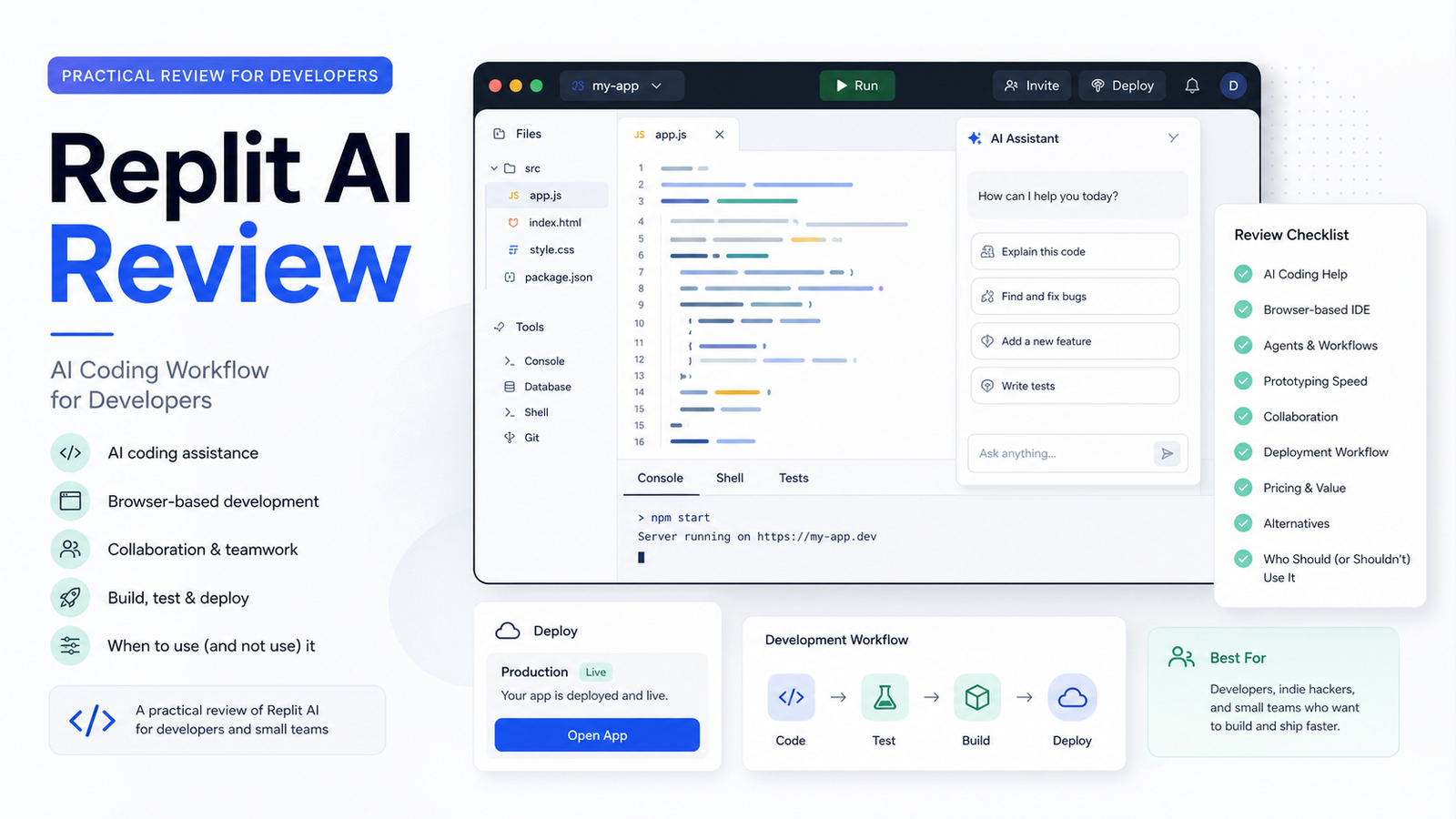
    Replit AI is worth considering if you want a browser-based coding environment with AI agents, collaboration, databases, deployments, and fast prototyping in one place. It is not the right fit for every professional developer, especially teams already deep in local IDEs, custom infrastructure, and strict enterprise engineering workflows.

    Quick Verdict

    Replit AI is best for prototyping, learning, small apps, internal tools, and founders who want to move quickly from idea to working project. Developers should treat it as a coding workflow platform, not a guarantee that AI-generated code is production-ready.

    Best For

    • Founders and small teams building prototypes.
    • Developers who want a browser-based workspace.
    • Students and builders learning full-stack development.
    • Teams that want quick collaboration and publishing.
    • Non-engineering operators building simple internal apps with developer review.

    Not Best For

    • Teams that require local-first development and custom infrastructure.
    • Regulated engineering teams with complex compliance needs.
    • Developers who want AI to replace code review.
    • Large codebases that already depend on mature local tooling.

    Our Evaluation Criteria

    This Replit AI review evaluates setup speed, coding workflow, AI agent usefulness, collaboration, deployment, pricing clarity, governance fit, limitations, alternatives, and value for money. This review is based on official Replit product and pricing information, not hands-on testing.

    What Replit AI Does

    Replit combines development workspace, AI assistance, databases, deployment, collaboration, and publishing. Its official pricing page describes Starter, Replit Core, Replit Pro, and Enterprise. It also notes that Replit Agent is powered by large language models and may occasionally make mistakes.

    That warning matters. Replit AI can speed up building, but human review remains essential. A useful workflow is to let the agent draft or modify code, then review the architecture, security, dependencies, data handling, tests, and deployment behavior before relying on it.

    Pricing

    Replit's official pricing page lists Starter as free. Replit Core is shown at $20 per month when billed annually, with $25 of monthly credits, up to 5 collaborators, up to 2 agents in parallel, unlimited workspaces, and Replit AI integrations. Replit Pro is shown at $95 per month when billed annually, with $100 monthly credits, up to 15 collaborators, up to 50 viewers, up to 10 agents in parallel, access to powerful models, database rollbacks for up to 28 days, and premium support. Enterprise is custom.

    Pricing last checked on June 24, 2026.

    Key Features

    Browser-Based Development

    Replit is useful when the team wants to avoid local setup. A user can start projects in the browser, invite collaborators, and publish apps without building a custom environment first. This is helpful for workshops, prototypes, quick demos, and internal tools.

    AI Agent Workflow

    The Agent workflow can help create or modify app code from prompts. The practical value is speed, but the risk is over-trusting generated changes. Developers should review diffs, dependencies, permissions, and security-sensitive logic.

    Collaboration

    Core and Pro plans include collaborator limits, which makes Replit more useful for pair building, client demos, team learning, and quick internal app experiments.

    Publishing And Deployment

    Replit includes publishing features, which can reduce friction for simple apps. Teams should still document environment variables, domain settings, database behavior, and rollback plans.

    Real Use Cases

    Startup MVPs

    A founder could use Replit AI to sketch a basic app, landing page, or admin tool before hiring a full development team. A developer should still review the project before customer data is involved.

    Internal Tools

    An operations team could prototype a small form, reporting helper, or automation dashboard. Replit can be useful when speed matters more than long-term architecture at the first stage.

    Education And Learning

    Students and new developers can use Replit because setup friction is low. AI help can explain code and suggest changes, but learning still requires reading and understanding the output.

    Client Demos

    Agencies or consultants can build quick demos for stakeholders. This is useful for discovery, but production handoff needs documentation and review.

    Alternatives

    Tool Best For Main Strength Limitation
    Replit Browser-based AI app building Workspace, agent, collaboration, publishing Generated code still needs review
    Cursor Local AI code editor workflow Strong developer IDE fit Requires local setup
    GitHub Copilot AI assistance inside existing IDEs Fits professional developer workflows Less all-in-one than Replit
    Lovable No-code app prototypes Fast product idea creation Less traditional developer control
    Bolt Browser-based app generation Fast project scaffolding Production readiness needs review

    Pros

    • Fast setup for prototypes and small apps.
    • Free Starter plan exists for exploration.
    • Core and Pro include monthly credits and collaboration.
    • Browser workflow lowers setup friction.
    • Publishing path is useful for demos and internal tools.

    Cons

    • AI output can be wrong and must be reviewed.
    • Pro pricing may be high for casual builders.
    • Complex engineering teams may prefer local IDEs and custom pipelines.
    • Credit usage needs monitoring.
    • Enterprise needs custom evaluation.

    Common Mistakes

    The biggest mistake is treating an AI-built prototype as production-ready. Teams should still review authentication, database rules, dependency safety, API keys, input validation, logging, backups, and deployment behavior. The second mistake is choosing Replit only because it is fast. Speed is valuable, but long-term maintainability matters.

    Final Recommendation

    Choose Replit AI if your main job is rapid prototyping, learning, demos, or simple internal apps. Choose Cursor, GitHub Copilot, or a local development workflow if your team already has mature engineering practices and wants AI inside that process. Replit is strongest when the cost of setup is the main blocker.

    For related coverage, see our Cursor alternatives guide and Replit vs GitHub Copilot comparison.

    FAQs

    Is Replit AI good for beginners?

    Yes, Replit can be useful for beginners because it removes local setup friction and provides a browser-based environment. Beginners should still learn what the generated code does.

    Can Replit AI build production apps?

    It can help build apps, but production readiness depends on code review, security, testing, deployment setup, data handling, and maintainability.

    How much does Replit cost?

    Replit's official pricing page lists Starter as free, Core at $20 per month billed annually, Pro at $95 per month billed annually, and Enterprise as custom. Pricing last checked on June 24, 2026.

    Who should use Replit Pro?

    Replit Pro is more relevant for commercial or professional builds where higher monthly credits, more collaborators, more viewers, parallel agents, database rollback, and premium support matter.

    Is Replit better than Cursor?

    Replit is better for browser-based building and quick publishing. Cursor is better for developers who want AI inside a local editor-style workflow.

    Does Replit replace a developer?

    No. It can help generate and modify code, but developers still need to review architecture, security, data handling, and deployment decisions.

    What should teams review before shipping?

    Review dependencies, authentication, database rules, environment variables, logs, error handling, backups, and user permissions.

    Is Replit good for agencies?

    It can be useful for prototypes and demos. Agencies should create a handoff process before using Replit output for client production systems.

    Implementation Notes

    Start with a small app that has low business risk. Ask Replit AI to create a draft, then inspect every file. Keep a change log of what the agent changed and what humans approved. This creates a healthier workflow than prompting until the app appears to work.

    How Developers Should Evaluate Replit AI

    Developers should evaluate Replit AI by building one small but real project. A good pilot has a database, one external API, user input, error handling, and a deployment step. This is enough to reveal whether the workflow helps or whether the team still needs local tooling.

    During the pilot, review the generated code line by line. Check whether the app stores secrets safely, validates input, handles errors, uses dependencies responsibly, and keeps business logic understandable. AI-generated code can look plausible while hiding weak structure. A review habit matters more than the prompt.

    Setup And Maintenance Considerations

    Replit is attractive because setup is fast. That is a real advantage for learning, prototyping, and internal tools. The tradeoff is that professional teams still need conventions. Decide where documentation lives, how environment variables are managed, who reviews agent changes, and how deployed apps are monitored.

    For a small team, the practical workflow is simple: create the project, prompt the agent for a small task, review the diff, run the app, fix errors, document the change, then deploy only after approval. This keeps AI in the assistant role rather than letting it silently become the engineer of record.

    Security And Data Notes

    Do not give any AI coding tool production credentials, private customer data, or sensitive internal logic unless the company has approved the workflow. Use test keys, sample data, and development environments. If the project will handle customer data, payment data, authentication, or private business records, require developer review before launch.

    When Replit Is The Right Choice

    Replit is most compelling when the alternative is not a mature development workflow but no working app at all. For founders, students, operators, and small teams, reducing setup friction can be valuable. It lets the team explore ideas quickly and learn what needs to be built properly later.

    For engineering-heavy teams, Replit may still be useful for demos, prototypes, or education, but not necessarily as the main production workflow. The decision should be based on project risk, team skill, review process, and maintainability.

    Review Workflow For AI-Generated Code

    A Replit AI workflow should include review checkpoints. First, check whether the generated app matches the requested behavior. Second, inspect security-sensitive areas such as authentication, forms, database access, file uploads, API calls, and environment variables. Third, review dependencies and generated configuration. Fourth, test the app with normal and edge-case inputs.

    This review process does not need to be complicated for prototypes, but it should exist. A small team can use a simple checklist: what changed, why it changed, how it was tested, what risk remains, and who approved it. That checklist prevents AI coding from becoming a black box.

    Team Fit

    Replit fits teams that value speed, shared access, and low setup friction. It is especially useful when a non-developer founder wants to work with a developer, when a student needs a learning environment, or when a small team needs a quick internal tool. It fits less well when the company already has mature repositories, CI/CD, infrastructure, security review, and local development standards.

    Value For Money

    The paid plan decision should be based on how often the team uses credits, how many collaborators need access, and whether parallel agents or higher plan limits save real time. A casual builder may not need a paid plan. A team using Replit as a serious prototyping environment may justify the spend if it replaces setup work and shortens the path to a useful demo.

    Final Buying Checklist

    Before paying, build one real but low-risk app. Confirm that the team understands credit use, collaboration limits, deployment process, database behavior, and review needs. If the tool makes the project faster while keeping code understandable, it is a good fit. If it creates code the team cannot maintain, choose a more conventional developer workflow.
  • Replit vs GitHub Copilot: Which AI Coding Tool Fits Your Workflow?

    Replit vs GitHub Copilot: Which AI Coding Tool Fits Your Workflow?

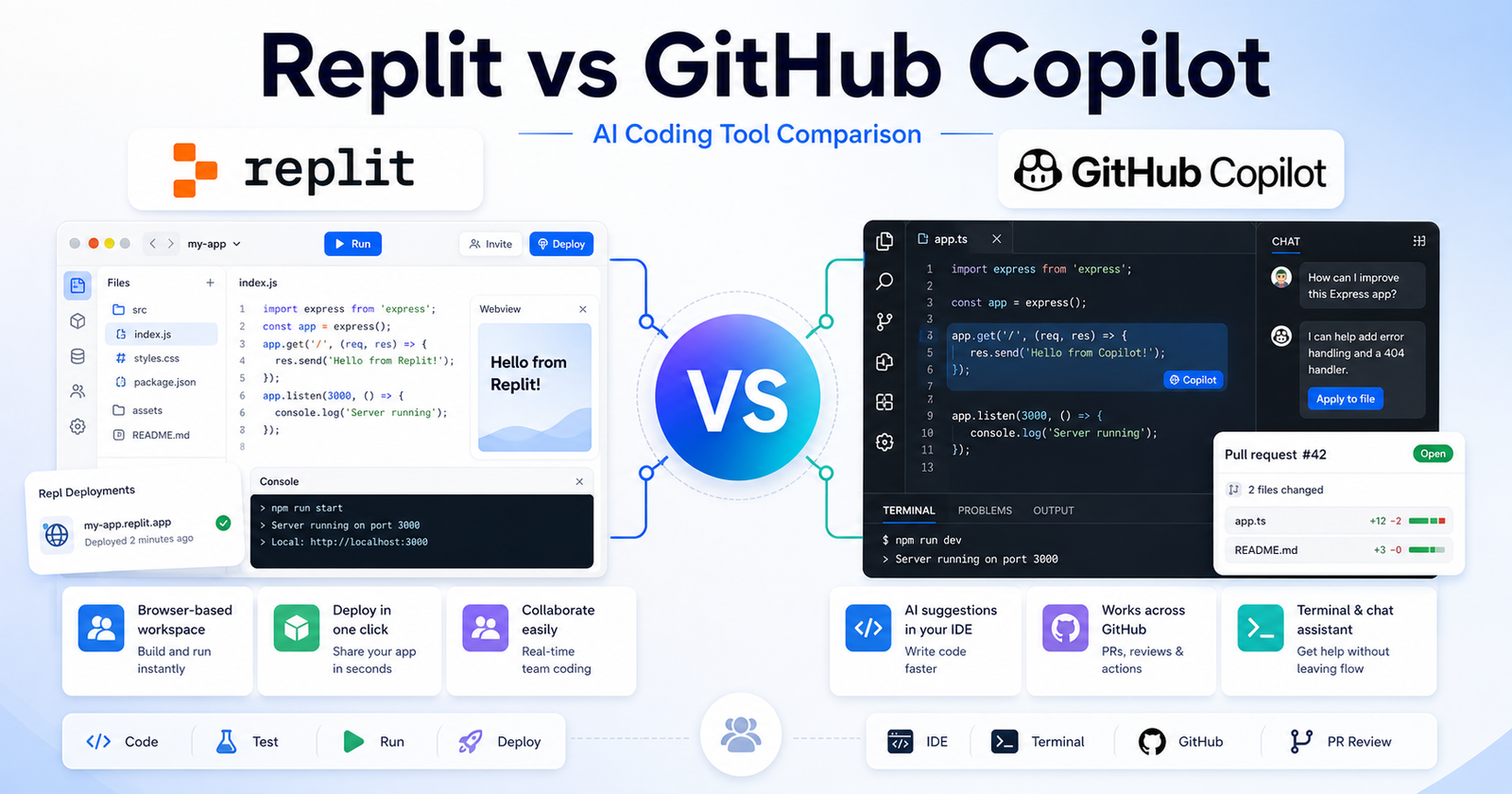
    Replit vs GitHub Copilot: Which AI Coding Tool Fits Your Workflow? is a practical comparison for people choosing an AI tool for browser-based app building versus coding help inside developer environments. The short version is simple: Choose Replit if you want to build, run, and deploy from a browser workspace. Choose GitHub Copilot if you already code in an IDE and want AI help inside your existing development flow.

    This article uses verified official product and pricing pages as the safest source of truth. You can review Replit official website and GitHub Copilot official website. Pricing changes often, so check Replit pricing page and GitHub Copilot pricing page before buying.

    Quick Verdict

    Choose Replit if you want to build, run, and deploy from a browser workspace. Choose GitHub Copilot if you already code in an IDE and want AI help inside your existing development flow.

    Do not choose only by the biggest feature list. Choose by the work you repeat every week, the amount of cleanup each output needs, and whether the tool fits your existing workflow.

    Replit vs GitHub Copilot: Quick Comparison

    Comparison Point Replit GitHub Copilot
    Main purpose Replit is best suited for beginners, founders, students, and builders who want a browser workspace that can generate, run, and host projects. GitHub Copilot is best suited for developers and engineering teams already using github, vs code, jetbrains, or terminal-based workflows.
    Best audience beginners, founders, students, and builders who want a browser workspace that can generate, run, and host projects. developers and engineering teams already using GitHub, VS Code, JetBrains, or terminal-based workflows.
    Core workflow Start inside Replit and shape the output around its native workflow. Use GitHub Copilot where its assistant, search, design, coding, or automation flow already fits your work.
    Ease of use Strong when the user understands the intended workflow and keeps the first task focused. Strong when the user has a clear task and knows how to review AI output.
    Control Good for its primary workflow, but advanced control depends on the product category. Good for users who want more flexibility or a broader assistant/workspace model.
    Team fit Useful when the team shares a clear use case and review process. Useful when team members already work in the connected ecosystem.
    Research fit Better when its source or workspace model matches the job. Better when the user needs wider exploration or repeated follow-up questions.
    Content creation Can help produce drafts or structured outputs when prompts are specific. Can help create, revise, analyze, or automate content depending on the workflow.
    Learning curve Lower for users who match the primary use case. Lower for users already familiar with the broader platform or ecosystem.
    Main limitation Not always the best choice outside its strongest workflow. May require more setup, review, or prompt discipline for complex work.
    Best decision rule Choose Replit when its workflow removes the biggest bottleneck. Choose GitHub Copilot when its strengths match the job you repeat most often.

    Pricing Comparison

    Replit and GitHub Copilot price very different coding workflows. Replit bundles a browser-based app-building workspace with monthly credits and collaborators. GitHub Copilot prices AI coding assistance by individual and organization plans with included GitHub AI Credits.

    Pricing Point Replit GitHub Copilot
    Free plan Starter is free. Copilot Free is $0.
    Free usage limit Free daily Agent credits and publishing up to 1 project. 2,000 completions per month and 50 chat requests.
    Cheapest paid plan Replit Core at $25/month, or $20/month billed annually. Copilot Pro at $10/month.
    Mid-tier paid plan Replit Pro at $100/month, or $95/month billed annually. Copilot Pro+ at $39/month.
    High-usage plan Enterprise custom pricing. Copilot Max at $100/month.
    Business/team plan Replit Pro includes up to 15 collaborators; Enterprise adds custom seat limits. Copilot Business is $19 per granted seat per month.
    Enterprise plan Custom pricing with SSO/SAML and advanced privacy controls. Copilot Enterprise is $39 per granted seat per month.
    Included credits Core includes $25 monthly credits; Pro includes $100 monthly credits. Pro includes $15 monthly total credits, Pro+ $70, Max $200.
    Collaborators Core invites up to 5 collaborators; Pro invites up to 15 collaborators and 50 viewers. Business and Enterprise are seat-based organization plans.
    Workspace/project limits Starter publishes up to 1 project; Core includes unlimited workspaces. Copilot works inside supported IDEs, CLI, GitHub Mobile, and GitHub.com depending on plan.
    Agent/workflow limits Core can work in parallel with up to 2 agents; Pro with up to 10 agents. Cloud agent, CLI, and agent features consume GitHub AI Credits.
    Official pricing page Replit pricing GitHub Copilot pricing

    Plan-by-Plan Pricing

    Tool Plan Monthly Price Annual Price Best For Key Limits
    Replit Starter $0 $0 Exploring app creation Free daily Agent credits, publish up to 1 project
    Replit Core $25/month $20/month billed annually Personal projects and simple apps $25 monthly credits, 5 collaborators, 2 parallel agents
    Replit Pro $100/month $95/month billed annually Commercial and professional builds $100 monthly credits, 15 collaborators, 10 parallel agents
    Replit Enterprise Custom Custom Enterprise-grade security and controls Custom seat limits, SSO/SAML, advanced privacy controls
    GitHub Copilot Free $0 $0 Trying Copilot 2,000 completions/month, 50 chat requests
    GitHub Copilot Pro $10/month Monthly plan listed Individual developers Unlimited completions, model selection, $15 monthly total credits
    GitHub Copilot Pro+ $39/month Monthly plan listed Power users needing premium models $70 monthly total credits, premium models, audit logs
    GitHub Copilot Max $100/month Monthly plan listed Sustained high-volume agent workflows $200 monthly total credits, priority model access
    GitHub Copilot Business $19/seat/month Monthly plan listed Teams needing policy and pooled controls Organization controls and monthly AI credit pool
    GitHub Copilot Enterprise $39/seat/month Monthly plan listed Enterprises needing GitHub.com integration Advanced customization and larger credit pool

    GitHub Copilot is cheaper for individual coding assistance. Replit costs more on paid plans, but it includes a browser workspace, deployments, collaborators, and app-building credits.

    Pricing last checked: June 12, 2026. For the latest details, visit the Replit official pricing page and GitHub Copilot official pricing page.

    What Is Replit?

    Replit official website is one side of this comparison because it gives users a focused way to handle browser-based app building versus coding help inside developer environments. It is strongest when the user has a clear task, understands the expected output, and reviews the result before using it in business-critical work.

    The practical advantage of Replit is not that it can do everything. The advantage is workflow fit. If your day-to-day work looks like beginners, founders, students, and builders who want a browser workspace that can generate, run, and host projects., Replit deserves a serious test.

    What Is GitHub Copilot?

    GitHub Copilot official website is the other side of this comparison because it approaches the same buying decision from a different workflow. It is strongest when users need developers and engineering teams already using github, vs code, jetbrains, or terminal-based workflows.

    The best way to evaluate GitHub Copilot is to use the same task you would give to Replit. Compare the usable output, not just the first impression. A strong AI tool should reduce the work needed after generation.

    Feature And Workflow Comparison

    Output Quality

    Both tools can produce useful output, but quality depends on the task and the review process. Replit is a better fit when the task sits inside its main workflow. GitHub Copilot is a better fit when you need the type of control, ecosystem, or assistant behavior it provides.

    Speed

    Speed matters only when the result is usable. If one tool creates a first draft faster but requires more cleanup, it may not actually save time. Test both tools with one realistic project and measure the time from prompt to publishable, shareable, or deployable output.

    Control

    Control is where many buyers make the wrong decision. Some users need a simple guided workflow. Others need deeper editing, collaboration, technical control, or source review. Choose the tool that gives you enough control without making the workflow feel heavy.

    Collaboration

    For teams, the best tool is the one people will actually use consistently. Check whether your team can review outputs, share work, manage access, and keep the final result aligned with brand, quality, or technical standards.

    Best Use Cases For Replit

    • beginners, founders, students, and builders who want a browser workspace that can generate, run, and host projects.
    • Users who want the tool’s default workflow instead of a heavily customized setup.
    • Teams that can define a clear prompt, review output, and repeat the process.
    • Buyers who want a focused product rather than a broad collection of unrelated features.
    • People who value a faster first draft when the final output still gets human review.

    Best Use Cases For GitHub Copilot

    • developers and engineering teams already using GitHub, VS Code, JetBrains, or terminal-based workflows.
    • Users who want a workflow that connects better with their existing tools.
    • Teams that need repeated output, structured review, and predictable handoff.
    • Buyers who care about flexibility and control after the first AI response.
    • People willing to compare plan limits, output quality, and cleanup time carefully.

    Pros And Cons

    Replit Pros

    • Strong fit for beginners, founders, students, and builders who want a browser workspace that can generate, run, and host projects.
    • Useful when the task is clear and repeatable.
    • Easier to evaluate with a small real-world project.
    • Can reduce setup time when its workflow matches the job.
    • Good candidate for teams that want a focused use case.

    Replit Cons

    • May not be the best choice outside its core workflow.
    • Output still needs human review.
    • Pricing and limits should be checked before buying.
    • Some teams may need more control than the default workflow provides.

    GitHub Copilot Pros

    • Strong fit for developers and engineering teams already using github, vs code, jetbrains, or terminal-based workflows.
    • Useful when users need its specific ecosystem or workflow.
    • Can be a better long-term fit for repeated work.
    • Gives buyers a different way to solve the same core problem.
    • Worth testing when the first tool feels too narrow.

    GitHub Copilot Cons

    • May require more setup or learning for some users.
    • Output quality depends heavily on prompts and review.
    • Pricing, limits, and team features should be checked carefully.
    • It may be more tool than casual users need.

    Which One Should You Choose?

    Choose Replit if your work mainly involves beginners, founders, students, and builders who want a browser workspace that can generate, run, and host projects. Choose GitHub Copilot if your work mainly involves developers and engineering teams already using github, vs code, jetbrains, or terminal-based workflows.

    If you are unsure, use the same project brief in both tools. Compare quality, speed, cleanup time, export or handoff options, and current official pricing. The best AI tool is the one that gives you reliable output with the least repeated friction.

    For another developer-focused angle, compare this with our Cursor vs Windsurf comparison breakdown; if your goal is shipping full apps rather than coding assistance, the Lovable vs Bolt comparison guide is also worth reading.

    Final Verdict

    Choose Replit if you want to build, run, and deploy from a browser workspace. Choose GitHub Copilot if you already code in an IDE and want AI help inside your existing development flow. Both tools can be useful, but they are not interchangeable. The safer decision is to start with the tool that matches your weekly workflow, then upgrade only when the output quality and time savings are clear.

    FAQs

    Is Replit better than GitHub Copilot?

    Replit is better when your work matches its strongest use case: beginners, founders, students, and builders who want a browser workspace that can generate, run, and host projects. GitHub Copilot is better when your work matches its strongest use case: developers and engineering teams already using github, vs code, jetbrains, or terminal-based workflows.

    Is GitHub Copilot better than Replit?

    GitHub Copilot can be better if you need its workflow more often. The right choice depends on the type of work you repeat, the review process on your team, and how much control you need after the first AI-generated result.

    Which tool is easier for beginners?

    Replit may feel easier for users who fit its default workflow. GitHub Copilot may feel easier for users already familiar with its ecosystem. Beginners should test the same small task in both tools before paying.

    Which tool is better for teams?

    Teams should choose the platform that fits their shared workflow, admin needs, review habits, and budget. A tool that works for one solo user may not be the best team system.

    Can I use both tools together?

    Yes. Many teams use more than one AI tool when each tool solves a different part of the workflow. The risk is paying for overlapping subscriptions without enough usage.

    Do these tools have free plans?

    Free access and trial details can change. Check the official pricing pages before making a buying decision.

    Which tool has better AI output?

    Output quality depends on the task, prompt clarity, source material, model access, and the human review process. Run one realistic project in both tools and compare cleanup time.

    Which tool is better for business use?

    For business use, compare security requirements, team controls, data handling, export options, support, and predictable pricing. Do not judge only by demo quality.

    Should I choose based on price?

    Price matters, but workflow fit matters more. The cheaper tool can become expensive if every output needs heavy cleanup or if your team does not actually use it.

    What is the fastest way to choose?

    Prepare one realistic task, run it through both tools, compare the result, check the official pricing pages, and choose the one that saves more usable time.

  • Cursor vs Windsurf: Which AI Coding Tool Should Developers Choose?

    Cursor vs Windsurf is one of the most useful comparisons for developers who want AI help inside their coding workflow. Both tools are built for software development, both focus on AI-assisted coding, and both can help with tasks such as understanding code, editing files, and moving faster through repetitive development work.

    The right choice depends on how you like to work. Cursor is positioned as an AI coding agent for building software, with official documentation covering agent mode, rules, MCP, skills, CLI, models, and team setup. Windsurf has recently been connected to Devin Desktop branding, with the official Devin page stating that Desktop is the new name for Windsurf and that existing Windsurf plans and pricing stay the same.

    Quick Verdict

    Cursor is a better fit if you want an AI-first coding environment with strong documentation around agents, rules, CLI workflows, and team administration. Windsurf, now presented through Devin Desktop messaging, may be a better fit if you already use Windsurf and want continuity in that workflow. Developers should compare both tools using current official pricing pages, editor support, team requirements, and the way each product fits their daily coding habits.

    Cursor vs Windsurf: Quick Comparison

    Comparison Point Cursor Windsurf / Devin Desktop
    Product type AI coding agent and code editor workflow AI coding editor/workflow now connected to Devin Desktop branding
    Best for Developers who want agentic coding features and documented team workflows Existing Windsurf users and developers evaluating the Devin Desktop transition
    Documentation Official Cursor docs cover agent mode, rules, MCP, skills, CLI, models, and team setup Devin page points users to docs and explains Windsurf/Desktop naming transition
    Pricing Cursor pricing should be checked on the official pricing page before buying Devin says current Windsurf plan and pricing stay the same, but users should verify current details
    Team features Cursor pricing page lists team billing/admin features for Teams Team or enterprise details should be checked from official Devin/Windsurf sources

    What Is Cursor?

    Cursor is an AI coding tool built around the idea of using an AI agent to help developers build software. Its official website describes Cursor as a coding agent for building ambitious software. Cursor also provides official documentation for agent mode, rules, MCP servers, skills, CLI usage, models, and team or enterprise setup.

    That matters because developers usually need more than a chat box. A useful AI coding tool should fit into the real coding workflow: reading project files, editing code, following project rules, helping with commands, and supporting repeatable team practices.

    Cursor is especially interesting for developers who want an editor-centered AI workflow instead of copying code back and forth between a chatbot and their IDE.

    What Is Windsurf?

    Windsurf has been known as an AI coding editor. The current official Devin Desktop page says Desktop is the new name for Windsurf and notes that existing Windsurf plan and pricing details stay the same. It also says Windsurf for JetBrains continues to be available.

    That makes the naming slightly confusing for people searching for Windsurf today. If you are comparing Cursor vs Windsurf, you should check the current official Devin/Windsurf pages before making a decision, especially if your decision depends on editor support, plan limits, or team features.

    For practical purposes, many users still search for Windsurf because that is the product name they remember. But the official source language now points users toward Devin Desktop, so the comparison should be understood in that context.

    Feature Comparison

    Cursor and Windsurf both serve developers, but the safest way to compare them is by workflow rather than hype.

    Cursor’s official documentation highlights areas such as agents, project rules, MCP servers, skills, CLI, models, and team setup. These features suggest that Cursor is designed for developers who want structured AI assistance inside a software project.

    For Windsurf, the most important verified point is the product transition. The official Devin Desktop page states that Desktop is the new name for Windsurf and that current plans and pricing stay the same. That is useful for existing users, but new buyers should still review the official documentation and pricing before choosing it.

    In short, Cursor currently has clearer public product positioning around agentic coding workflows. Windsurf may still be attractive for users who already like its editor experience or want to follow the Devin Desktop direction.

    Pricing Comparison

    Pricing can change, so this section should be treated as a starting point, not a final buying decision.

    Cursor has an official pricing page, and the page lists team-oriented features for Teams, including centralized team billing and administration. If you are buying for a company, that is the page to check before choosing a plan.

    For Windsurf, the official Devin Desktop page says current plans and pricing stay exactly the same, including legacy Windsurf Enterprise plans. It does not mean every user should rely on old pricing screenshots or third-party comparisons. Always confirm the current plan details from the official source before buying.

    Ease of Use

    Ease of use depends on how you prefer to code.

    Cursor may feel natural if you want an AI coding tool that is tightly connected to code editing and project-level agent workflows. Its documentation is helpful for developers who want to understand rules, CLI options, team setup, and how the agent fits into a project.

    Windsurf may feel familiar to users who already used it before the Devin Desktop transition. The safest recommendation is to try the current official product experience and compare it with Cursor on the same type of project.

    Best Use Cases

    Choose Cursor If

    • You want an AI-first coding editor workflow.
    • You care about documented agent features, rules, CLI, and team setup.
    • You want a tool positioned clearly around AI coding assistance.
    • You are evaluating AI coding tools for a team and need administration features.

    Choose Windsurf / Devin Desktop If

    • You already use Windsurf and want continuity.
    • You are interested in the Devin Desktop direction.
    • You need to check whether current Windsurf support fits your editor setup.
    • You want to compare the latest Devin/Windsurf experience against Cursor before switching.

    Pros and Cons

    Cursor Pros

    • Clear official positioning as an AI coding agent.
    • Official documentation covers advanced developer workflows.
    • Team-oriented pricing information is available on the official pricing page.
    • Useful for developers who want project-aware AI assistance.

    Cursor Cons

    • Pricing and limits should be checked carefully before committing.
    • It may require workflow adjustment if you already use a different editor setup.
    • Some teams may need to test it with real projects before deciding.

    Windsurf / Devin Desktop Pros

    • Existing Windsurf users have continuity according to the official Devin page.
    • Current Windsurf plan and pricing are stated to remain the same during the naming transition.
    • Windsurf for JetBrains is still referenced as available on the official Devin page.

    Windsurf / Devin Desktop Cons

    • Naming can be confusing for new users searching for Windsurf.
    • Buyers should verify current docs, pricing, and product direction from official pages.
    • Some comparison details may change as Devin Desktop evolves.

    Which One Should You Choose?

    Choose Cursor if you want a clearly documented AI coding agent workflow and you are evaluating tools based on coding assistance, team setup, and project-level AI features.

    Choose Windsurf or Devin Desktop if you already like the Windsurf workflow or want to follow the Devin product direction. Before switching, check the latest official pages to confirm pricing, supported editors, and plan details.

    For most developers, the best approach is simple: test both tools on the same coding task. Use a real project, compare how each tool reads context, suggests changes, handles multi-file edits, and fits into your daily workflow.

    If you are comparing coding environments beyond editor-first tools, the Replit vs GitHub Copilot comparison guide is the closest next read, while app-builder teams may also find Lovable vs Bolt comparison useful.

    Final Verdict

    Cursor vs Windsurf is not only a feature checklist. It is a workflow decision.

    Cursor currently has a stronger public documentation trail around agentic coding, project rules, CLI, and team workflows. Windsurf remains relevant, but users should understand the Devin Desktop transition and verify current official details before deciding.

    If you are choosing today, start with Cursor if you want a clearly documented AI coding agent experience. Consider Windsurf or Devin Desktop if you already use Windsurf or want to evaluate the updated Devin-branded direction.

    FAQs

    Is Cursor better than Windsurf?

    Cursor may be better if you want a clearly documented AI coding agent workflow. Windsurf may still fit users who prefer its existing editor experience or want the Devin Desktop direction.

    Is Windsurf now Devin Desktop?

    The official Devin Desktop page says Desktop is the new name for Windsurf. Users should check official Devin/Windsurf pages for the latest naming, downloads, and plan details.

    Does Cursor have team features?

    Cursor’s official pricing page lists team-focused features such as centralized team billing and administration. Teams should verify current plan details on the official pricing page before buying.

    Should beginners use Cursor or Windsurf?

    Beginners should choose the tool that feels easier on a real project. Cursor may be easier to evaluate because its official documentation explains agent, rules, CLI, and team workflows.

    Can I rely on old Windsurf pricing pages?

    No. The official Devin page says current Windsurf plans and pricing stay the same during the transition, but pricing can change. Always check the official source before buying.