Category: AI Video Generators

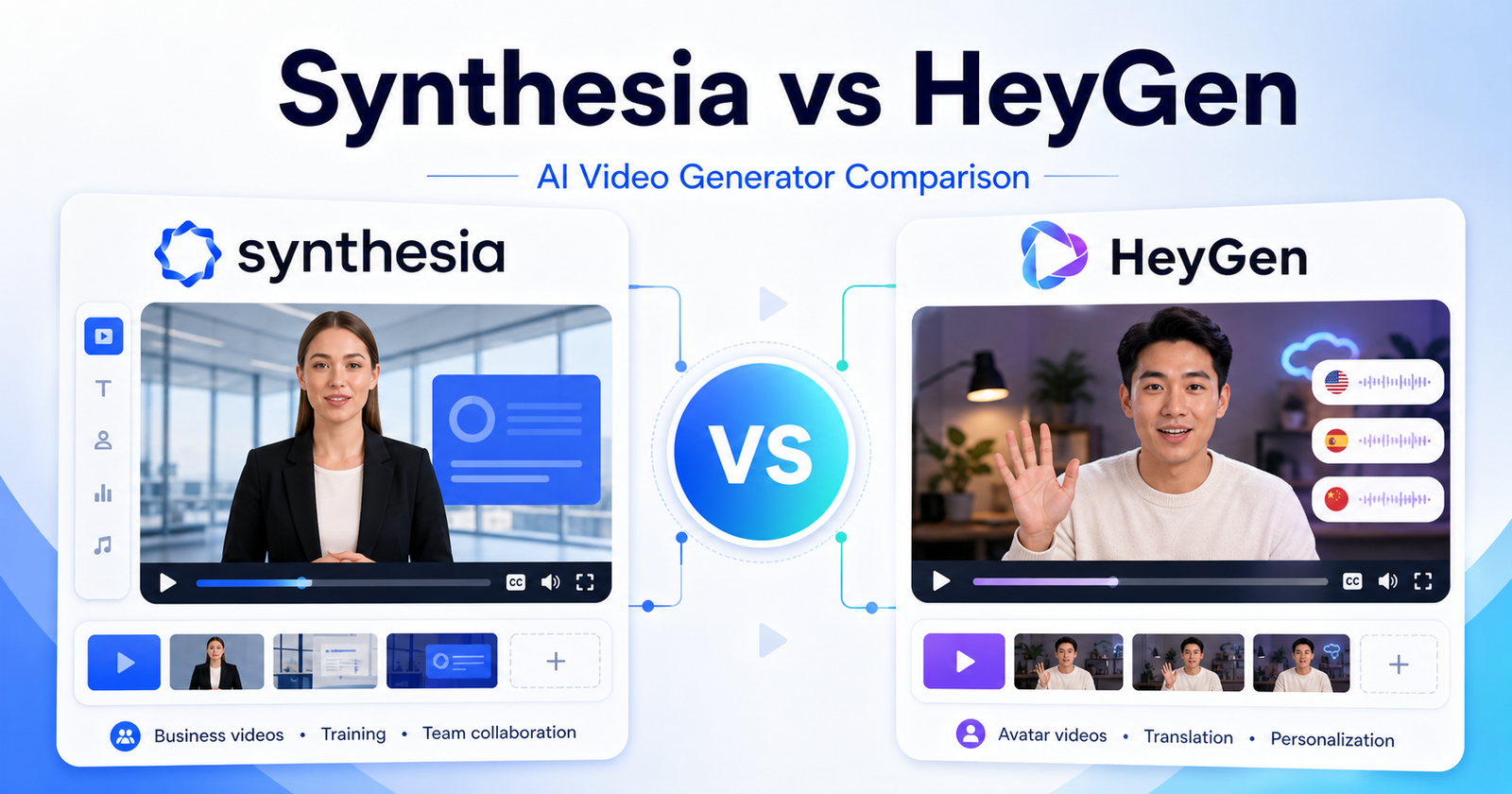
  • Descript vs Kapwing: Which AI Video Editor Should You Choose?

    Descript vs Kapwing: Which AI Video Editor Should You Choose?

    Quick Verdict

    Descript is the better choice if you want transcript-based video and audio editing. It works especially well for podcasters, YouTubers, course creators, marketers, and teams that edit by reading and rewriting the transcript. Its biggest strengths are media transcription, Studio Sound, filler-word removal, captions, clips, AI speech tools, and a document-like editing workflow.

    Kapwing is the better choice if you want a browser-based collaborative video editor for social content, subtitles, resizing, dubbing, repurposing, templates, brand assets, and team production. It is especially useful for marketing teams, schools, training teams, and creators who need a flexible online editor with AI tools around it.

    For editing long spoken content, Descript is usually stronger. For social video production, collaboration, and browser-based creative editing, Kapwing is usually more practical.

    Quick Comparison

    Comparison Point Descript Kapwing
    Main purpose Transcript-based AI video, audio, and podcast editing Browser-based video editing, AI tools, captions, repurposing, and collaboration
    Best for Podcasts, interviews, courses, tutorials, screen recordings, narrated videos Social videos, marketing clips, training videos, school projects, team content
    Core workflow Edit video and audio by editing text, transcript, captions, and timeline Edit in a web workspace with canvas, timeline, subtitles, templates, and AI tools
    Strongest feature area Spoken-content editing and cleanup Social video production and collaborative editing
    Captions and subtitles Strong caption and transcript workflow Strong subtitling, translation, and social-format workflow
    Audio cleanup Studio Sound, filler-word removal, AI speech tools Clean Audio, audio editor, dubbing, text-to-speech tools
    Repurposing Strong for clips, show notes, captions, and transcript-led edits Strong for resizing, clip creation, subtitles, templates, and social outputs
    Collaboration Useful team plans and brand controls on higher plans Collaborative shared workspace and team features on Pro and Business
    Free plan Free plan with limited media minutes Free plan with credits, storage, watermark exports, and short export limits
    Best paid starting point Hobbyist at $16 per person/month annually Pro at $16 per member/month annually
    Enterprise path Custom Enterprise plan Enterprise with custom credits, storage, billing, support, SSO, and onboarding
    Main limitation Less flexible for general visual/social layout editing than Kapwing Less specialized for deep transcript-first podcast editing than Descript
    Choose it if You edit spoken recordings and want faster cleanup You produce social/team videos in a browser workspace

    Pricing Comparison

    Both tools have a free plan and creator-friendly paid plans. Descript prices around media hours, AI credits, export quality, and team scale. Kapwing prices around credits, cloud storage, export length, watermark removal, 4K exports, team collaboration, and AI usage such as subtitles and dubbing.

    Pricing Point Descript Kapwing
    Free plan Free plan at $0 Free plan at $0
    Entry paid plan Hobbyist at $24 per person/month, or $16 per person/month on annual billing Pro at $24 per member/month, or $16 per member/month billed annually
    Mid paid plan Creator at $35 per person/month, or $24 per person/month on annual billing Business at $64 per member/month, or $50 per member/month billed annually
    Enterprise option Enterprise is custom Enterprise uses contact sales with custom credits and controls
    Annual discount Annual billing can save up to 35% Annual billing lowers Pro from $24 to $16 and Business from $64 to $50 per member/month
    Free limits 60 media minutes per month 10 credits, 2GB storage, watermark exports, up to 1-minute exports, 720p quality
    Entry paid usage 10 media hours and 400 AI credits per month 1,000 credits/month and 100GB cloud storage
    Higher paid usage Creator has 30 media hours and 800 AI credits; Business has 40 media hours and 1,500 AI credits Business has 4,000 credits/month and 500GB cloud storage
    Export quality Hobbyist exports 1080p watermark-free; Creator and Business support 4K watermark-free export Pro and Business support 4K export and no Kapwing watermark
    Team or workspace Creator scales to a team of 3; Business scales to a team of 5 Pro includes collaborative shared workspace; Business adds more team production capability
    Official pricing page Descript pricing page Kapwing pricing page
    Tool Plan Monthly Price Annual Price Best For Key Limits Or Notes
    Descript Free $0 $0 Trying text-based editing 60 media minutes per month
    Descript Hobbyist $24 per person/month $16 per person/month Solo creators 10 media hours and 400 AI credits per month
    Descript Creator $35 per person/month $24 per person/month Creators scaling video output 30 media hours, 800 AI credits, 4K export
    Descript Business $65 per person/month $50 per person/month Teams 40 media hours, 1,500 AI credits, Brand Studio, priority support
    Descript Enterprise Custom Custom Large teams SSO/SCIM, custom credits, custom media minutes, legal terms, flexible billing
    Kapwing Free $0 $0 Trying browser editing 10 credits, 2GB storage, watermark exports, up to 1-minute exports
    Kapwing Pro $24 per member/month $16 per member/month billed annually Individuals and small groups 1,000 credits/month, 100GB storage, no watermark, 4K export, 2-hour exports
    Kapwing Business $64 per member/month $50 per member/month billed annually Teams needing higher content output 4,000 credits/month, 500GB storage, voice clones, lip sync, additional credits
    Kapwing Enterprise Contact sales Custom Large organizations Custom credits, custom storage, custom billing, SAML SSO, onboarding and priority support

    Pricing sources checked: June 13, 2026. Sources: Descript official pricing page and Kapwing official pricing page.

    What Is Descript?

    Descript is an AI video, audio, podcast, transcription, screen recording, and editing platform. Its workflow is built around the transcript, so users can cut media by changing text, clean sound, remove filler words, add captions, create clips, and produce content without starting from a traditional timeline-first editor.

    Descript is strongest when the media is spoken. Podcasts, interviews, webinars, narrated tutorials, training videos, screen recordings, and educational content all benefit from transcript-led editing. Instead of scrubbing through a timeline for every sentence, the editor can scan the transcript and make changes faster.

    What Is Kapwing?

    Kapwing is an online video editor with AI tools for captions, subtitles, translation, dubbing, audio cleanup, clip making, smart cuts, text-to-speech, and browser-based video production. Its official pricing page highlights cloud storage, export limits, watermark rules, credits, 4K export, brand kit features, custom fonts, shared workspaces, and enterprise controls.

    Kapwing is strongest when content needs to become social, branded, resized, subtitled, or repurposed quickly. It is less about editing a podcast through text and more about giving teams a practical browser workspace for many kinds of video output.

    Descript vs Kapwing for Editing Workflow

    Descript is better for transcript-first editing. If your project is a recorded conversation, tutorial, podcast, or course, Descript’s text workflow can save time because the transcript becomes the map of the edit. You can remove a sentence, tighten a pause, clean audio, add captions, and create short clips from the same spoken source.

    Kapwing is better for visual editing and social production. It gives users a flexible web editor for arranging media, resizing clips, adding subtitles, cleaning audio, importing from links, using templates, and collaborating in a shared workspace. It feels more natural for teams that create many short videos in different formats.

    Descript vs Kapwing for Captions and Repurposing

    Both tools are useful for captions. Descript is better when captions are part of a transcript-led edit. Kapwing is better when captions are one part of a larger social workflow with resizing, translation, templates, and visual layout.

    For repurposing long content, Descript is strong when the source is a podcast, interview, webinar, or narrated lesson. Kapwing is strong when the output needs to become short-form clips, ads, social posts, training snippets, or visual explainers.

    Descript vs Kapwing for Teams

    Kapwing has a strong team angle because its Pro and Business plans emphasize collaborative shared workspaces, cloud storage, brand kit, custom fonts, and team production. That is useful for marketing departments, school teams, agencies, and businesses producing a lot of repeat visual content.

    Descript also supports teams, especially on Creator, Business, and Enterprise plans. It makes sense for teams where the shared workflow is audio, podcast, transcript editing, voice cleanup, or video repurposing from long recordings.

    Pros and Cons of Descript

    Descript Pros

    • Excellent transcript-based editing workflow
    • Strong for podcasts, interviews, tutorials, and spoken video
    • Useful AI tools for cleanup, captions, filler-word removal, clips, and speech workflows
    • Clear paid tiers with media hours and AI credits
    • 4K export on Creator and Business plans
    • Good fit for creators who want to edit without a complex timeline-first tool

    Descript Cons

    • Less flexible than Kapwing for general visual layout and social design workflows
    • Media hours and AI credits require plan attention
    • Team features and brand controls may require higher plans
    • Not the first choice for quick multi-format social graphics and browser layouts

    Pros and Cons of Kapwing

    Kapwing Pros

    • Strong browser-based editor for social and team video workflows
    • Free plan with credits and cloud storage
    • Pro plan includes 1,000 credits, 100GB storage, no watermark, and 4K export
    • Business plan adds more credits, 500GB storage, voice clones, and lip sync
    • Useful AI tools for subtitles, dubbing, audio cleanup, clip creation, smart cuts, and text-to-speech
    • Good fit for marketing, training, education, and social content teams

    Kapwing Cons

    • Less specialized than Descript for transcript-first podcast and interview editing
    • Free plan includes watermark exports and short export limits
    • Heavy AI usage may require Business or Enterprise
    • Browser-based workflows may not fit users who want a podcast-first editor

    If your workflow includes recording or podcast production, our Descript vs Riverside comparison comparison is a better fit; for repurposing long videos into clips, see OpusClip vs Vidyo.ai comparison.

    Which Tool Should You Choose?

    Choose Descript if you mainly edit spoken recordings. It is a better fit for podcasts, YouTube talking-head videos, course lessons, webinars, interviews, product walkthroughs, and any content where the transcript is the fastest path to the final edit.

    Choose Kapwing if you mainly create visual and social videos. It is a better fit for marketing clips, social posts, training content, school videos, resized videos, subtitles, templates, collaborative editing, and browser-based production.

    If you are a podcaster, start with Descript. If you are a marketing or social team, start with Kapwing. If you regularly turn long recorded content into short branded clips, both can make sense: Descript for transcript cleanup and Kapwing for final social formatting.

    FAQs

    Is Descript better than Kapwing?

    Descript is better than Kapwing for transcript-based editing, podcast editing, interview cleanup, spoken video, captions tied to transcripts, and AI audio cleanup. It is strongest when the recording is mostly speech.

    Is Kapwing better than Descript?

    Kapwing is better than Descript for browser-based visual editing, team collaboration, social video formatting, resizing, templates, subtitles, dubbing, and marketing videos. It is strongest when the final output is a visual or social asset.

    Does Descript have a free plan?

    Yes. Descript has a Free plan at $0. Its official pricing page lists 60 media minutes per month on the Free plan, with paid plans adding more media hours, AI credits, export quality, and team features.

    Does Kapwing have a free plan?

    Yes. Kapwing has a Free plan at $0. Its official pricing page lists 10 credits, 2GB of cloud storage, watermark exports, video exports up to 1 minute, and 720p video quality.

    Which is cheaper, Descript or Kapwing?

    Their entry annual-billing paid plans are similar. Descript Hobbyist is listed at $16 per person/month annually, while Kapwing Pro is listed at $16 per member/month annually. The better value depends on whether media hours or Kapwing credits matter more to your workflow.

    Which is better for podcasts?

    Descript is better for podcasts because its transcript-based workflow, audio cleanup, captions, clips, and spoken-content editing tools match podcast production more closely than Kapwing’s visual social editor workflow.

    Which is better for social media videos?

    Kapwing is usually better for social media videos because it is built around browser editing, subtitles, resizing, templates, social clips, visual layout, and team collaboration. Descript can create clips, but Kapwing is more social-format oriented.

    Which is better for teams?

    Kapwing is often better for visual content teams because of its shared workspace, cloud storage, brand kit, custom fonts, and browser collaboration. Descript is better for teams editing podcasts, interviews, and spoken video.

    Can Descript and Kapwing be used together?

    Yes. A team could use Descript to clean and edit the spoken recording, then use Kapwing to resize, brand, subtitle, and package the final clips for social channels.

    Which tool is easier for beginners?

    Descript is easier if you think in transcripts and spoken content. Kapwing is easier if you think in browser editing, templates, resizing, captions, and social formats. The easier tool depends on the content you make most often.
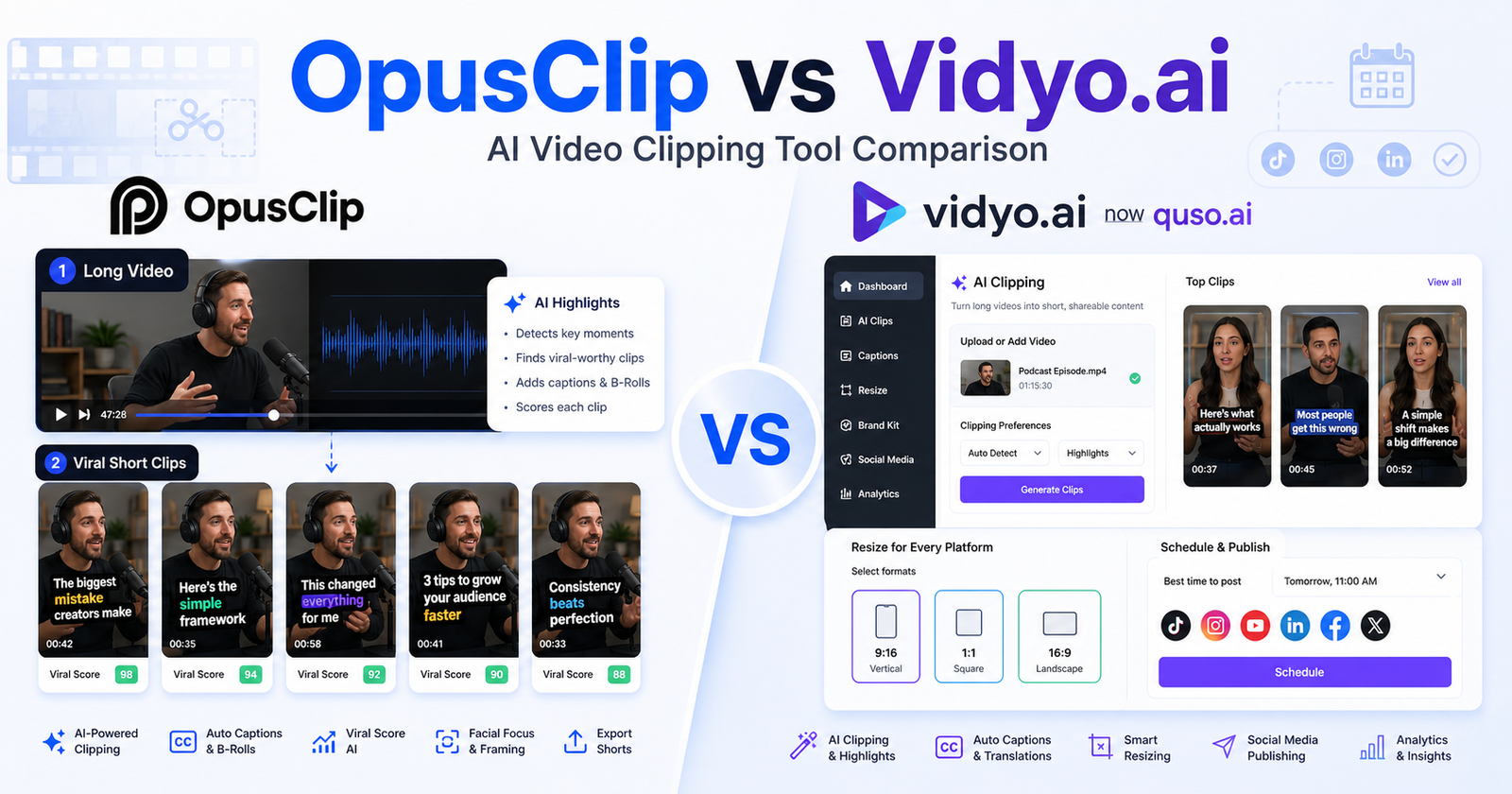
  • OpusClip vs Vidyo.ai: Which AI Video Clipping Tool Should You Choose?

    OpusClip vs Vidyo.ai: Which AI Video Clipping Tool Should You Choose?

    Quick Verdict

    OpusClip is the better choice if your main goal is turning long videos into short clips quickly. It is strongest for creators, podcasters, marketers, agencies, livestreamers, and teams that want AI clipping, virality scoring, animated captions, filler and silence removal, brand templates, social posting, and exports for tools such as Adobe Premiere Pro and DaVinci Resolve.

    Vidyo.ai now redirects to quso.ai, so this comparison treats Vidyo.ai as quso.ai. Quso.ai is the better choice if you want AI clips plus a wider social media content workflow. It combines clipping, captions, resizing, scheduling, content planning, analytics, social publishing, AI writing tools, and brand-kit features in one platform.

    Choose OpusClip if clipping quality and short-video repurposing are the priority. Choose quso.ai if clipping is only one part of a broader social media management workflow.

    Quick Comparison

    Comparison Point OpusClip Vidyo.ai / quso.ai
    Main purpose AI video clipping and long-to-short repurposing AI clipping, editing, scheduling, analytics, and social content planning
    Best for Creators, podcasters, marketers, agencies, livestreamers Coaches, businesses, creators, small teams, agencies, social media managers
    Core workflow Upload or import long video, generate short clips, refine, caption, export or post Create clips, resize, caption, plan, schedule, publish, and analyze social content
    Strongest feature area AI clipping with Virality Score Unified social content workflow around clips and scheduling
    Captions AI animated captions in 20+ languages AI subtitles, clip transcripts, full transcripts, social captions
    Resizing Multiple aspect ratios on Pro Resize to 16:9, 9:16, and 1:1 on visible plans
    Social publishing Auto post to YouTube Shorts, TikTok, and Instagram Reels on Starter 1-click scheduling and publishing to multiple social platforms on higher plans
    Editing depth Powerful editor, filler removal, silence removal, brand templates AI video editor, Intelliclips, Cutmagic, filler-word removal, content planner
    Team features Team workspace on Pro; custom business plan for larger needs Growth and custom plans add brand kit, analytics, templates, support, and higher minutes
    Free access Free plan with 60 credits per month Pricing page emphasizes paid Lite, Essential, Growth, and custom annual variants
    Best paid starting point Starter at $15/month Lite at $29/month or $24/month with annual billing shown
    Main limitation More focused on clipping than full social media operations More platform-like, so it may be more than users need for simple clipping
    Choose it if You mainly need the best long-video-to-short-clips workflow You need clipping plus scheduling, planning, and social content operations

    Pricing Comparison

    Both tools use usage-based limits, but the value is packaged differently. OpusClip prices around credits, clipping, social posting, brand templates, workspace seats, and creator or business needs. Quso.ai prices around AI clips, captions, video resizing, social scheduling, minutes, brand kit, analytics, and custom usage.

    Pricing Point OpusClip Vidyo.ai / quso.ai
    Entry paid plan Starter at $15/month Lite at $29/month, or $24/month with annual billing shown
    Mid paid plan Pro at $29/month, or $14.50/month with annual billing shown Essential at $39/month, or $32/month with annual billing shown
    Higher paid plan Business is custom Growth at $49/month, or $40/month with annual billing shown
    Annual savings Annual billing can save up to 50% Annual pricing cards show savings, including Essential annual at $21/month and Growth annual at $25/month in visible table text
    Free or starter usage Free has 60 credits; Starter has 150 credits per month Essential annual card lists 300 minutes per month; Growth annual card lists 600 minutes per month
    Pro or growth usage Pro lists 3,600 credits per year available instantly Custom annual card lists 900-1,800 minutes per month
    Social connections Starter auto posts to YouTube Shorts, TikTok, and Instagram Reels; Pro lists 6 social account connections Essential includes 1-click schedule to 7 social platforms; Growth adds unlimited scheduling and bulk publishing
    Brand assets Starter has 1 brand template; Pro has 2 brand templates Growth lists custom brand kit and templates
    Export or editing Pro includes export to Adobe Premiere Pro and DaVinci Resolve Visible plans include 1080p exports, resizing, and AI editing tools
    Official pricing page OpusClip pricing page quso.ai pricing page
    Tool Plan Monthly Price Annual Price Best For Key Limits Or Notes
    OpusClip Free $0 $0 Trying AI clipping 60 credits per month, 1080p rendered clips, watermark, clips exportable for 3 days
    OpusClip Starter $15/month Monthly only on the visible pricing card Individual creators 150 credits per month, Virality Score, captions, social posting, editor, 1 brand template
    OpusClip Pro $29/month $14.50/month, billed annually as $174 Professional creators and teams 3,600 credits/year, team workspace with 2 seats, 2 brand templates, 6 social accounts
    OpusClip Business Custom Custom Teams needing custom scale Custom credits, seats, social connections, assets, integrations, storage, security, support
    quso.ai Lite $29/month $24/month with annual billing shown Basic clipping and captions AI clips, captions, video generator, resizing, Full HD 1080p exports
    quso.ai Essential $39/month $32/month with annual billing shown; annual table also shows $21/month Creators needing AI tools and scheduling Filler removal, AI tools, scheduling to social platforms, content planner
    quso.ai Growth $49/month $40/month with annual billing shown; annual table also shows $25/month Teams managing social content Bulk publishing, analytics, brand kit, priority support, 600 minutes/month in annual table
    quso.ai Custom $42-$83/month range shown annually Custom annual range shown Higher-volume teams 900-1,800 minutes/month, based on visible custom card details

    Pricing sources checked: June 14, 2026. Sources: OpusClip official pricing page and quso.ai official pricing page.

    What Is OpusClip?

    OpusClip is an AI video repurposing platform for turning longer videos into short clips. Its official pricing page highlights AI clipping with Virality Score, animated captions, auto posting to YouTube Shorts, TikTok, and Instagram Reels, a video editor, brand templates, filler and silence removal, AI B-roll, multi-source imports, multiple aspect ratios, social scheduling, and exports to Adobe Premiere Pro and DaVinci Resolve on higher plans.

    OpusClip is focused. It is not trying to be a full social media operating system first. Its main job is to help users extract useful short clips from longer videos and publish them faster.

    What Is Vidyo.ai / quso.ai?

    Vidyo.ai now redirects to quso.ai. The current quso.ai product describes a broader social media and AI video workflow, including AI clip generation, subtitles, content repurposing, social media scheduling, content planning, analytics, AI social captions, video editing, Intelliclips, filler-word removal, and Cutmagic.

    Quso.ai is strongest when clipping is part of a larger content operation. It is useful for teams that want to create short clips, schedule them, analyze performance, manage brand assets, and keep social publishing in one dashboard.

    OpusClip vs Vidyo.ai for AI Clipping

    OpusClip is the more clipping-focused tool. The Virality Score, short-video generation, captions, social auto-posting, brand templates, and editor are all centered on turning long videos into clips quickly. If your main question is “Which moments should become shorts?”, OpusClip is closer to that job.

    Quso.ai also has clipping and Intelliclips, but its positioning is broader. It is better when clipping connects to social scheduling, planning, analytics, brand kits, bulk publishing, and recurring social workflows.

    OpusClip vs Vidyo.ai for Social Publishing

    OpusClip supports social posting and scheduling, especially on paid plans. Starter includes auto posting to YouTube Shorts, TikTok, and Instagram Reels, while Pro lists social scheduler features and multiple social account connections.

    Quso.ai has the stronger social operations angle. Its pricing page mentions scheduling to social platforms, unlimited social post scheduling on Growth, bulk publishing, advanced analytics, custom templates, brand kit, and priority support. That makes it more appealing for teams managing a full social calendar.

    OpusClip vs Vidyo.ai for Teams and Agencies

    Agencies that mostly sell clip repurposing may prefer OpusClip because the workflow is direct: long video in, clips out, captions, scoring, editing, and export. The Business plan adds custom credits, seats, social connections, brand assets, storage, API and custom integrations, and priority support.

    Teams that manage broader social campaigns may prefer quso.ai because it includes planning, scheduling, analytics, templates, social metadata, and content assistant features on higher plans.

    Pros and Cons of OpusClip

    OpusClip Pros

    • Strong AI clipping workflow for long videos
    • Virality Score helps prioritize potential shorts
    • Animated captions and social-ready outputs
    • Starter plan includes social auto-posting and watermark removal
    • Pro adds workspace seats, brand templates, multiple social connections, AI B-roll, and export options
    • Clear custom Business path for teams needing scale

    OpusClip Cons

    • More narrowly focused on video clipping than social management
    • Free plan has watermark and export time limits
    • Pro annual pricing is the stronger value, but some users may prefer simple monthly billing
    • Heavy teams may need custom Business pricing

    Pros and Cons of Vidyo.ai / quso.ai

    Quso.ai Pros

    • Broader workflow for clips, scheduling, planning, analytics, and social publishing
    • AI clips, captions, video resizing, and 1080p exports appear on visible paid plans
    • Essential adds access to more AI tools and social scheduling
    • Growth adds unlimited scheduling, bulk publishing, analytics, brand kit, templates, and priority support
    • Useful for coaches, content creators, agencies, and small businesses managing multiple channels

    Quso.ai Cons

    • Less narrowly optimized for pure clipping than OpusClip
    • Higher-volume users may need the Custom annual range shown in quso.ai pricing
    • Teams that only need clips may not need the broader social dashboard
    • Custom usage may be needed for higher monthly minute limits

    If you need a general AI video editor before clipping, our Descript vs Kapwing comparison comparison is the closest next read; for generative video, compare Runway vs Pika comparison.

    Which Tool Should You Choose?

    Choose OpusClip if your priority is creating short clips from long videos as efficiently as possible. It is the better fit for podcast clips, webinar clips, livestream highlights, YouTube Shorts, TikTok clips, Instagram Reels, and agency repurposing workflows.

    Choose quso.ai if your priority is managing social content around those clips. It is the better fit when you need AI clipping plus scheduling, content planning, analytics, captions, transcripts, brand templates, and recurring social publishing.

    The simplest decision is this: OpusClip is a clipping specialist. Quso.ai is a social content platform with clipping inside it.

    FAQs

    Is OpusClip better than Vidyo.ai?

    OpusClip is better if your main task is turning long videos into short clips quickly. Its workflow is more tightly focused on AI clipping, virality scoring, captions, and short-video repurposing.

    Is Vidyo.ai now quso.ai?

    Yes. The Vidyo.ai pricing URL redirects to quso.ai, and the quso.ai pricing page describes itself as formerly vidyo.ai. This article uses Vidyo.ai and quso.ai together so readers understand the current brand.

    Is quso.ai better than OpusClip?

    Quso.ai is better if you want clipping plus social scheduling, planning, analytics, content publishing, and brand workflow features. It is broader than a clipping-only workflow.

    Does OpusClip have a free plan?

    Yes. OpusClip lists a Free plan at $0 with 60 credits per month, rendered clips up to 1080p, auto reframe, AI captions, and a watermark.

    Which is cheaper, OpusClip or quso.ai?

    OpusClip Starter is listed at $15/month. Quso.ai Lite is listed at $29/month or $24/month with annual billing shown. For entry-level clipping, OpusClip has the lower visible starting price.

    Which is better for agencies?

    OpusClip is better for agencies focused on turning client podcasts, webinars, and videos into short clips. Quso.ai is better for agencies that also manage scheduling, analytics, templates, and social publishing.

    Which is better for social scheduling?

    Quso.ai is stronger for social scheduling because its higher plans emphasize scheduling to social platforms, unlimited social post scheduling, bulk publishing, analytics, and brand kits.

    Which is better for captions?

    Both tools support captions. OpusClip emphasizes AI animated captions in 20+ languages, while quso.ai includes AI subtitles and transcript-related features. OpusClip is stronger for clip-first captions; quso.ai is stronger when captions are part of social publishing.

    Can I use both OpusClip and quso.ai?

    Yes. A creator or agency could use OpusClip to find and produce clips, then use quso.ai for scheduling, analytics, and social workflow. Most users should start with one tool first to avoid overlapping subscriptions.

  • Runway vs Pika: Which AI Video Generator Should You Choose?

    Quick Verdict

    Runway is the better choice if you want a serious AI video production platform with advanced models, image-to-video, text-to-video, video editing, workflows, asset storage, third-party model access, team controls, and enterprise options. It is built for creators, filmmakers, marketers, agencies, and teams that want more control over professional AI video production.

    Pika is the better choice if you want fast, playful AI video creation with clear credit allowances, social-friendly effects, image-to-video, video-to-video, Pikascenes, Pikadditions, Pikaswaps, Pikatwists, Pikaffects, and simple creator plans. It is built for creators who want to experiment quickly, generate short clips, and make visually interesting videos without a heavy production workflow.

    For advanced creative teams, Runway is the stronger platform. For casual creators, social teams, and people who want a lower-friction AI video playground, Pika is easier to start with.

    Quick Comparison

    Comparison Point Runway Pika
    Main purpose Advanced AI video generation, editing, workflows, and production tools Fast AI video generation, effects, transformations, and social-ready clips
    Best for Filmmakers, creative teams, marketers, agencies, production teams Creators, social teams, short-form video makers, AI experimenters
    Core workflow Generate, edit, upscale, manage assets, run workflows, and use multiple models Create short clips with Pika models, effects, scenes, swaps, twists, and templates
    Product depth Broader creative production platform Simpler creator-focused AI video tool
    Free access Free plan with one-time credits Free/Basic plan with monthly video credits
    Paid starting point Standard at $12 per user/month billed annually Standard at $8/month billed yearly
    Credit model Credits translate into seconds or images depending on model Video credits are spent by feature, model, quality, and clip type
    Advanced models Gen-4.5, Gen-4, Gen-4 Turbo, Aleph, Act-Two, Veo options, and third-party models on paid plans Pika 2.5, Pikaframes, Pikascenes, Pikadditions, Pikaswaps, Pikatwists, and Pikaffects
    Editing depth Stronger for video editing and workflow controls Stronger for quick transformations and effects
    Team support Workspace user caps and enterprise organization controls Plan-based creator access with commercial use on listed plans
    Storage Free includes 5GB; Standard 100GB; Pro 500GB Pricing page focuses more on credits, access, speed, downloads, and commercial use
    Watermark removal Paid plans include removing watermarks across video models Listed plans include downloading videos with no watermark
    Best value angle More control and model depth for production work More credits and playful AI effects for short creative clips
    Main limitation More complex and credit-heavy for casual users Less suited to advanced production teams that need workflows and enterprise controls
    Choose it if You need advanced AI video generation and production infrastructure You need fast AI video creation, effects, and short-form experimentation

    Pricing Comparison

    Runway and Pika both use credit-based pricing, but they package value differently. Runway ties credits to advanced video models, image generation, workflows, storage, user limits, watermark removal, and enterprise controls. Pika ties credits to monthly video creation, model type, resolution, effects, commercial use, and generation speed.

    Pricing Point Runway Pika
    Free plan Free at $0 per editor/month Free/Basic at $0 billed yearly
    Entry paid plan Standard at $12 per user/month billed annually as $144 Standard at $8/month billed yearly
    Mid paid plan Pro at $28 per user/month billed annually as $336 Pro at $28/month billed yearly
    Highest self-serve plan Max at $76 per user/month billed annually as $912 Fancy at $76/month billed yearly
    Enterprise option Enterprise with custom pricing Pika pricing page presents four subscription plans; no separate enterprise plan is shown in the visible pricing table
    Annual discount Yearly billing shows 20% off Yearly billing shows 20% off
    Free credits 125 one-time credits 80 monthly video credits
    Entry paid credits Standard includes 625 credits monthly Standard includes 700 monthly video credits
    Mid paid credits Pro includes 2,250 credits monthly Pro includes 2,300 monthly video credits
    Highest self-serve credits Max includes 9,500 credits monthly Fancy includes 6,000 monthly video credits
    User limits Standard max 5 users per workspace; Pro and Max max 10 users per workspace Pika pricing focuses on plan access and credits rather than workspace user caps
    Storage Free 5GB, Standard 100GB, Pro 500GB Storage is not a primary visible pricing-table point
    Watermarks Standard and higher remove watermarks across video models Plans list download videos with no watermark
    Commercial use Production usage depends on plan and terms Commercial use is listed on visible plans
    Official pricing page Runway pricing page Pika pricing page
    Tool Plan Monthly Price Annual Price Credits Best For Key Limits Or Notes
    Runway Free $0 per editor/month $0 125 one-time credits Trying Runway tools 3 video editor projects, 5GB asset storage, no Gen-4 Video
    Runway Standard $12 per user/month billed annually $144/year 625 monthly credits Individuals and small teams Max 5 users per workspace, 100GB storage, watermark removal, unlimited video editor projects
    Runway Pro $28 per user/month billed annually $336/year 2,250 monthly credits Teams adding Runway into regular workflows Max 10 users per workspace, custom voices, 500GB storage
    Runway Max $76 per user/month billed annually $912/year 9,500 monthly credits Heavy usage and experimentation Max 10 users per workspace, unused credits roll over 1 month, first access to newest models
    Runway Enterprise Custom Custom Custom credit amounts Large organizations SSO, organization controls, advanced security, onboarding, priority support
    Pika Free/Basic $0 $0 80 monthly video credits Trying Pika Pika 2.5 at 480p only, image-to-video only, no-watermark downloads, commercial use
    Pika Standard $8/month billed yearly $96/year 700 monthly video credits Creators needing more videos and editing features All resolutions, Pikaframes, core Pika tools, fast generations
    Pika Pro $28/month billed yearly $336/year 2,300 monthly video credits Higher-volume creators Faster generations, Pika 2.5 all resolutions, core tools, no-watermark downloads
    Pika Fancy $76/month billed yearly $912/year 6,000 monthly video credits Heavy creative usage Fastest generations, Pika tools, no-watermark downloads, commercial use

    Pricing sources checked: June 13, 2026. Sources: Runway official pricing page and Pika official pricing page.

    What Is Runway?

    Runway is an AI creative platform focused on generative video, image generation, AI editing, workflows, and production tools. Its official pricing page lists access to models and tools such as Gen-4 Turbo, Gen-4, Gen-4.5, Aleph video editing, Act-Two performance capture, third-party video models, third-party image models, upscaling, workflow capabilities, video editor projects, asset storage, and enterprise controls.

    Runway feels like a production platform rather than a simple effect generator. It is useful when a creator or team needs a repeatable AI video workflow: generate clips, edit video, manage assets, upscale outputs, use different models, remove watermarks on paid plans, and organize work inside a workspace.

    The tradeoff is complexity. Runway gives more control, but that also means users need to understand credits, model choices, video seconds, storage, projects, and plan limits.

    What Is Pika?

    Pika is an AI video creation tool built around quick generation, transformations, effects, and creator-friendly experimentation. Its official pricing page lists Pika 2.5, Pikaframes, Pikascenes, Pikadditions, Pikaswaps, Pikatwists, Pikaffects, image-to-video, video-to-video, monthly video credits, no-watermark downloads, and commercial use on visible plans.

    Pika feels lighter than Runway. It is easier to understand if your goal is to create short clips, stylized videos, scene changes, swaps, twists, and social-ready visual experiments. The credit table is still important, but the product direction is more playful and immediate.

    That makes Pika a strong fit for social creators, content marketers, meme-style video makers, educators experimenting with AI clips, and teams that want fast visual variations without building a full production system.

    Runway vs Pika for AI Video Quality

    Runway is better suited to creators who care about production control, model choice, and workflow depth. Its pricing page connects paid plans with Gen-4.5, Gen-4, Gen-4 Turbo, Aleph, Act-Two, video apps, third-party video models, third-party image models, upscaling, and watermark removal. That variety gives advanced users more room to shape a final output.

    Pika is better suited to creators who care about speed and creative effects. Its named tools, including Pikascenes, Pikadditions, Pikaswaps, Pikatwists, and Pikaffects, make the workflow feel more like choosing a creative move and generating a clip around it.

    If your work needs controlled shots, production planning, model selection, and team output, Runway has the stronger ceiling. If your work needs quick, punchy, surprising video variations, Pika is easier to enjoy.

    Runway vs Pika for Ease of Use

    Pika is easier for casual creators. The plans are framed around credits and access to specific creative modes. A user can pick an effect or scene workflow, spend credits, and produce a short clip without thinking too much about production infrastructure.

    Runway is easier for serious creators once they understand the system. A production team can benefit from workflows, storage, projects, workspace controls, custom voices on Pro, and advanced enterprise controls. That makes Runway less casual, but more capable for teams that use AI video repeatedly.

    The practical answer is simple: Pika is easier to start, Runway is easier to scale.

    Runway vs Pika for Social Content

    Pika is the stronger fit for fast social content. Its product language is built around visually memorable effects and short video creation. If your goal is to make TikTok-style experiments, creative transformations, quick product clips, or surprising image-to-video outputs, Pika makes that workflow feel direct.

    Runway can also create social content, but it is often more than a social creator needs. It makes more sense when social content is part of a broader production process, such as ads, campaign videos, brand storytelling, product demos, or video experiments that need multiple models and asset control.

    Choose Pika when speed and novelty matter most. Choose Runway when consistency, control, and production depth matter more.

    Runway vs Pika for Teams and Agencies

    Runway is stronger for teams and agencies. Standard supports up to 5 users per workspace, while Pro and Max support up to 10 users per workspace. Enterprise adds organization controls, custom credit amounts, SSO, security and compliance support, onboarding, success programs, and priority support.

    Pika can still be useful for teams that need quick creative output, but its visible pricing table is more creator-plan oriented. It focuses on monthly video credits, access to creative tools, generation speed, no-watermark downloads, and commercial use.

    Agencies that need repeatable workflows, storage, advanced models, and team management should start with Runway. Social teams that mostly want a fast idea engine may prefer Pika.

    Pros and Cons of Runway

    Runway Pros

    • Broader AI video production platform with advanced models and workflows
    • Free plan for exploring the platform
    • Paid plans include monthly credits, watermark removal, and more export options
    • Standard, Pro, and Max plans support workspace user limits
    • Stronger asset storage and team-oriented plan structure
    • Enterprise option for large teams with security and organization needs

    Runway Cons

    • Credit usage can be harder to understand for casual users
    • Annual plan pricing is prominent on the official pricing page
    • Advanced workflow depth may be more than social-first creators need
    • Heavy use can require higher credit plans

    Pros and Cons of Pika

    Pika Pros

    • Easy to understand for fast AI video experiments
    • Free/Basic plan includes monthly video credits
    • Standard starts at a lower listed annual-billing monthly price than Runway Standard
    • Strong creative effects workflow with Pika-specific modes
    • No-watermark downloads and commercial use are listed in visible plan details
    • Good fit for social content, short clips, and fast idea generation

    Pika Cons

    • Less positioned around professional production infrastructure than Runway
    • Visible pricing focuses more on credits and creative modes than team administration
    • Heavy users may need Pro or Fancy to get enough monthly credits
    • Advanced teams may outgrow the simple creator-plan structure

    Which Tool Should Different Users Choose?

    User Type Better Choice Why
    Casual AI video experimenter Pika Easier effects and monthly credits for playful clips
    Filmmaker or advanced creator Runway More model depth, editing tools, workflows, and control
    Social media creator Pika Better fit for fast, visual, short-form experiments
    Marketing team Runway Stronger for campaign workflows, asset management, and production depth
    Agency Runway Better team and enterprise path
    Solo creator on a lower paid plan Pika Standard annual-billing price is lower and credits are generous for short clips
    Heavy AI video user Depends Runway Max offers 9,500 credits; Pika Fancy offers 6,000 monthly video credits with fast effects
    Enterprise buyer Runway Runway has a visible enterprise plan with security and organization controls

    For avatar-led AI video, our Synthesia vs HeyGen comparison guide is the closest companion; if you plan to edit generated clips afterward, also compare Descript vs Kapwing comparison.

    Final Recommendation

    Choose Runway if you are building a serious AI video workflow. It is the better option for production teams, marketers, agencies, filmmakers, and advanced creators who want more model access, video editing depth, workflows, storage, team controls, and enterprise options.

    Choose Pika if you want fast AI video creation with less friction. It is the better option for short-form creators, social teams, and people who want to quickly turn images, ideas, swaps, scenes, twists, and effects into videos.

    If you are unsure, start with the type of output you need. For polished production and repeatable creative systems, Runway is stronger. For quick visual experiments and social-ready clips, Pika is more approachable.

    FAQs

    Is Runway better than Pika?

    Runway is better than Pika for advanced AI video production, team workflows, model access, asset storage, video editing, upscaling, and enterprise needs. It is the stronger choice when AI video is part of a serious creative production process.

    Is Pika better than Runway?

    Pika is better than Runway for fast experimentation, playful effects, short clips, and social-ready AI video creation. It is easier to start with if you want a simple creator workflow instead of a deeper production platform.

    Does Runway have a free plan?

    Yes. Runway has a Free plan at $0 per editor/month. The official pricing page lists 125 one-time credits, 3 video editor projects, 5GB asset storage, and access to selected creative tools.

    Does Pika have a free plan?

    Yes. Pika has a Free/Basic plan at $0 billed yearly. The official pricing page lists 80 monthly video credits, access to Pika 2.5 at 480p only, image-to-video only, no-watermark downloads, and commercial use.

    Which is cheaper, Runway or Pika?

    Pika has the lower listed entry paid plan based on annual billing: Standard at $8/month billed yearly. Runway Standard is listed at $12 per user/month billed annually. The better value depends on whether you need Pika-style effects or Runway-style production depth.

    Which gives more credits, Runway or Pika?

    At the entry paid tier, Pika Standard lists 700 monthly video credits while Runway Standard lists 625 credits monthly. At the highest self-serve tier, Runway Max lists 9,500 monthly credits while Pika Fancy lists 6,000 monthly video credits.

    Which is better for social media videos?

    Pika is usually better for fast social media videos because it focuses on quick effects, transformations, and short creative clips. Runway is better when social content is part of a larger production campaign.

    Which is better for professional video teams?

    Runway is usually better for professional video teams because it offers broader production tooling, workspace limits, storage, advanced models, workflows, and enterprise controls. Pika is more creator-focused.

    Can Runway remove watermarks?

    Runway’s official pricing page lists watermark removal on paid plans such as Standard and higher. The Free plan does not include the same paid-plan export and watermark benefits.

    Can Pika download videos without a watermark?

    Pika’s official pricing page lists downloading videos with no watermark in the visible plan details. It also lists commercial use on the plans shown in the pricing table.

    Which is better for beginners?

    Pika is usually better for beginners because it feels more direct and effect-driven. Runway is beginner-accessible through its Free plan, but its deeper model and workflow options make it more useful once the user wants more control.

    Should creators use both Runway and Pika?

    Some creators may use both. Pika can be a fast idea and effects tool, while Runway can handle more advanced generation, editing, and production workflows. If budget is limited, choose based on whether you need speed or control first.

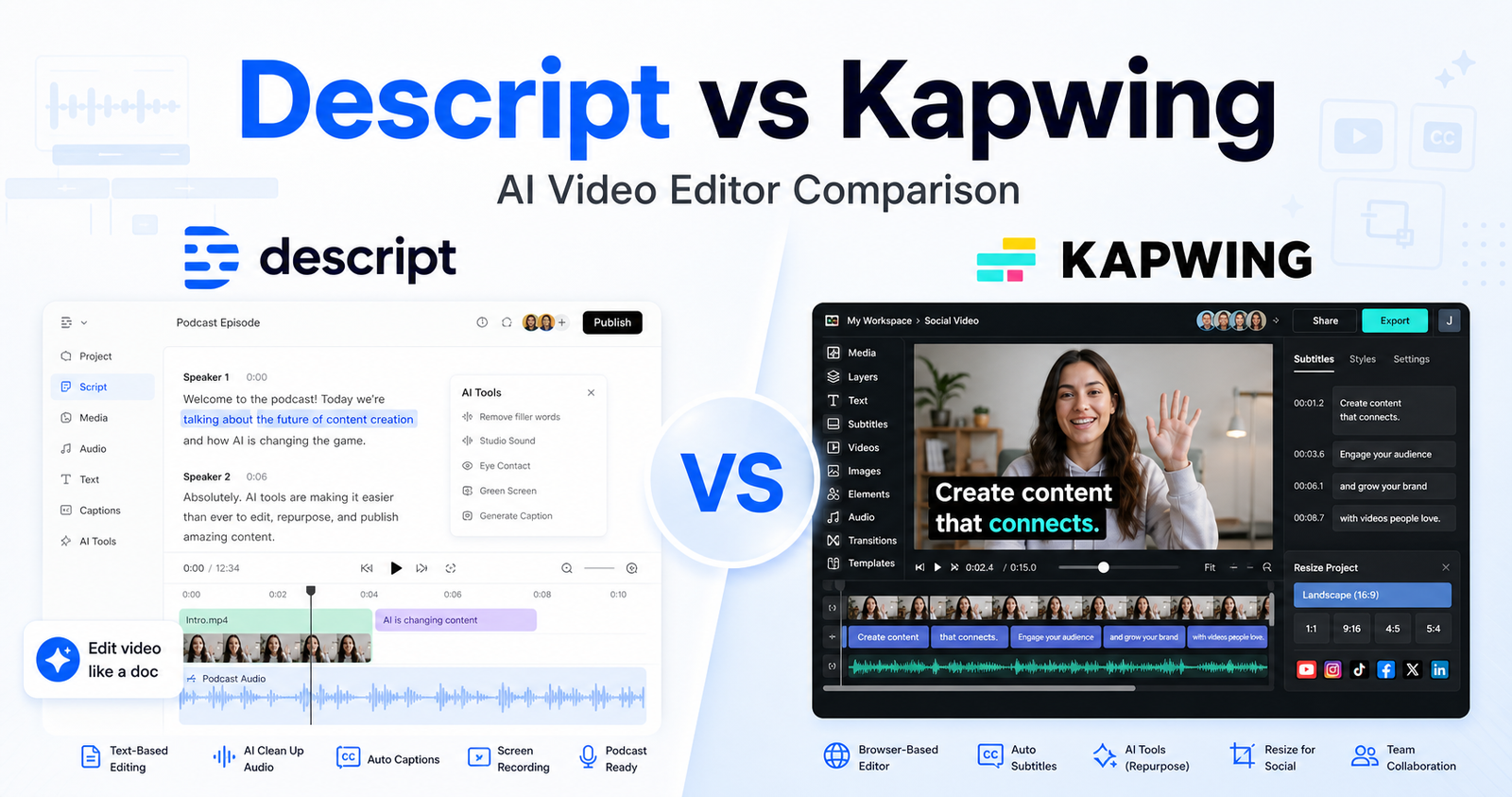
  • Descript vs Riverside: Which AI Video and Podcast Tool Should You Choose?

    Descript vs Riverside: Which AI Video and Podcast Tool Should You Choose?

    Quick Verdict

    Descript is the better choice if your main job is editing recorded video or audio quickly. It works best for creators, marketers, educators, and podcast teams that want transcript-based editing, captions, clips, filler-word removal, Studio Sound, AI speech tools, and fast repurposing from one recording.

    Riverside is the better choice if your main job is recording high-quality remote conversations, podcasts, interviews, webinars, or live sessions. It is built around browser-based recording, separate audio and video tracks, 4K video options on paid plans, production controls, and a workflow that starts before the edit begins.

    For most solo creators who record elsewhere and spend more time editing than capturing, Descript is easier to recommend. For podcasters, interview shows, agencies, and teams where remote recording quality matters, Riverside is the stronger foundation.

    Quick Comparison

    Comparison Point Descript Riverside
    Main purpose AI-assisted video, audio, podcast, and clip editing Remote recording, podcast production, webinars, live sessions, and editing
    Best for Editing existing recordings and repurposing content Capturing high-quality remote video and audio before editing
    Core workflow Edit media by editing the transcript, timeline, captions, and AI tools Record participants remotely, capture separate tracks, then edit and repurpose
    Ideal user Solo creators, YouTubers, marketers, educators, podcast editors Podcasters, interview hosts, production teams, webinar teams, agencies
    Text-based editing Central part of the product Available as part of the editing workflow, but recording remains the main strength
    Recording Includes recording and Rooms, but editing is the main draw Recording is the center of the product, including remote sessions and studio workflows
    Video quality focus Export quality and AI editing workflow Studio-quality recording, paid-plan video quality up to 4K
    Audio workflow Transcription, Studio Sound, filler-word removal, AI speech, overdub-style tools Separate audio tracks, 48kHz audio on paid plans, recording controls, Magic Audio
    Repurposing Strong for captions, clips, show notes, social cuts, and AI editing Strong for podcast and video workflows that begin with remote recording
    Collaboration Team scaling on Creator, Business, and Enterprise plans Production workspaces and collaboration features are stronger on business-oriented tiers
    AI features Underlord AI co-editor, AI speech, captions, clips, translation, avatars on higher plans AI transcription, Magic Clips, captions, show notes, Magic Audio, and translation tools
    Learning curve Easier if you think in documents and transcripts Easier if you already plan episodes, guests, studios, and recording sessions
    Main limitation Less focused on dedicated remote production than Riverside Editing is useful, but Descript is usually more flexible for deep transcript-based editing
    Best value angle Saves time after recording Protects recording quality before the edit
    Choose it if You need one tool to edit, caption, polish, and repurpose content You need reliable remote recording and production controls

    Pricing Comparison

    Both tools offer free access and paid creator plans, but they price around different jobs. Descript prices mainly around editing media hours, AI credits, export quality, and team size. Riverside prices around recording, live studio features, webinar workflows, and business production needs.

    Pricing Point Descript Riverside
    Free plan Free plan at $0 Free plan at $0 per month
    Entry paid plan Hobbyist at $24 per person/month, or $16 per person/month on annual billing Pro + Live Studio at $29/month, or $24/month on yearly billing
    Mid creator plan Creator at $35 per person/month, or $24 per person/month on annual billing Live + Live Studio at $39/month, or $34/month on yearly billing
    Higher self-serve plan Business at $65 per person/month, or $50 per person/month on annual billing Webinar + Live Studio at $99/month, or $79/month on yearly billing
    Enterprise option Enterprise is custom Business is custom
    Annual discount Annual billing can save up to 35% Yearly plans show up to 20% off
    Included users or team scale Hobbyist includes 1 person; Creator scales to a team of 3; Business scales to a team of 5 Self-serve plans are positioned for creators and live/webinar workflows; Business is sales-led
    Free plan limits Free plan includes 60 media minutes per month Free plan includes 2 hours of multi-track recordings as a one-off allocation
    Entry paid usage Hobbyist includes 10 media hours per month and 400 AI credits per month Pro card lists studio-quality video and sound, paid recording quality, and multi-track recording
    Creator usage Creator includes 30 media hours per month plus bonus hours and 800 AI credits plus bonus credits Live plan adds more live production value for creators who run sessions and shows
    Business usage Business includes 40 media hours per month plus bonus hours and 1,500 AI credits plus bonus credits Webinar plan is built for webinar-style production and higher live-session needs
    Export or recording quality Hobbyist exports 1080p watermark-free; Creator and Business support 4K watermark-free export Free is up to 720p; paid plans include up to 4K video quality on the official pricing page
    AI allocation Hobbyist includes 400 AI credits; Creator includes 800 plus bonus credits; Business includes 1,500 plus bonus credits AI tools such as transcription, Magic Clips, captions, show notes, Magic Audio, and translation are part of the Riverside product set
    Support and admin Business includes priority support with SLA; Enterprise adds security, SSO/SCIM, custom controls, and flexible billing Business includes enterprise-grade security signals, SSO, dedicated success-style support, and advanced production controls
    Official pricing page Descript pricing page Riverside pricing page
    Tool Plan Monthly Price Annual Price Best For Key Limits Or Notes
    Descript Free $0 $0 Trying text-based editing 60 media minutes per month
    Descript Hobbyist $24 per person/month $16 per person/month Solo creators who want watermark-free exports 10 media hours and 400 AI credits per month
    Descript Creator $35 per person/month $24 per person/month Creators scaling publishing and repurposing 30 media hours, bonus hours, 800 AI credits, and 4K export
    Descript Business $65 per person/month $50 per person/month Teams that need brand and collaboration controls 40 media hours, 1,500 AI credits, Brand Studio, priority support
    Descript Enterprise Custom Custom Larger teams with security and custom billing needs SSO/SCIM, custom AI credits, custom legal terms, flexible licensing
    Riverside Free $0/month $0/month Trying recording and editing 2 hours of multi-track recordings and up to 720p video
    Riverside Pro + Live Studio $29/month $24/month, billed yearly Creators producing higher-quality recorded content Paid recording quality and live studio workflow
    Riverside Live + Live Studio $39/month $34/month, billed yearly Creators and small teams running live sessions More live-session capability than the entry plan
    Riverside Webinar + Live Studio $99/month $79/month, billed yearly Webinar and event-style content teams Webinar-focused live production tier
    Riverside Business Custom Custom Teams with advanced production, security, and support needs SSO, advanced production controls, onboarding, and business security features

    Pricing sources checked: June 13, 2026. Sources: Descript official pricing page and Riverside official pricing page.

    What Is Descript?

    Descript is a video, audio, podcast, transcription, screen recording, and AI editing platform built around a document-style workflow. Instead of treating media editing as only a timeline task, Descript lets creators edit recordings through text, captions, waveforms, and AI-powered production tools.

    That approach matters if your bottleneck is post-production. A marketer can record a webinar, turn the transcript into an edit plan, remove filler words, add captions, produce short clips, improve audio with Studio Sound, and export the finished asset without moving everything into a traditional editing suite.

    Descript is especially useful when the content already exists. It helps after the interview, after the screen recording, after the podcast episode, or after the webinar. Its official product pages emphasize video editing, podcasting, screen recording, Rooms, captions, transcription, AI speech, templates, AI avatars, and Underlord, its AI video co-editor.

    What Is Riverside?

    Riverside is a remote recording and content production platform for podcasts, video interviews, webinars, live sessions, and marketing content. Its official product navigation centers on recording, editing, live streaming, webinars, hosting, transcription, Magic Clips, captions, Magic Audio, show notes, async recording, AI translation, and apps for desktop and mobile workflows.

    Riverside is strongest before the edit starts. If you need to bring in a guest, record a clean conversation, capture separate tracks, run a live session, or build a repeatable podcast production process, Riverside is usually closer to the problem. It is not just an editor with a record button. It is a recording studio workflow with editing and repurposing tools around it.

    That makes it a natural fit for interview shows, remote teams, customer story videos, thought leadership podcasts, webinars, and internal company communications.

    Descript vs Riverside for Recording

    Riverside has the clearer recording-first advantage. Its product positioning highlights 4K video and audio recording, live streaming, webinars, separate tracks, studio workflows, and production controls. If your content depends on guests joining remotely, Riverside gives you a stronger starting point.

    Descript can record and includes Rooms, but it is usually chosen because of what happens after recording. It is better when you want to capture something quickly and move straight into editing, not when the recording session itself needs producer controls, live workflows, webinar structure, or a dedicated remote studio setup.

    Choose Riverside for remote interviews, podcasts with guests, webinar capture, customer videos, and multi-participant production. Choose Descript when the recording process is simple and the real work is cutting, captioning, polishing, and publishing.

    Descript vs Riverside for Editing

    Descript is stronger for editing. The text-based workflow is the main reason. You can work with the transcript, remove filler words, tighten sections, add captions, improve sound, create clips, and move through edits in a way that feels closer to editing a document than operating a complex video editor.

    Riverside also includes editing tools, but its strength is not the same. Riverside is more useful when editing is connected to the recording session, podcast episode, live stream, webinar, or multi-track capture. It gives creators a path from recording to finished content, but Descript usually feels more flexible for editing-heavy teams.

    If you publish a lot of short clips from one long video, Descript is attractive. If your highest-risk task is making sure the source recording is clean, Riverside is attractive.

    AI Features Compared

    Descript’s AI value sits in editing and repurposing. Its pricing page and product navigation mention Underlord, Studio Sound, Remove Filler Words, Create Clips, AI speech, custom voice clones, video regenerate, translation, dubbing, avatars, templates, and AI media generation. These features are useful when creators want to move from raw recording to finished asset faster.

    Riverside’s AI value sits around production and post-recording assistance. Its official navigation includes transcription, Magic Clips, captions, Magic Audio, show notes, async recording, AI co-creator, and AI translation. Those features are useful when the recording itself is the center of the workflow and the team wants faster editing or repurposing afterward.

    The simplest way to think about it: Descript uses AI to make editing feel lighter. Riverside uses AI to support recording, production, and post-session content workflows.

    Use Cases: Who Should Choose Descript?

    Choose Descript if you edit more than you record. It is the better fit for creators who already have Zoom recordings, screen captures, podcast episodes, interviews, webinars, or course videos and need to turn them into polished content.

    Descript is a strong fit for:

    • YouTubers who want transcript-based editing and clips
    • Podcast editors who need transcription, cleanup, captions, and show assets
    • Marketing teams repurposing webinars into shorter social videos
    • Educators creating tutorials, explainers, and training clips
    • Founders and creators who want faster editing without a complex timeline tool
    • Teams that need 4K exports, brand controls, and AI credits on higher plans

    Descript is less ideal if the recording session itself is complex. If you regularly manage remote guests, producers, live sessions, and webinars, Riverside may be a better production hub.

    Use Cases: Who Should Choose Riverside?

    Choose Riverside if the quality and control of the original recording matter most. It is the better fit when remote interviews, podcasts, webinars, and live production are central to the workflow.

    Riverside is a strong fit for:

    • Podcasters who record guests remotely
    • Interview shows and creator-led media brands
    • Agencies recording customer stories or testimonial videos
    • Marketing teams running webinars and live content
    • Producers who need separate tracks and studio controls
    • Teams that want one place for recording, editing, and repurposing

    Riverside is less ideal if most of your work is editing already-recorded media. In that case, Descript gives you more focused transcript-based editing power.

    Pros and Cons of Descript

    Descript Pros

    • Strong transcript-based editing workflow for video and audio
    • Useful AI editing tools such as Studio Sound, filler-word removal, clips, and AI speech features
    • Free plan for trying the workflow before upgrading
    • Clear paid tiers with media hours and AI credits
    • 4K watermark-free export on Creator and Business plans
    • Good fit for social repurposing, podcast editing, captions, and screen-recorded content

    Descript Cons

    • Remote production is not as central as Riverside’s studio workflow
    • AI credits and media hours require attention on paid plans
    • Teams may need higher plans for brand controls, priority support, and broader collaboration
    • Users focused only on recording may find the editing-first workflow more than they need

    Pros and Cons of Riverside

    Riverside Pros

    • Stronger recording-first workflow for podcasts, interviews, webinars, and live production
    • Free plan for trying remote recording and editing
    • Paid tiers include live studio and webinar-focused options
    • Business tier supports advanced production, security, support, and collaboration needs
    • Good fit for guest-based shows, customer videos, and remote production teams
    • AI tools help with transcription, clips, captions, show notes, audio, and translation workflows

    Riverside Cons

    • Deep transcript-based editing is not the main identity in the same way it is for Descript
    • The best value depends heavily on whether recording and live features matter to you
    • Business-level production and security needs require custom pricing
    • Solo creators who mainly edit existing footage may prefer Descript’s workflow

    Which Tool Is Easier to Use?

    Descript is easier if you want editing to feel like working with text. It lowers the intimidation factor for creators who do not want to spend hours inside a traditional video editor. The transcript becomes the control surface, and that can make podcast cleanup, social clips, captions, and narrated video edits much faster.

    Riverside is easier if you think in recording sessions. You schedule or start a session, bring people into the studio, capture separate tracks, and then work from that source material. It feels natural for producers, interview hosts, webinar teams, and podcasters who care about the structure of the recording.

    The easier tool depends on where your stress happens. If your stress is editing, choose Descript. If your stress is recording remote people cleanly, choose Riverside.

    Best Workflow by User Type

    User Type Better Choice Why
    Solo YouTuber editing recorded videos Descript Faster transcript-based edits, clips, captions, and export workflow
    Remote podcast host Riverside Stronger remote recording and separate-track production workflow
    Marketing team repurposing webinars Descript Excellent for turning long recordings into shorter polished assets
    Webinar team running live sessions Riverside More aligned with live and webinar-style production
    Course creator Descript Strong for screen recordings, captions, cleanup, and structured edits
    Agency recording client interviews Riverside Better for remote capture, guest sessions, and production controls
    Social content editor Descript Strong clip creation and AI editing workflow
    Business media team Depends Descript for post-production, Riverside for recording operations

    If your video workflow is editing-first, compare this with our Descript vs Kapwing comparison guide; for short-form clipping, OpusClip vs Vidyo.ai comparison is the more focused comparison.

    Final Recommendation

    Choose Descript if your main priority is editing, polishing, captioning, clipping, and repurposing content after it has been recorded. It is the better choice for creators and teams who want AI-assisted editing without living inside a traditional video editor.

    Choose Riverside if your main priority is recording remote people, podcasts, webinars, live sessions, and production-quality source material. It is the better choice when your workflow begins with a studio session, guest conversation, or event recording.

    The best setup for serious content teams may even be both: Riverside for capture and Descript for editing. But if you only want one tool, start with the stage where you lose the most time or quality. Editing pain points point to Descript. Recording pain points point to Riverside.

    FAQs

    Is Descript better than Riverside?

    Descript is better than Riverside for transcript-based editing, captions, AI cleanup, filler-word removal, social clips, and repurposing recorded content. It is usually the better pick when the recording already exists and the main job is making it publishable.

    Is Riverside better than Descript?

    Riverside is better than Descript for remote recording, podcast interviews, webinars, live sessions, and production workflows where source quality matters. It is usually the better pick when multiple participants need to be recorded cleanly before editing begins.

    Can Descript record podcasts?

    Yes. Descript supports podcasting and recording workflows, including Rooms. It is especially useful after recording because it lets creators edit audio and video through a transcript-based workflow with AI tools for cleanup, captions, and clips.

    Can Riverside edit videos?

    Yes. Riverside includes editing and repurposing tools alongside its recording workflow. Its product navigation includes editing, transcription, Magic Clips, captions, Magic Audio, show notes, and AI translation. Still, its biggest strength is recording and production.

    Which tool is better for YouTube creators?

    Descript is usually better for YouTube creators who already have recorded footage and need faster editing, captions, cleanup, and clips. Riverside is better for YouTube creators who record guest interviews, live sessions, or remote conversations.

    Which tool is better for podcasters?

    Riverside is usually better for podcasters who record remote guests because recording quality and separate tracks are central to the workflow. Descript is better for podcasters who already have recordings and want easier editing, cleanup, captions, and repurposing.

    Does Descript have a free plan?

    Yes. Descript has a Free plan at $0. Its official pricing page lists 60 media minutes per month on the Free plan, with paid plans adding more media hours, AI credits, export quality, and team features.

    Does Riverside have a free plan?

    Yes. Riverside has a Free plan at $0 per month. Its official pricing page lists a free starting option with multi-track recording access and limited quality compared with paid tiers.

    Which has better AI tools, Descript or Riverside?

    Descript has stronger AI tools for editing and repurposing, including Underlord, Studio Sound, clips, captions, AI speech, and related editing features. Riverside has strong AI support around recording workflows, transcription, clips, captions, show notes, audio cleanup, and translation.

    Which is better for webinars?

    Riverside is the better fit for webinars because its pricing and product structure include live and webinar-focused plans. Descript can help edit webinar recordings afterward, but Riverside is more aligned with producing and capturing the session.

    Which is better for social clips?

    Descript is usually better if the main task is cutting social clips from existing recordings. Riverside also includes Magic Clips, but Descript’s broader editing workflow gives social editors more control after the recording is complete.

    Should a content team use both Descript and Riverside?

    Some teams may benefit from both. Riverside can handle remote recording and live production, while Descript can handle transcript-based editing, captions, audio cleanup, and repurposing. If budget allows, that split can create a strong capture-to-edit workflow.

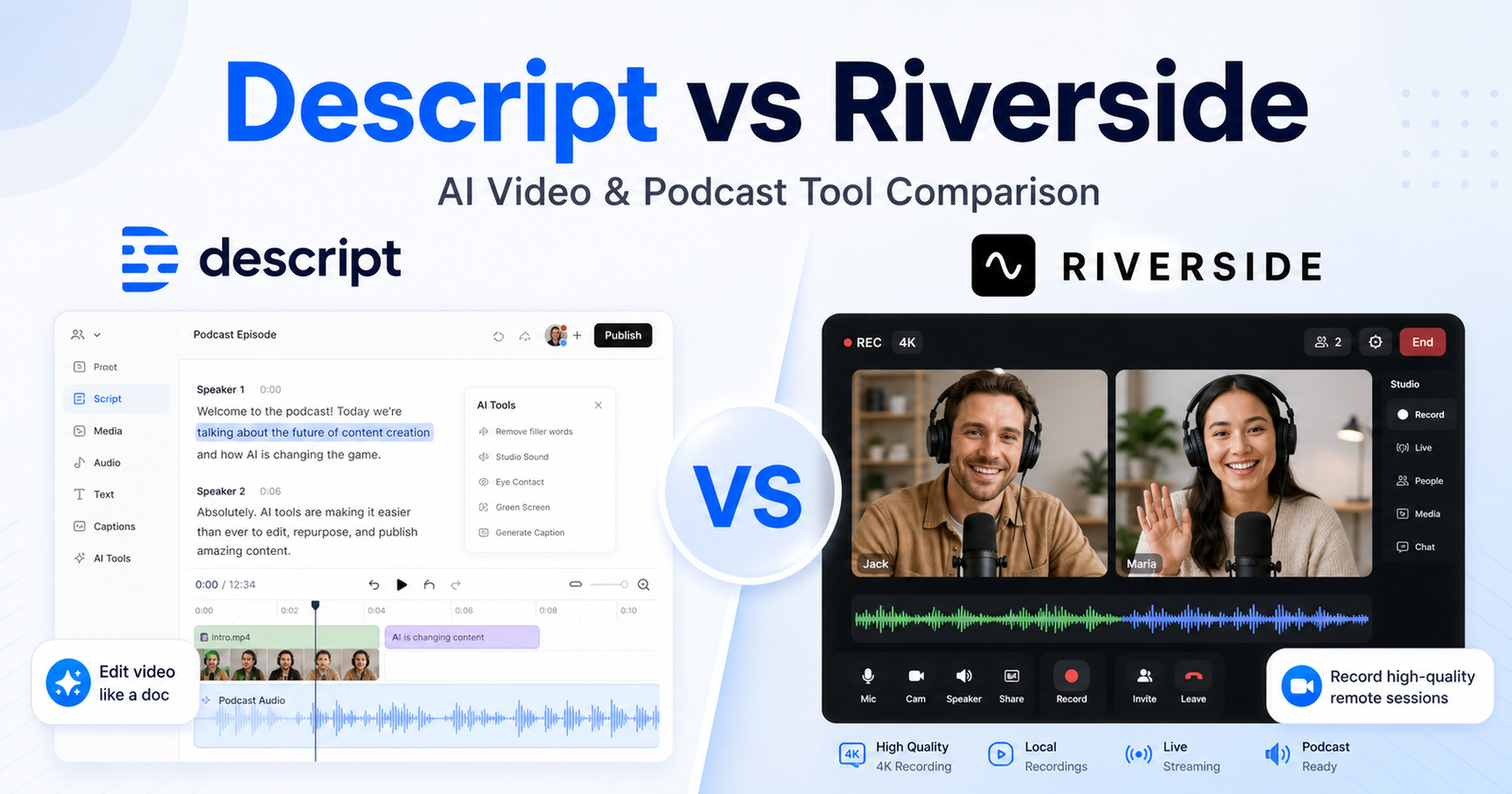
  • Synthesia vs HeyGen: Which AI Video Generator Should You Choose?

    Synthesia vs HeyGen: Which AI Video Generator Should You Choose?

    Synthesia vs HeyGen is a buyer decision for teams that want to create AI avatar videos without a traditional filming setup. Both products are used for AI-generated video, but the best choice depends on the type of content, approval workflow, localization needs, brand control, and pricing model. This article focuses on verified product positioning, official website links, official pricing pages, and practical buyer questions. It does not claim hands-on testing.

    You can review Synthesia and HeyGen from their official websites before making a final decision.

    Short Buying Advice

    Choose Synthesia if your priority is structured business video production, training content, and team-ready avatar workflows. Choose HeyGen if your priority is flexible avatar video creation, creator-friendly video workflows, and translation or personalization features that match your project needs.

    The fastest way to decide is to map each product to one real task. If the tool makes that task easier without adding heavy cleanup, it may be the better choice. If the output still needs too much manual review, the stronger feature list may not matter.

    Key Decision Factors for AI Video

    Synthesia positions itself as an AI video platform for creating videos with AI avatars and business-friendly video workflows.

    HeyGen positions itself as an AI video generator for creating avatar videos, translated videos, and personalized video content.

    The difference matters because buyers often compare tools only by feature names. A better comparison asks where each product sits in the workflow, who reviews the output, how pricing limits affect regular use, and whether the tool fits solo work, team workflows, or agency delivery.

    Synthesia vs HeyGen: Quick Comparison

    Comparison Point Synthesia HeyGen
    Main category Synthesia is used for ai video generators workflows. HeyGen is used for ai video generators workflows.
    Best fit Choose Synthesia if your priority is structured business video production, training content, and team-ready avatar workflows. Choose HeyGen if your priority is flexible avatar video creation, creator-friendly video workflows, and translation or personalization features that match your project needs.
    Primary workflow Synthesia positions itself as an AI video platform for creating videos with AI avatars and business-friendly video workflows. HeyGen positions itself as an AI video generator for creating avatar videos, translated videos, and personalized video content.
    Beginner fit Good when the user follows the product workflow and checks official guidance. Good when the user follows the product workflow and checks official guidance.
    Team fit Teams should compare collaboration, brand controls, approval needs, security documentation, and enterprise options before deciding. Teams should compare collaboration, brand controls, approval needs, security documentation, and enterprise options before deciding.
    Agency fit Agencies should check client usage rights, seats, exports, brand kits, and whether plan limits work across multiple clients. Agencies should check client usage rights, seats, exports, brand kits, and whether plan limits work across multiple clients.
    Pricing transparency Official pricing URL is provided; exact plan data is not included in this draft. Official pricing URL is provided; exact plan data is not included in this draft.
    Free access Not included because free-plan status was not captured as table-safe pricing data. Not included because free-plan status was not captured as table-safe pricing data.
    Setup effort Depends on account setup, workflow complexity, and team requirements. Depends on account setup, workflow complexity, and team requirements.
    Best evaluation method Run one realistic project and measure cleanup time. Run one realistic project and measure cleanup time.
    Main risk Buying before checking current limits and workflow fit. Buying before checking current limits and workflow fit.
    Support/documentation Use official docs, help center, and pricing page for current details. Use official docs, help center, and pricing page for current details.
    Solo users Solo creators should compare free access, video limits, watermark rules, export options, and whether the lowest paid plan covers the videos they actually need. Solo creators should compare free access, video limits, watermark rules, export options, and whether the lowest paid plan covers the videos they actually need.
    Businesses Agencies should check client usage rights, seats, exports, brand kits, and whether plan limits work across multiple clients. Agencies should check client usage rights, seats, exports, brand kits, and whether plan limits work across multiple clients.
    Final recommendation Choose Synthesia if your priority is structured business video production, training content, and team-ready avatar workflows. Choose HeyGen if your priority is flexible avatar video creation, creator-friendly video workflows, and translation or personalization features that match your project needs. Choose Synthesia if your priority is structured business video production, training content, and team-ready avatar workflows. Choose HeyGen if your priority is flexible avatar video creation, creator-friendly video workflows, and translation or personalization features that match your project needs.

    Pricing Comparison

    Synthesia and HeyGen both publish useful pricing details, but the limits are different. Synthesia is easier to compare by video minutes, editors, avatars, and enterprise video controls. HeyGen is easier to compare by videos, credits, creator tiers, business seats, and advanced video features.

    Pricing Point Synthesia HeyGen
    Free plan Basic free plan at $0/month. Free plan at $0/month.
    Free usage limit 10 minutes of video per month and 25 AI-generated video assets. Up to 3 videos per month, no credit card required.
    Cheapest paid plan Starter at $29/month. Creator at $29/month.
    Annual pricing Starter $264/year and Creator $804/year. Creator $24/month when billed annually; Business annual billing is $1,428 for the first seat plus $240 per additional seat.
    Creator-level plan Creator at $89/month. Creator at $29/month, or Pro starting at $49/month.
    Team/business plan Enterprise uses custom pricing. Business costs $149/month plus $20 per additional seat per month.
    Video limits Starter includes 10 minutes/month; Creator includes 30 minutes/month; Enterprise includes unlimited video minutes. Free includes 3 videos/month; Pro tiers scale by monthly credits.
    Seats Basic and Starter include 1 editor; higher plans expand collaboration. Business is priced for the first seat plus additional seat fees.
    Credits or usage Synthesia uses video minutes and AI-generated video assets. HeyGen paid plans include monthly credit allocations across features.
    Enterprise plan Custom pricing with unlimited minutes, SSO, brand kits, SCORM export, onboarding, and dedicated CSM. Enterprise and Business options support larger teams, seats, security, and advanced controls.
    API access Creator includes API access in the captured official pricing details. Enterprise API pricing is listed separately in HeyGen resources.
    Official pricing page Synthesia pricing HeyGen pricing

    Plan-by-Plan Pricing

    Tool Plan Monthly Price Annual Price Best For Key Limits
    Synthesia Basic $0/month $0 Trying AI video creation 10 minutes/month, 25 AI-generated video assets
    Synthesia Starter $29/month $264/year Creating AI videos with a personal avatar 10 minutes/month, download videos, remove Synthesia logo
    Synthesia Creator $89/month $804/year Regular video production with a team 30 minutes/month, 5 personal avatars, API access, brand pages
    Synthesia Enterprise Custom pricing Custom pricing Large teams creating video at scale Unlimited minutes, SSO, brand kits, SCORM export, onboarding
    HeyGen Free $0/month $0 Trying short AI video projects Up to 3 videos/month
    HeyGen Creator $29/month $24/month billed annually Solo creators Paid monthly credit allocation across features
    HeyGen Pro Starts at $49/month Annual billing available Advanced individuals needing more credits Pro tiers scale from 1,000 credits/month to higher credit tiers
    HeyGen Business $149/month plus $20/additional seat/month $1,428/year first seat plus $240/additional seat/year Teams creating and collaborating on video Team collaboration, advanced controls, credit packs or auto-reload

    Synthesia is easier to budget when video minutes are the main constraint. HeyGen gives more granular creator and Pro credit tiers, which can be useful if your monthly video workload changes.

    Pricing last checked: June 12, 2026. For the latest details, visit the Synthesia official pricing page and HeyGen official pricing page.

    Practical Buying Criteria for AI Video

    AI video tools should be judged by avatar quality, script workflow, editing flexibility, language or translation support, export limits, commercial usage terms, and team controls. Synthesia and HeyGen may both create useful videos, but the right tool depends on the type of video being produced.

    A good evaluation project should be small but realistic. Use the same brief, same audience, same constraints, and same quality bar in both tools. Then compare setup time, editing time, final quality, and whether the paid plan would remove enough friction to be worth it.

    Avatar and Video Creation Workflow

    Synthesia may be stronger for teams that need a structured business video process. HeyGen may be attractive for users who want flexible avatar video creation and creator-friendly workflows. Buyers should check current official product pages for the exact features available on their plan.

    A good evaluation project should be small but realistic. Use the same brief, same audience, same constraints, and same quality bar in both tools. Then compare setup time, editing time, final quality, and whether the paid plan would remove enough friction to be worth it.

    Brand, Team, and Business Controls

    Business buyers should look beyond the demo. Check brand controls, collaboration, approvals, security documentation, commercial usage, and export limits before choosing between Synthesia and HeyGen.

    A good evaluation project should be small but realistic. Use the same brief, same audience, same constraints, and same quality bar in both tools. Then compare setup time, editing time, final quality, and whether the paid plan would remove enough friction to be worth it.

    Best Choice by User Type

    Choose Synthesia If

    • You prefer the workflow described by the official Synthesia product pages.
    • Your main use case matches the strongest reasons to choose Synthesia.
    • You have checked the official pricing page and plan limits.
    • You can review the output before using it in public-facing work.

    Choose HeyGen If

    • You prefer the workflow described by the official HeyGen product pages.
    • Your team needs the kind of output and controls HeyGen is built around.
    • The current pricing page fits your usage volume.
    • You want a tool that better matches your team, client, or content process.

    Consider Alternatives If

    Consider alternatives if neither tool clearly fits your budget, output quality requirements, workflow, or governance needs. A cheaper tool can become expensive if it creates more review work. A more expensive tool can be worthwhile if it saves time across repeated projects.

    Final Recommendation

    Choose Synthesia if your priority is structured business video production, training content, and team-ready avatar workflows. Choose HeyGen if your priority is flexible avatar video creation, creator-friendly video workflows, and translation or personalization features that match your project needs.

    For most buyers, the best next step is not to read another feature list. It is to choose one real project, run the same brief through both tools, compare cleanup time, and check current official pricing. The better tool is the one that gives you a usable result with fewer corrections, clearer limits, and a plan that matches your real usage.

    FAQs

    Is Synthesia better than HeyGen?

    Synthesia is better if its workflow matches your main use case and pricing limits. HeyGen is better if its workflow fits your team, output needs, and budget more closely.

    Is HeyGen better than Synthesia?

    HeyGen can be better for users who need its specific strengths. The safest answer is to test both with the same realistic project and compare final quality, cleanup time, and current plan limits.

    Which tool is cheaper?

    Do not rely on old pricing screenshots or third-party summaries. Check the official Synthesia pricing page and official HeyGen pricing page before choosing because plan limits and prices can change.

    Does either tool have a free plan?

    Free access should be confirmed on the official pricing pages. If a free plan, trial, or limited account exists, check what features, exports, seats, and usage limits are included.

    Which tool is better for solo users?

    Solo creators should compare free access, video limits, watermark rules, export options, and whether the lowest paid plan covers the videos they actually need.

    Which tool is better for teams?

    Teams should compare collaboration, brand controls, approval needs, security documentation, and enterprise options before deciding.

    Which tool is better for agencies?

    Agencies should check client usage rights, seats, exports, brand kits, and whether plan limits work across multiple clients.

    What should I check before buying?

    Review the current plan price, usage limits, seats, export options, collaboration features, security terms, and whether Synthesia or HeyGen supports your real workflow.

    Can I use both tools together?

    Yes, but only if each tool handles a different job. Paying for both Synthesia and HeyGen makes sense only when the combined workflow saves more time than it costs.

    If you need broader video production beyond avatar videos, compare this with our Runway vs Pika comparison guide; for editing and podcast workflows, see Descript vs Riverside comparison.

    Which tool should I choose first?

    Start with the tool that solves your biggest bottleneck. Choose Synthesia if your priority is structured business video production, training content, and team-ready avatar workflows. Choose HeyGen if your priority is flexible avatar video creation, creator-friendly video workflows, and translation or personalization features that match your project needs.

    Production Quality and Review Workflow

    AI video tools should be judged by more than whether they can generate a video. A business video may need script review, brand approval, avatar consistency, pronunciation checks, captions, localization, export quality, and reuse across training, marketing, onboarding, or customer education. These steps affect the real cost of using the tool.

    For Synthesia, buyers should look closely at structured video creation, business workflow needs, and whether the product fits training or internal communication use cases. For HeyGen, buyers should look closely at avatar creation, translation or personalization needs, and whether the workflow fits creator, marketing, or client video production.

    A useful buying test is to create one short training script, one product explainer, and one localized version of the same message. Compare how many corrections are needed before the videos feel publishable. Also check whether the required features are included in the plan you would actually buy, not only shown on the highest tier or enterprise page.