Category: AI Productivity Tools

  • How to Use ChatGPT for Excel and Google Sheets

    How to Use ChatGPT for Excel and Google Sheets

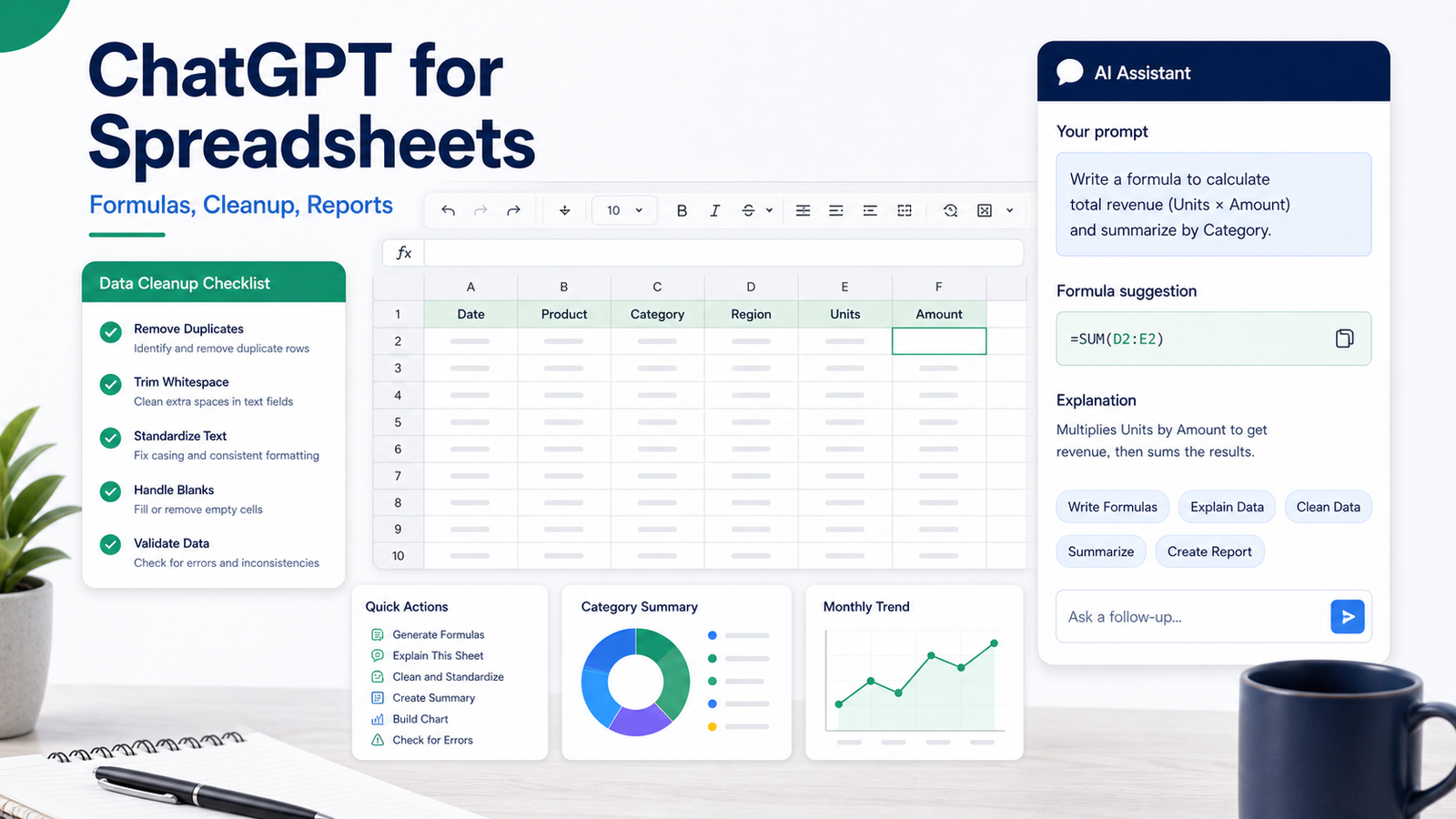
    ChatGPT can be useful for spreadsheet work, but only when the workflow is disciplined. It can write formulas, explain spreadsheet logic, clean messy data, draft summaries, suggest charts, and help create reporting checklists. It can also produce confident mistakes if the prompt is unclear or the data is sensitive.

    This guide explains how small businesses can use ChatGPT for Excel and Google Sheets without pretending the AI is a spreadsheet accountant.

    Quick Answer

    Use ChatGPT as a spreadsheet assistant for formula drafting, cleanup plans, reporting summaries, and logic explanations. Do not treat its output as final until you test it against known examples. For sensitive data, redact or simplify the data before prompting.

    Best For

    • Writing formulas from plain language.
    • Explaining existing formulas.
    • Cleaning messy names, categories, and text fields.
    • Creating report summaries from verified numbers.
    • Planning dashboards, pivot tables, and charts.
    • Drafting Google Apps Script or automation ideas.

    Not Best For

    • Final financial calculations without review.
    • Sensitive customer or employee records without policy approval.
    • Complex models where a small formula mistake can create material risk.
    • Replacing a spreadsheet expert for tax, payroll, legal, or compliance work.

    Setup Checklist

    Before using ChatGPT with spreadsheets, define the task, remove sensitive data, provide column names, include sample rows, and describe the expected output. The prompt should specify whether the formula is for Excel or Google Sheets because functions and syntax can differ.

    Formula Prompt Template

    Use this structure:

    “`text I am using [Excel or Google Sheets]. Columns: A = Date B = Customer type C = Order value D = Status

    Goal: Write a formula that returns [expected result].

    Rules:

    “`

    • Include only rows where Status is Paid.
    • Exclude blank dates.
    • Return 0 if no rows match.

    This prompt gives ChatGPT the context it needs. A vague prompt such as "write a formula for revenue" is too easy to misinterpret.

    Use Case 1: Formula Writing

    In a typical small business workflow, a team may need formulas for revenue totals, overdue invoices, lead scores, product categories, inventory flags, or campaign performance. ChatGPT can turn the business rule into a starting formula.

    The safe process is to test the formula on a few rows where you already know the answer. If the formula fails, give ChatGPT the failed formula, expected output, actual output, and sample rows.

    Use Case 2: Data Cleanup

    ChatGPT can help plan cleanup rules for inconsistent names, locations, tags, product categories, and notes. For example, it can suggest how to standardize country names, split full names into first and last names, or group messy support ticket categories.

    For private spreadsheets, do not paste the full dataset. Provide a few anonymized sample rows and ask for formulas or cleanup logic.

    Use Case 3: Report Summaries

    ChatGPT can turn verified numbers into a plain-English summary for a weekly report. The key word is verified. The spreadsheet should produce the numbers first; ChatGPT should help explain them clearly.

    A manager might paste a summary table with monthly revenue, leads, conversion rate, and churn, then ask for a concise executive summary. The output should be reviewed before sending.

    Use Case 4: Chart Planning

    ChatGPT can recommend chart types based on the question. Trend over time usually fits a line chart. Category comparison often fits a bar chart. Share of total can use a donut chart, but only when the number of categories is small.

    The AI can help pick a visualization, but it should not invent the data story. The chart must reflect the actual spreadsheet.

    Use Case 5: Google Sheets Automation

    For Google Sheets, ChatGPT can help draft Apps Script ideas, trigger logic, and formulas for workflow automation. A small team could use it to outline a script that sends an email when a row status changes or creates a task when a form submission arrives.

    The script should be reviewed before being used on business-critical data.

    Practical Examples

    Sales Pipeline

    A sales team could ask for a formula that counts open deals by stage, flags deals with no activity in 14 days, or calculates expected revenue from probability and deal value.

    Support Tracking

    A support team could categorize tickets by keyword, summarize weekly ticket volume, or flag unresolved tickets older than a threshold.

    Marketing Reporting

    A marketing team could ask ChatGPT to explain a report table, generate a weekly summary, or suggest a dashboard layout for leads, conversion rate, spend, and revenue.

    Operations

    An operations team could clean vendor names, identify duplicate invoice numbers, or create a checklist for monthly spreadsheet QA.

    Formula QA Checklist

    Check Why It Matters
    Test known examples Confirms the formula matches real business logic
    Check blanks Prevents errors from empty cells
    Check text vs numbers Avoids mismatched data types
    Check date formats Prevents wrong time ranges
    Check edge cases Catches unusual rows before reports go out

    ChatGPT vs Built-In Spreadsheet AI

    ChatGPT is flexible for explaining logic, writing formulas, and creating step-by-step plans. Microsoft Copilot may fit better when the workflow is inside Microsoft 365. Google Gemini for Workspace may fit better for teams deeply inside Google tools. The best approach depends on where the spreadsheet work happens.

    Safety Rules

    Do not paste sensitive customer, financial, employee, medical, or legal data unless your business policy allows it. Replace real names with sample labels. Summarize the data structure instead of uploading the full file. Treat AI formulas as drafts until tested.

    Final Recommendation

    Use ChatGPT for spreadsheet thinking, not blind spreadsheet execution. It is useful for formulas, cleanup logic, report summaries, and troubleshooting. The best workflow is prompt, generate, test, revise, and document the final logic.

    For related productivity guidance, see ChatGPT Business vs Microsoft Copilot and AI knowledge base workflow.

    FAQs

    Can ChatGPT write Excel formulas?

    Yes. ChatGPT can help draft formulas, explain formulas, troubleshoot errors, and convert plain-language logic into spreadsheet syntax. Users still need to test the formula against real data.

    Can ChatGPT work with Google Sheets?

    Yes. It can help write Google Sheets formulas, Apps Script ideas, cleanup steps, and reporting logic. It does not automatically know your sheet unless you provide safe context.

    Should I upload business spreadsheets to ChatGPT?

    Only upload data your company policy allows. Remove sensitive customer, financial, health, legal, or employee data unless the business has approved the workflow.

    What are good ChatGPT spreadsheet use cases?

    Useful use cases include formula writing, data cleaning, categorization, report summaries, lookup logic, pivot-table planning, chart explanation, and QA checklists.

    Can ChatGPT replace a spreadsheet expert?

    No. It can speed up drafting and explanations, but spreadsheet logic still needs review, especially for financial, operational, or customer-facing decisions.

    What should I include in a formula prompt?

    Include the spreadsheet app, column names, sample rows, expected output, edge cases, and whether you want Excel or Google Sheets syntax.

    Can ChatGPT debug broken formulas?

    Yes. Paste the formula, explain the error, describe the columns, and show a few representative sample rows. Do not include private data unless approved.

    Can ChatGPT create reports?

    It can help outline report structure, write summary language, and suggest charts. The numbers and conclusions should be verified against the spreadsheet.

    Is ChatGPT better than Copilot for Excel?

    ChatGPT is flexible for explanation and formula drafting. Microsoft Copilot may fit better when work is deeply inside Microsoft 365. The right choice depends on workflow.

    What is the biggest risk?

    The biggest risk is trusting a formula or summary without testing it. Always validate formulas on known examples before using them for business decisions.

    Prompt Library

    Use reusable prompts for common spreadsheet tasks. For formulas, ask for one formula plus a plain-English explanation. For cleanup, ask for rules and a formula. For reports, provide verified summary numbers and ask for a concise narrative. For troubleshooting, provide the formula, error, expected result, and sample rows.

    Common Mistakes

    Do not paste full private workbooks into AI. Do not accept a formula without testing it. Do not ask for a formula without specifying Excel or Google Sheets. Do not ask AI to interpret a report unless the input numbers are already verified.

    A spreadsheet workflow is only safe when the team knows which parts are AI-assisted drafts and which parts are approved business logic.

    Safe Spreadsheet Prompting

    The safest way to use ChatGPT with spreadsheets is to provide structure without exposing sensitive raw data. Share column names, sample rows with anonymized values, the expected output, and the tool being used. Excel and Google Sheets do not always use identical formulas, so the prompt should specify the platform. Ask for an explanation with the formula so the user can understand what is being calculated.

    For example, a finance team could ask for a formula that flags overdue invoices based on due date and payment status. A sales team could ask for a lookup formula that matches leads to account owners. An operations team could ask for a method to normalize inconsistent vendor names. In each case, the output should be tested on sample rows before being applied to a full workbook.

    Quality Control Steps

    After ChatGPT suggests a formula or cleanup method, test it on rows where the answer is already known. Check empty cells, duplicate values, text casing, date formats, currency symbols, and edge cases. For reports, reconcile totals against the original data. For charts, verify that labels and ranges match the intended story.

    When ChatGPT Is Not Enough

    ChatGPT is not a replacement for spreadsheet governance. If a workbook drives payroll, taxes, financial reporting, legal reporting, or customer billing, use stronger review controls. AI can help draft formulas and explain logic, but the business remains responsible for accuracy. Treat AI output as a draft, not as an approved calculation.

    Practical Examples For Small Teams

    A sales manager could ask ChatGPT to write a formula that flags stale leads based on last contact date and pipeline stage. A finance assistant could ask it to explain why a lookup formula is returning errors. A marketing analyst could ask it to group campaign rows by channel and suggest a pivot table layout. An operations manager could ask for a cleanup rule that standardizes vendor names before reporting.

    These examples are useful because they keep AI close to the user's real spreadsheet task. The user still owns the data and the final decision. ChatGPT provides a formula, explanation, or workflow suggestion that must be tested.

    Building A Reusable Team Workflow

    Teams should create a small internal prompt library for common spreadsheet tasks. Include prompts for formula writing, formula debugging, data cleanup, report summaries, chart recommendations, and QA checks. Each prompt should specify the spreadsheet tool, column names, expected result, and sample rows.

    A reusable workflow reduces risk because team members stop asking vague questions. It also makes review easier because the team knows what type of output to expect. For example, a formula prompt can require one formula, one explanation, and three edge cases to test.

    Data Privacy Rules

    Do not paste customer lists, payroll data, financial records, private emails, or regulated data into an AI assistant without an approved company policy. Use anonymized sample rows when possible. For sensitive spreadsheets, ask ChatGPT for a method or formula pattern rather than sharing full data. This keeps the workflow useful without making privacy worse.

    Implementation Notes

    Teams can make ChatGPT safer by creating a spreadsheet review rule: every AI-generated formula must be tested on known examples before it is used on live data. Every report summary should be tied back to verified totals. Every cleanup method should be reviewed before overwriting original data.

    Keep a backup copy of important spreadsheets before applying AI-assisted formulas or cleanup logic. This is a simple habit, but it prevents small mistakes from becoming operational problems.
  • ChatGPT Business vs Microsoft Copilot: Which AI Workspace Fits Your Team?

    ChatGPT Business and Microsoft Copilot both promise to bring AI into company work, but they fit different environments. ChatGPT Business is a flexible OpenAI workspace. Microsoft Copilot is strongest when the company already works inside Microsoft 365.

    This comparison is for small businesses, agencies, SaaS teams, and operations leaders choosing a managed AI workspace.

    Quick Verdict

    Choose ChatGPT Business if your team wants a broad, standalone AI workspace for writing, research, analysis, coding support, custom GPTs, projects, and cross-functional work.

    Choose Microsoft Copilot if your team already lives in Word, Excel, PowerPoint, Outlook, Teams, SharePoint, and Microsoft 365 workflows.

    Pricing Snapshot

    OpenAI and Microsoft publish current pricing and plan requirements on their official business pricing pages. Pricing last checked on June 22, 2026. Compare seat requirements, eligible Microsoft subscriptions, admin controls, and included features before buying.

    What ChatGPT Business Is Best For

    ChatGPT Business is useful when a company wants a shared AI workspace that is not tied only to one office suite. Teams can use it for content planning, research, analysis, coding help, process writing, customer support drafts, and internal knowledge work.

    It is especially appealing for companies using mixed tools rather than a pure Microsoft stack.

    What Microsoft Copilot Is Best For

    Microsoft Copilot is best when the work already lives in Microsoft 365. If employees spend most of their day in Outlook, Teams, Word, Excel, PowerPoint, and SharePoint, Copilot can meet them inside those tools.

    That can reduce workflow friction because AI appears where the documents, emails, meetings, and spreadsheets already exist.

    Feature Comparison

    Area ChatGPT Business Microsoft Copilot
    Best environment Mixed-tool teams Microsoft 365 teams
    Writing and research Strong standalone workspace Strong inside Microsoft apps
    Spreadsheets Useful for reasoning and formulas Natural fit for Excel workflows
    Meetings Can summarize and draft if connected to workflow Natural fit for Teams workflows
    Coding support Stronger OpenAI/Codex angle Better for Microsoft ecosystem productivity
    Rollout Flexible workspace Best with Microsoft admin stack

    Real Use Cases

    Marketing Team

    A marketing team could use ChatGPT Business for briefs, campaign ideas, research, and drafting across different tools. A Microsoft-first marketing team could use Copilot to work directly in Word, PowerPoint, Outlook, and Teams.

    Finance And Operations

    Microsoft Copilot may be better for spreadsheet-heavy teams because Excel is central. ChatGPT Business may still help with policy writing, analysis, and process documentation.

    Sales And Customer Success

    Copilot can be useful if emails, meetings, and documents live in Microsoft 365. ChatGPT Business can be useful for broader account research, call prep, and follow-up drafting.

    Product And Engineering

    ChatGPT Business is attractive when teams want AI support for research, product writing, and coding-related workflows. Microsoft Copilot is attractive when product plans and meetings already live in Microsoft 365.

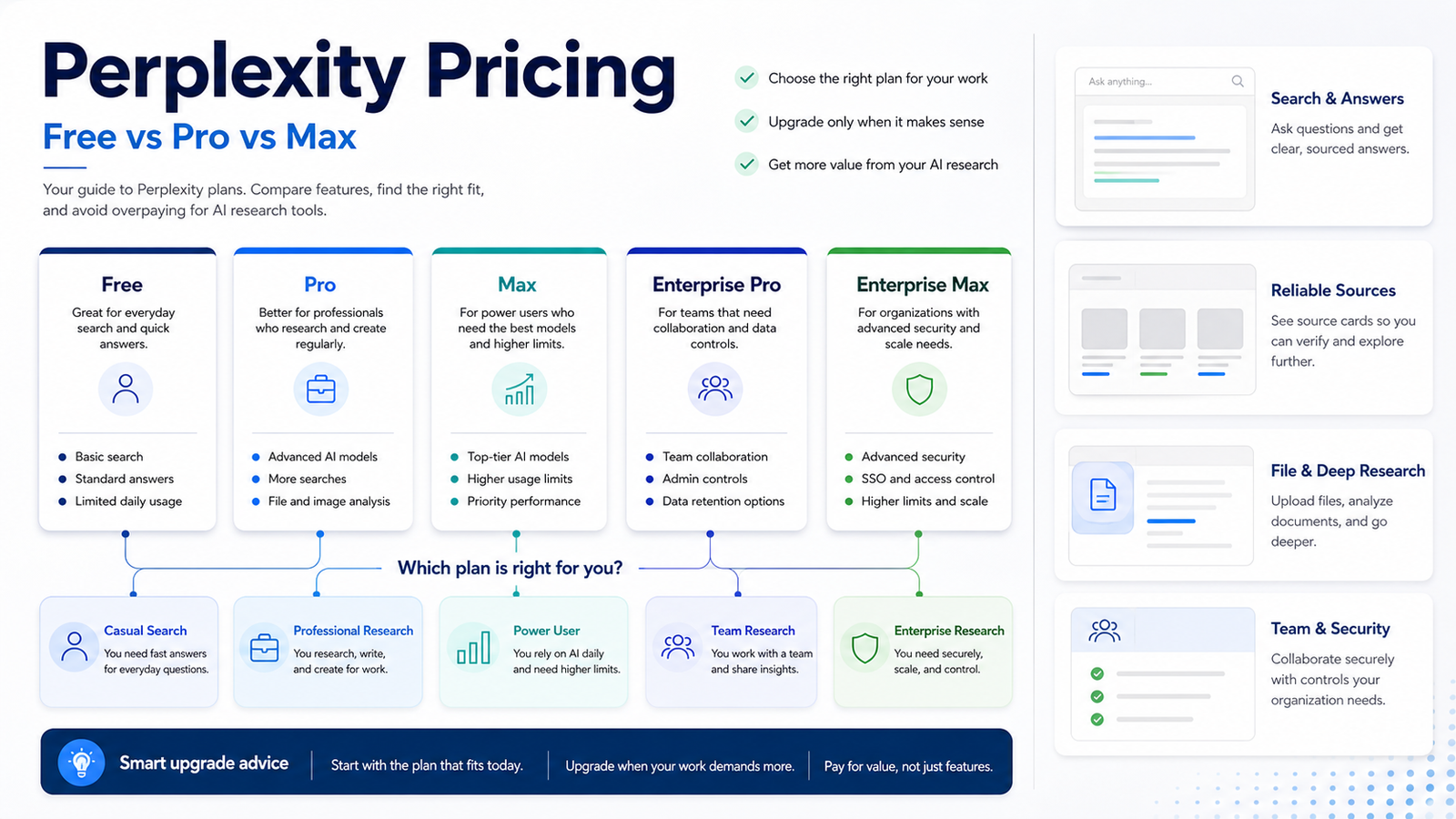
    For related business AI workspace coverage, see ChatGPT Business vs Claude Team and Perplexity pricing.

    Pros And Cons

    ChatGPT Business Pros

    • Flexible across many departments.
    • Strong fit for mixed-tool teams.
    • Useful for writing, research, analysis, and coding support.
    • Easier to think of as a general AI workspace.

    ChatGPT Business Cons

    • May require more workflow design outside existing office apps.
    • Microsoft-first teams may prefer AI directly inside their existing suite.
    • Companies still need governance and review policies.

    Microsoft Copilot Pros

    • Strong fit for Microsoft 365 users.
    • Works close to email, meetings, documents, and spreadsheets.
    • Natural admin path for Microsoft-centered companies.
    • Reduces tool switching for office-suite work.

    Microsoft Copilot Cons

    • Best value depends on Microsoft 365 adoption.
    • Less attractive for teams using mixed non-Microsoft tools.
    • Buyers must review Microsoft plan eligibility and licensing.

    Final Recommendation

    Choose the workspace where your work already happens. If your business lives in Microsoft 365, Microsoft Copilot is the natural first comparison. If your team uses many tools and wants a broad AI assistant workspace, ChatGPT Business is usually the better starting point.

    Do not buy either tool because it sounds advanced. Buy the one that fits your documents, meetings, spreadsheets, admin stack, and review process.

    FAQs

    What is the main difference between ChatGPT Business and Microsoft Copilot?

    ChatGPT Business is a broad OpenAI workspace, while Microsoft Copilot is strongest for teams already working deeply in Microsoft 365.

    Which is better for Microsoft 365 users?

    Microsoft Copilot is usually the more natural fit for teams that live in Word, Excel, PowerPoint, Outlook, Teams, and SharePoint.

    Which is better for general AI work?

    ChatGPT Business may be better for teams that want a flexible standalone AI workspace across many departments.

    How much does Microsoft 365 Copilot cost?

    Microsoft publishes Copilot pricing on official Microsoft 365 Copilot pages. Pricing last checked on June 22, 2026.

    How much does ChatGPT Business cost?

    OpenAI's Help Center and business pricing pages publish ChatGPT Business pricing for most countries.

    Can a company use both?

    Yes, but small businesses should usually start with one unless separate teams have clear recurring workflows for each.

    Which is better for Excel?

    Microsoft Copilot is the more natural fit for Excel-centered workflows.

    Which is better for coding?

    ChatGPT Business has stronger OpenAI ecosystem positioning around Codex access.

    Which is easier to roll out?

    That depends on the existing stack. Microsoft-first organizations may roll out Copilot more naturally, while mixed-tool teams may prefer ChatGPT Business.

    Do these tools replace employee review?

    No. AI outputs still need review, especially for customer-facing, legal, financial, and strategic work.

    Deeper Buying Criteria

    The right choice depends on where work happens. If most business documents, spreadsheets, emails, and meetings are already in Microsoft 365, Microsoft Copilot has a natural advantage. If work is spread across many tools and the team wants a broad AI workspace, ChatGPT Business may feel more flexible.

    Do not compare only the chat interface. Compare the surrounding workflow: permissions, files, meetings, integrations, admin controls, training needs, and how employees will review AI outputs.

    Rollout Plan

    Start with one department and one measurable workflow. A marketing team could test campaign briefs and content review. A sales team could test account research and follow-up drafting. A finance or operations team could test spreadsheet explanations and policy summaries.

    After two weeks, review adoption, output quality, time saved, review burden, and whether the AI tool created any new governance problems.

    Decision Matrix

    Business Situation Better Starting Point
    Company is Microsoft 365-first Microsoft Copilot
    Company uses mixed tools ChatGPT Business
    Excel workflows are central Microsoft Copilot
    Broad writing, research, and coding support matters ChatGPT Business
    Admin stack is already Microsoft-centered Microsoft Copilot
    Team wants reusable custom AI assistants ChatGPT Business

    Common Mistakes

    The first mistake is buying both tools before learning one. The second is giving access to everyone without training. The third is treating AI-generated summaries, spreadsheets, or emails as final. The fourth is ignoring privacy and data rules because the tool is familiar.

    Practical Recommendation

    Microsoft-first organizations should evaluate Copilot first because the workflow fit is obvious. Mixed-tool companies should evaluate ChatGPT Business first because it is more flexible across teams. Companies with enough budget can compare both in separate pilot groups, but most small businesses should avoid duplicate AI subscriptions until usage data proves the need.

    Department-Level Fit

    Marketing teams may prefer ChatGPT Business when they need brainstorming, campaign briefs, SEO outlines, competitive research, and flexible writing workflows across many tools. Microsoft Copilot may be better when campaigns are built mainly in Word, PowerPoint, Excel, Outlook, and Teams.

    Sales teams should compare where account work happens. If the team lives in Outlook and Teams, Copilot can be easier to adopt. If sales reps need broader research, call preparation, and custom prompt workflows, ChatGPT Business may offer more flexibility.

    Operations and finance teams should look closely at Excel, documents, policies, and reporting. Microsoft Copilot has a natural advantage for Microsoft-file workflows. ChatGPT Business can still be useful for policy drafting, analysis, and general problem solving.

    Engineering and product teams may prefer ChatGPT Business when coding help, technical planning, product research, and flexible AI workflows matter. Microsoft Copilot can still help when product work is heavily documented in Microsoft 365.

    Pricing And Licensing Considerations

    OpenAI and Microsoft publish official pricing and plan requirements on their own pages. Pricing last checked on June 22, 2026. For Microsoft Copilot, pay attention to eligible Microsoft 365 plans and admin setup. For ChatGPT Business, pay attention to workspace controls, user count, billing interval, and included capabilities.

    The cheapest option is not always the best option. The better value is the tool employees actually use inside their daily workflow.

    Security And Governance

    Both products are business tools, but governance still belongs to the company. Decide what employees can paste into AI, how outputs should be reviewed, what customer data is restricted, and whether AI-generated work can be shared externally.

    The best rollout includes a short policy, example prompts, review rules, and a small pilot group. Without that, even a strong tool can create inconsistent habits.

    Final Decision Shortcut

    Choose Microsoft Copilot when the company is Microsoft-first and the strongest use cases are email, meetings, documents, spreadsheets, and presentations. Choose ChatGPT Business when the team wants a flexible AI workspace for research, writing, analysis, coding support, and mixed-tool workflows.

    Real Use Cases By Department

    A marketing team could use ChatGPT Business for campaign research, audience messaging, landing page drafts, SEO outlines, ad variations, and content refresh planning. The same team could use Microsoft Copilot when the work is centered in Word, PowerPoint, Excel, Outlook, and Teams.

    A sales team could use ChatGPT Business for account research, discovery questions, call preparation, objection handling, and follow-up drafts. Microsoft Copilot may be a stronger starting point if reps already spend most of the day in Outlook, Teams meetings, and Microsoft 365 documents.

    An operations team could use ChatGPT Business to draft SOPs, summarize policies, explain processes, and create checklists. Microsoft Copilot may fit better when those SOPs and reports already live in Microsoft documents and spreadsheets.

    For finance and admin workflows, Copilot's Microsoft 365 connection can be valuable when the team needs help inside Excel, Word, meetings, and email. ChatGPT Business can still help with explanation, planning, and analysis, but teams should be careful with sensitive financial data and review outputs before use.

    Governance Questions Before Buying

    Both tools need business rules. Decide what employees can paste into AI, which documents are restricted, how outputs should be reviewed, who owns workspace administration, and whether AI-generated text can be sent to customers without approval.

    Small businesses can keep the policy simple:

    Rule Area Practical Policy
    Customer data Do not paste sensitive customer data unless the company approves the workflow
    External output Review AI-written emails, proposals, and public content before sending
    Financial data Use caution and verify calculations or interpretations
    Legal or HR content Treat AI output as a draft for qualified review
    Source review Check important claims against source documents

    Pilot Design

    Do not buy for the whole company first. Give access to a small pilot group with clear use cases. For ChatGPT Business, test flexible workflows such as content briefs, research summaries, custom assistant-style processes, and problem-solving across mixed tools. For Microsoft Copilot, test Outlook, Teams, Word, PowerPoint, and Excel workflows.

    At the end of the pilot, review adoption, output quality, time saved, review burden, security concerns, and employee preference. The best tool is the one people use responsibly inside their daily work.

    When Both Tools May Make Sense

    Some companies may eventually use both. A Microsoft-heavy company might use Copilot broadly for Microsoft 365 work while a marketing, product, or technical team uses ChatGPT Business for flexible research and drafting. However, this should happen after usage data proves the need. Paying for both too early creates duplicate subscriptions and unclear habits.

    Final Recommendation For Small Teams

    Choose Microsoft Copilot first if your company is deeply Microsoft 365-centered and your strongest use cases are documents, spreadsheets, email, meetings, and presentations. Choose ChatGPT Business first if your team works across many tools and wants a flexible AI workspace for writing, research, analysis, brainstorming, and custom workflows. If the choice is still unclear, run a two-week pilot with one department instead of guessing from feature pages.

  • Claude Pricing Explained: Free vs Pro vs Max vs Team

    Claude Pricing Explained: Free vs Pro vs Max vs Team

    Claude pricing can be confusing because individual users, power users, teams, and enterprises are not buying the same thing. A solo writer may only need Claude Pro. A heavy researcher may consider Claude Max. A company may need Claude Team or Enterprise because governance matters more than individual limits.

    This guide explains Claude Free, Pro, Max, Team, and Enterprise buying paths for small businesses and individual users. Pricing last checked on June 22, 2026 using official Anthropic and Claude Help Center sources.

    Quick Answer

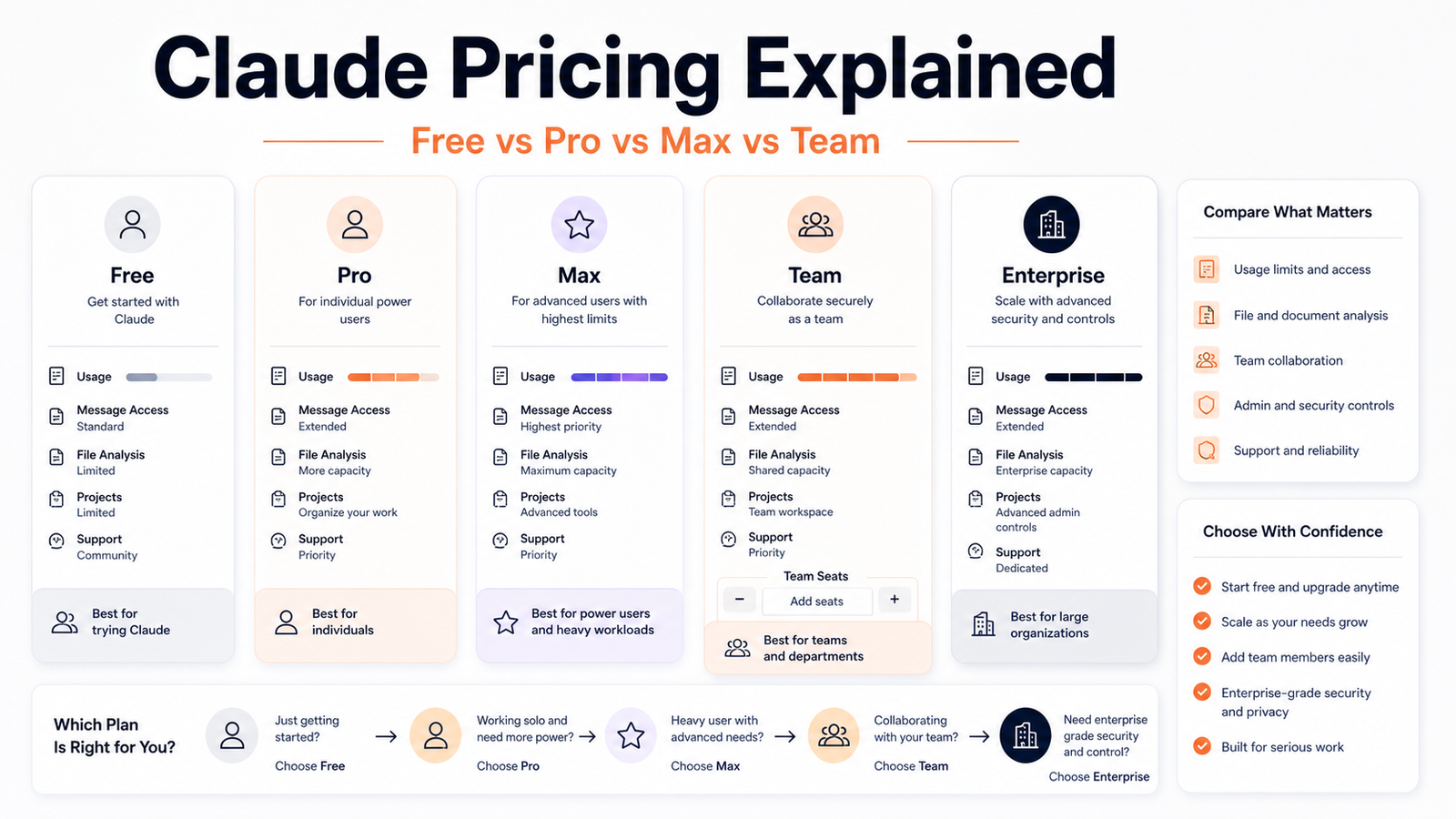
    Start with Free if you are only exploring Claude. Choose Pro if you use Claude regularly for writing, research, summaries, and analysis. Choose Max if you are a heavy individual user who needs more access. Choose Team if multiple employees need Claude in a shared company workspace. Choose Enterprise if procurement, compliance, security, and support requirements go beyond the self-serve Team plan.

    Claude Pricing Overview

    Plan Best For Official Pricing Notes
    Free Trial and light use Free access path with limits
    Pro Regular individual users Official Claude plan pages list paid Pro access
    Max Heavy individual users Official Claude Help Center describes Max as higher-usage individual access
    Team Standard Company teams Anthropic Help Center lists Team Standard pricing and five-member minimum
    Team Premium Heavier team users Anthropic Help Center lists Premium seat pricing
    Enterprise Larger organizations Custom enterprise path

    Free

    Claude Free is best for people who want to understand Claude's style before paying. It works for occasional writing help, summaries, brainstorming, and light analysis.

    Free is not the right plan if Claude is part of daily business work or if your team needs shared administration.

    Pro

    Claude Pro is the practical paid plan for individual users. It makes sense for writers, marketers, founders, researchers, consultants, and students who use Claude repeatedly and need more room than the free plan.

    Pro is not a company governance plan. If multiple employees are using Claude for business work, Team or Enterprise may be more appropriate.

    Max

    Claude Max is for heavy individual users who need substantially more access than Pro. It can fit people who rely on Claude throughout the day for research, long-form writing, document analysis, coding explanations, and planning.

    Max is not the default upgrade. Only consider it when Pro limits interrupt valuable work.

    Team

    Claude Team is the business workspace option. Anthropic Help Center material lists Standard and Premium seats and a minimum of five members. Team is more relevant when a company needs shared use, member management, and team-oriented billing.

    Team is a better fit than reimbursing several personal Pro subscriptions when the work is clearly company work.

    Enterprise

    Claude Enterprise is for organizations with more advanced security, compliance, support, procurement, and administrative needs. Small businesses usually do not need Enterprise first unless they have strict requirements.

    Real Use Cases

    Writing And Editing

    Claude is often useful for drafting, revising, summarizing, and restructuring long-form content. Pro may be enough for individual writers. Team is better if multiple employees need a shared workspace.

    Research And Analysis

    Researchers can use Claude to summarize materials, compare arguments, and draft reports. Heavy users may consider Max if lower-plan limits interrupt daily work.

    Operations And Policy Work

    Operations teams can use Claude to turn rough SOPs into clearer process documents. However, policy content still needs human approval.

    Company AI Workspace

    Teams should choose Team or Enterprise when business data, user management, and shared administration matter.

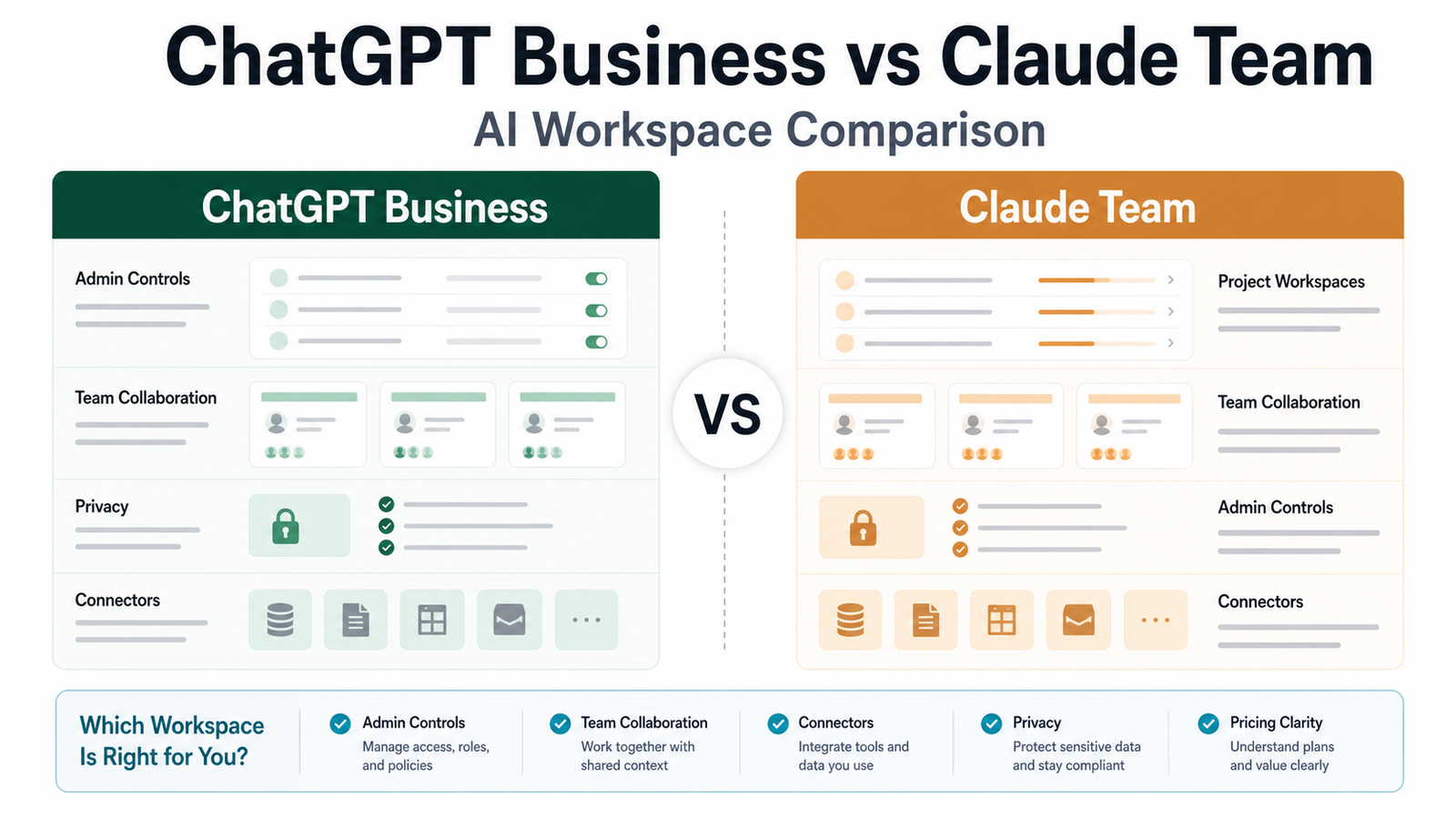
    For related comparisons, see ChatGPT Business vs Claude Team and Claude vs ChatGPT.

    Pros And Cons

    Pros

    • Free lets users try Claude without committing.
    • Pro is a reasonable step for regular individual use.
    • Max gives heavy users more room.
    • Team supports company use better than scattered personal accounts.
    • Enterprise covers advanced organizational needs.

    Cons

    • Team has a member minimum.
    • Max can be too expensive for casual users.
    • Enterprise may be unnecessary for small teams.
    • Pricing and limits should be compared against real usage.
    • Claude still needs human review for important business outputs.

    Final Recommendation

    Most individuals should start with Free, then upgrade to Pro if Claude becomes part of weekly work. Heavy users should consider Max only after Pro limits become a real blocker. Companies should compare Team and Enterprise based on governance needs, not only model preference.

    FAQs

    Is Claude free?

    Claude has a free access path, but plan availability and limits should be reviewed on Anthropic's official Claude plan pages.

    How much is Claude Pro?

    Anthropic publishes Claude Pro pricing on official plan and help pages. Pricing last checked on June 22, 2026.

    What is Claude Max?

    Claude Max is a higher-usage individual plan for people who need more Claude access than Pro.

    What is Claude Team?

    Claude Team is Anthropic's team plan for organizations with multiple members.

    How many members does Claude Team require?

    Anthropic Help Center material lists a five-member minimum for Team plans.

    Is Claude Team better than Pro?

    Team is better for company use, user management, and collaboration. Pro is better for individual users.

    Who should choose Claude Max?

    Heavy individual users who regularly hit lower-plan limits and can justify the cost.

    Who should choose Enterprise?

    Organizations with advanced security, procurement, compliance, or support needs.

    Does Claude pricing vary by country?

    Pricing, taxes, and checkout details may vary by region and billing setup.

    What should I compare before paying?

    Compare usage limits, team minimums, admin controls, privacy needs, and whether Claude fits your real workflows.

    How To Decide Between Claude Plans

    The easiest way to choose a Claude plan is to map the plan to the user type. Free is for exploration. Pro is for regular individual use. Max is for heavy individual use. Team is for companies with multiple employees. Enterprise is for organizations with procurement, security, and support requirements that go beyond self-serve plans.

    Do not upgrade because the plan name sounds more powerful. Upgrade when a lower plan blocks a workflow that creates real value.

    Plan Selection Table

    Situation Best Starting Point Reason
    Trying Claude for the first time Free No paid commitment
    Weekly writing and research Pro Better fit for regular individual use
    Heavy daily research or long-form work Max More room for power users
    Five-person company workspace Team Shared business use and member management
    Strict security/procurement needs Enterprise Custom organizational requirements

    Real Use Cases

    Solo Marketer

    A solo marketer may use Claude Pro for campaign briefs, content outlines, positioning notes, and copy review. Max may be unnecessary unless Claude is used heavily every day.

    Consultant

    A consultant may use Claude for client research, workshop notes, proposal drafts, and long document summaries. Pro is often the first paid plan to evaluate.

    Small Team

    A five-person team should compare Team against reimbursing individual Pro accounts. Team is cleaner when company data, shared access, and member management matter.

    Enterprise Department

    Enterprise becomes relevant when the organization needs custom procurement, security review, support terms, and advanced administrative controls.

    Limitations And Buying Risks

    The biggest risk is paying for more access than the team can use. Another risk is buying individual plans for company work without governance. A third risk is assuming Claude outputs are final. Claude can help with writing and analysis, but important business outputs still need source review and human approval.

    Pricing Review Checklist

    Before paying, compare billing interval, user minimums, usage limits, team controls, privacy needs, support expectations, and whether the plan fits your real weekly workflows.

    Pro vs Max

    The Pro vs Max decision is mostly about usage intensity. Pro is the normal paid individual plan. Max is for people who rely on Claude enough that limits become a business problem. A casual user should not jump to Max just because it sounds more advanced.

    If you write a few briefs each week, summarize occasional documents, and use Claude as a second brain, Pro may be enough. If you spend hours each day using Claude for analysis, writing, planning, code explanation, and long document work, Max may be worth comparing.

    Team vs Enterprise

    Team is the natural fit for smaller organizations that need a managed Claude workspace. Enterprise is for organizations with deeper requirements around procurement, security review, compliance, support, and administration.

    A small company should not start with Enterprise unless there is a clear reason. If the decision is simply "we need Claude for five employees," Team is usually the first plan to review.

    Pricing Sources And Caution

    Claude plan details can be presented across product pages, upgrade pages, and Help Center articles. The safest approach is to use official Anthropic or Claude sources and avoid third-party price summaries. This article uses official sources only and avoids guessing hidden discounts, regional taxes, or account-specific checkout details.

    Pricing last checked on June 22, 2026.

    Best Plan By Role

    Role Suggested Starting Point
    Student or casual user Free
    Solo marketer or writer Pro
    Heavy researcher or analyst Max
    Small company team Team
    Regulated organization Enterprise

    What To Avoid

    Avoid buying Max before you know Pro is limiting. Avoid using personal Pro accounts for company data if governance matters. Avoid assuming Enterprise is necessary just because the company is a business. And avoid making plan decisions without testing Claude on the actual work your team repeats each week.

    How To Estimate Real Value Before Upgrading

    Claude pricing should be evaluated against repeated work, not curiosity. A paid plan is easier to justify when Claude helps with tasks that happen every week: writing client briefs, summarizing documents, reviewing long drafts, preparing meeting notes, creating internal policies, analyzing research, or drafting technical explanations.

    Before upgrading, list the top five workflows where Claude could save time or improve quality. Then run those workflows for one week on the lowest suitable plan. If Claude becomes part of real work, upgrading may be sensible. If it is only used for occasional brainstorming, a higher plan may not be necessary.

    Individual Plan Decision

    For individual users, the Free plan is best for learning the product. Pro is the first serious plan to compare when Claude becomes part of weekly work. Max is for users who hit limits often enough that waiting or switching tools disrupts productivity.

    The practical question is not whether Max is more powerful. The question is whether the additional access changes work outcomes. A consultant using Claude heavily for document analysis and drafting may justify a higher plan. A casual user writing a few prompts per week probably should not.

    Team Plan Decision

    For companies, the decision is partly about access and partly about governance. A business should compare one shared team workspace against separate personal accounts. A team plan can make ownership, member management, and company use clearer. Personal accounts can be simpler at first, but they become messy when employees leave, documents are shared informally, or company data needs consistent rules.

    Use Team when multiple employees need Claude for company work and the company wants a cleaner workspace. Consider Enterprise when procurement, security review, custom support, compliance requirements, or larger administrative needs are part of the buying process.

    Pricing Questions To Ask

    Before choosing a plan, ask these questions:

    Question Why It Matters
    How many people need regular access? Prevents buying too many or too few seats
    Which workflows repeat weekly? Helps connect price to real business value
    Are limits blocking work? Shows whether a higher plan is needed
    Is company data involved? Helps decide between individual and team use
    Are procurement or security reviews required? May point toward Enterprise

    Recommendation For Small Businesses

    Most small businesses should start modestly. Use Free for exploration, Pro for one or two regular power users, and Team when multiple employees need managed access. Move to Max or Enterprise only when usage, governance, or procurement requirements make the need clear.

    Pricing last checked on June 22, 2026 using official Claude and Anthropic sources linked in this article. Taxes, regional availability, checkout details, discounts, and account-specific terms may vary, so the official plan page remains the final source before purchase.

  • Best Reclaim AI Alternatives for Scheduling

    Best Reclaim AI Alternatives for Scheduling

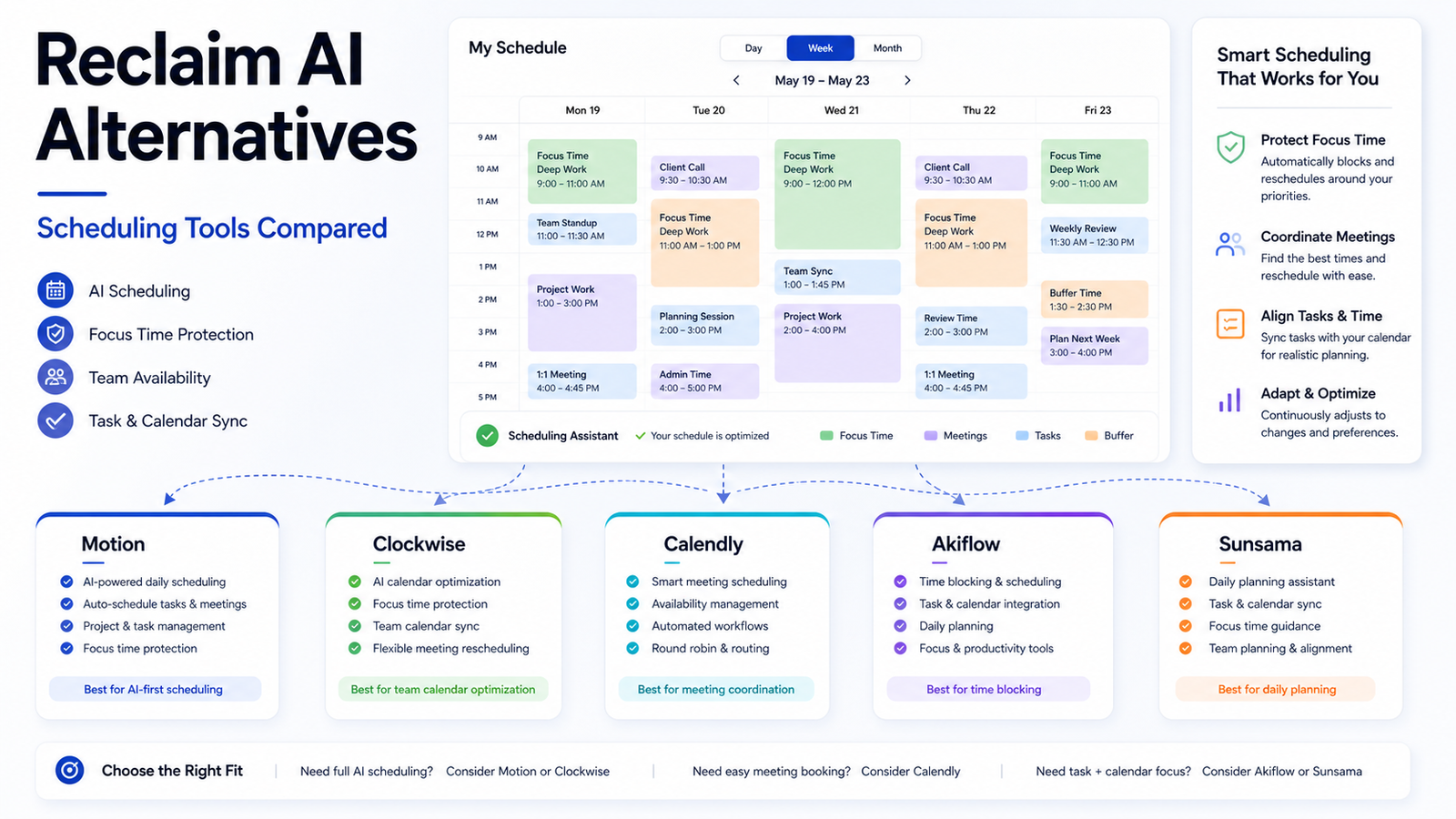
    Reclaim AI is useful for protecting focus time, planning tasks, and keeping calendars from becoming chaotic. But it is not the only AI scheduling option. Some teams need deeper task scheduling, some need meeting booking, some want focus-time protection, and some prefer a calmer daily planning system.

    This guide compares practical Reclaim AI alternatives for small businesses, founders, consultants, agencies, and teams that want better scheduling without adding calendar confusion.

    Quick Answer

    Choose Motion if you want automatic task scheduling. Choose Clockwise if the main goal is focus-time protection for teams. Choose Calendly if external booking is the priority. Choose Akiflow if you want a daily planning command center. Choose Sunsama if you want a calmer planning workflow with less automation pressure.

    Comparison Table

    Alternative Best For Main Strength Limitation
    Motion Task scheduling Turns tasks into calendar plans Can feel heavy if you only need meeting booking
    Clockwise Team focus time Optimizes calendars around focus blocks Less focused on personal task management
    Calendly External meeting booking Simple scheduling links and booking workflows Not a full AI task planner
    Akiflow Personal daily planning Pulls tasks into one planning workspace Requires personal planning discipline
    Sunsama Mindful planning Helps plan realistic workdays Less automation-heavy than Motion

    Pricing last checked on June 22, 2026. Official product and pricing pages are linked below.

    Our Evaluation Criteria

    We compared tools based on scheduling automation, focus-time protection, task planning, calendar integrations, team features, booking workflows, pricing clarity, ease of setup, and whether the product fits small business routines.

    1. Motion

    Motion is the strongest Reclaim alternative for people who want tasks automatically placed into the calendar. It is useful for founders, managers, and consultants who need help turning task lists into actual schedules.

    Motion is not best if you only need booking links. It is more useful when task scheduling and calendar planning are the core pain.

    2. Clockwise

    Clockwise is best for teams that need focus-time protection. It helps reduce calendar fragmentation and gives teams more uninterrupted work blocks.

    Clockwise can be especially useful for engineering, product, marketing, and operations teams with too many meetings. It is less of a personal task planner than Motion or Akiflow.

    3. Calendly

    Calendly is the best alternative when the real job is external scheduling. Sales calls, demos, interviews, consultations, and client onboarding meetings often need booking links more than AI task scheduling.

    Calendly is not a Reclaim clone. It belongs in the comparison because many small businesses say "scheduling tool" when they really mean meeting booking.

    4. Akiflow

    Akiflow is best for individuals who want a command center for tasks, calendar, and daily planning. It can help people pull work from different sources and plan the day intentionally.

    It is a good fit for consultants, founders, and managers who want control rather than full automation.

    5. Sunsama

    Sunsama is for people who want a calmer daily planning workflow. It is useful if your calendar problem is overcommitment, not just scheduling efficiency.

    Sunsama may be less appealing if you want aggressive automation. Its strength is helping users plan realistic workdays.

    Real Use Cases

    Protecting Focus Time

    A small software team could use Clockwise or Reclaim-style scheduling to protect engineering blocks while keeping necessary meetings.

    Scheduling Sales Calls

    A consultant or agency could use Calendly for discovery calls, paid consultations, and client check-ins without back-and-forth email.

    Planning Task-Heavy Days

    A founder with many tasks could use Motion or Akiflow to convert tasks into a realistic work plan.

    Reducing Calendar Overload

    A manager could use Sunsama to plan fewer, more realistic commitments instead of letting every task become urgent.

    For related productivity coverage, see our Motion vs Reclaim AI comparison and AI project management workflow.

    Pricing Notes

    Review the official pricing pages for Motion, Clockwise, Calendly, Akiflow, and Sunsama before buying. Pricing last checked on June 22, 2026. Compare user seats, calendar connections, team features, booking pages, and automation limits.

    Pros And Cons Of Switching

    Pros

    • You can choose the tool that matches the real scheduling problem.
    • Some alternatives are stronger for task planning.
    • Others are better for team focus time or booking links.
    • Switching can reduce calendar friction if Reclaim is not the right fit.

    Cons

    • Calendar migration can confuse teams.
    • Too many scheduling tools create duplicate workflows.
    • Automation can over-plan the day if the task list is unrealistic.
    • The best tool still requires calendar discipline.

    Final Recommendation

    If you want automated task scheduling, start with Motion. If your team needs focus time, compare Clockwise. If you mainly need booking links, Calendly is the clearer choice. If you want personal planning, compare Akiflow and Sunsama.

    The best Reclaim AI alternative is the one that fixes your actual scheduling problem, not the one with the most AI language on the landing page.

    FAQs

    What is the best Reclaim AI alternative?

    Motion is strong for task-and-calendar planning, Clockwise is strong for focus time, Calendly is strong for booking, Akiflow is strong for daily planning, and Sunsama is strong for mindful task planning.

    Why look for a Reclaim AI alternative?

    Teams may want different calendar workflows, stronger task planning, booking pages, focus-time automation, or a simpler daily planning app.

    Is Motion better than Reclaim AI?

    Motion may be better for people who want automatic task scheduling. Reclaim may fit people who want calendar habits and focus-time protection.

    Is Clockwise a Reclaim AI alternative?

    Yes. Clockwise is a strong alternative for teams focused on protecting focus time and improving meeting schedules.

    Is Calendly the same as Reclaim AI?

    No. Calendly is mainly for booking and scheduling meetings with others, while Reclaim AI is more about calendar automation and focus time.

    Which alternative is best for individuals?

    Akiflow or Sunsama may appeal to individuals who care about daily planning. Motion may fit individuals who want automated task scheduling.

    Which alternative is best for teams?

    Clockwise, Calendly, and Motion are common team-focused options depending on whether the team needs focus time, booking, or task scheduling.

    Do these tools replace project management software?

    No. They help schedule work and meetings, but they do not fully replace project tracking, documentation, or team planning systems.

    Should a small business use more than one scheduling tool?

    Usually no. Start with one scheduling workflow to avoid calendar confusion.

    What should I test before switching?

    Test meeting booking, focus time, task scheduling, calendar sync reliability, team adoption, and whether the tool reduces calendar stress.

    How To Choose The Right Alternative

    Start by naming the real calendar problem. If the problem is that tasks never make it onto the calendar, Motion or Akiflow may be better than a meeting-booking tool. If the problem is too many scattered meetings, Clockwise may be the better comparison. If the problem is external scheduling, Calendly is clearer than any task planner.

    Teams often switch tools too quickly because every calendar app looks similar in a demo. The better test is a full workweek. Connect the calendar, add real tasks, book real meetings, protect real focus time, and then ask whether the tool reduced friction or merely rearranged the calendar.

    Evaluation Criteria

    Criterion Why It Matters
    Calendar sync reliability Scheduling tools must not create conflicts
    Task planning depth Some teams need task scheduling, not only meeting booking
    Focus-time protection Deep-work teams need uninterrupted blocks
    Booking workflows Sales and service teams need reliable external scheduling
    Team adoption A scheduling tool fails if only one person uses it
    Pricing clarity Seat costs matter when calendars are company-wide

    Use-Case Recommendations

    For a founder with an overloaded task list, Motion is the first alternative to evaluate. For a product or engineering team losing focus time to meetings, Clockwise is more relevant. For an agency scheduling client calls, Calendly may solve the actual problem. For a consultant who wants a personal planning cockpit, Akiflow is worth comparing. For a creator or manager who wants a calmer day plan, Sunsama may be a better fit.

    Migration Tips

    Do not migrate every workflow at once. Start with one calendar, one user group, and one use case. Keep old scheduling links active until the new workflow is stable. Tell the team which tool owns booking, which tool owns task planning, and where meetings should be changed.

    Common Mistakes

    The biggest mistake is buying an AI scheduling app before fixing the team's meeting culture. If meetings have no agenda, no owner, and no decision rules, a smarter calendar will only organize the chaos.

    Detailed Alternative Breakdown

    Motion is the strongest choice when tasks need to become calendar blocks automatically. It can help people who know what must be done but struggle to place work realistically across the week. It is less useful for teams that only need simple meeting booking.

    Clockwise is the strongest team focus-time alternative. It is useful when calendars are full of scattered meetings that break deep-work time. The best users are teams that can agree on focus-time norms and meeting flexibility.

    Calendly is not a full Reclaim replacement, but it is often the correct tool when the real problem is external scheduling. Sales teams, consultants, recruiters, and service businesses often need booking workflows more than AI task planning.

    Akiflow is a personal planning hub. It appeals to people who want to pull tasks from many sources into a daily plan. It is better for disciplined individual planning than for fully automated team scheduling.

    Sunsama is the calmest option in the group. It is less about maximizing automation and more about helping people plan a sustainable day. It can fit managers, creators, and consultants who want fewer commitments, not just smarter commitments.

    Pricing And Trial Evaluation

    Official pricing pages are linked for each tool. Pricing last checked on June 22, 2026. When comparing plans, look at seat costs, calendar connections, task integrations, team features, booking page support, and whether annual billing changes the effective monthly cost.

    Do not evaluate pricing in isolation. A cheaper scheduling app that the team ignores is more expensive than a focused tool that saves real coordination time.

    Best Alternative By Scenario

    Scenario Best Starting Point
    Solo founder with too many tasks Motion or Akiflow
    Engineering team losing focus time Clockwise
    Consultant booking client calls Calendly
    Manager planning realistic workdays Sunsama
    Team already happy with Reclaim focus blocks Stay with Reclaim

    Final Buying Advice

    Run a one-week scheduling pilot. If the tool makes the calendar clearer, reduces back-and-forth scheduling, protects focus time, and does not confuse the team, keep testing. If it only adds another layer of calendar management, the team probably needs process changes before another app.

    How Reclaim AI Alternatives Differ In Daily Work

    Reclaim AI alternatives often look similar on a pricing page, but they feel different during a real workweek. Motion tries to turn work into a schedule. Clockwise tries to protect focus time across teams. Calendly focuses on external booking. Akiflow centralizes tasks and planning. Sunsama encourages a calmer daily planning habit.

    That difference matters because scheduling pain is not one problem. Some teams have too many meetings. Some people have too many tasks. Some companies need better client booking. Some managers need fewer interruptions. A tool that solves one problem may not solve another.

    For example, a solo operator who keeps missing task deadlines may get more value from Motion or Akiflow than from Clockwise. A software team that needs fewer broken focus blocks may benefit more from Clockwise. A consultant who simply needs prospects to book calls without email back-and-forth may be better served by Calendly.

    Practical One-Week Test Plan

    Use a one-week trial instead of a same-day demo decision. On Monday, connect calendars and add real tasks. On Tuesday and Wednesday, use the tool for actual scheduling and focus blocks. On Thursday, review whether meetings moved intelligently or created confusion. On Friday, ask the team whether the calendar feels clearer.

    Measure these signals:

    Signal Good Outcome
    Meeting changes Fewer scattered meetings and fewer manual reschedules
    Focus time More usable blocks for deep work
    Task planning Important tasks appear on the calendar realistically
    Booking links External scheduling is easier for clients or prospects
    Team confidence People understand why calendar changes happen

    If the tool saves time but the team does not trust the calendar, adoption will be weak. Scheduling software needs confidence more than novelty.

    When To Stay With Reclaim AI

    Do not switch just because another app has a cleaner demo. Stay with Reclaim AI if it already protects habits, schedules tasks, keeps focus time visible, and does not create calendar confusion. Switching has a cost: new settings, new habits, new booking rules, and new team training.

    An alternative is worth it when it solves a specific limitation. Choose Motion if task scheduling depth is the gap. Choose Clockwise if team focus time is the gap. Choose Calendly if booking workflows are the gap. Choose Akiflow or Sunsama if the gap is daily planning discipline.

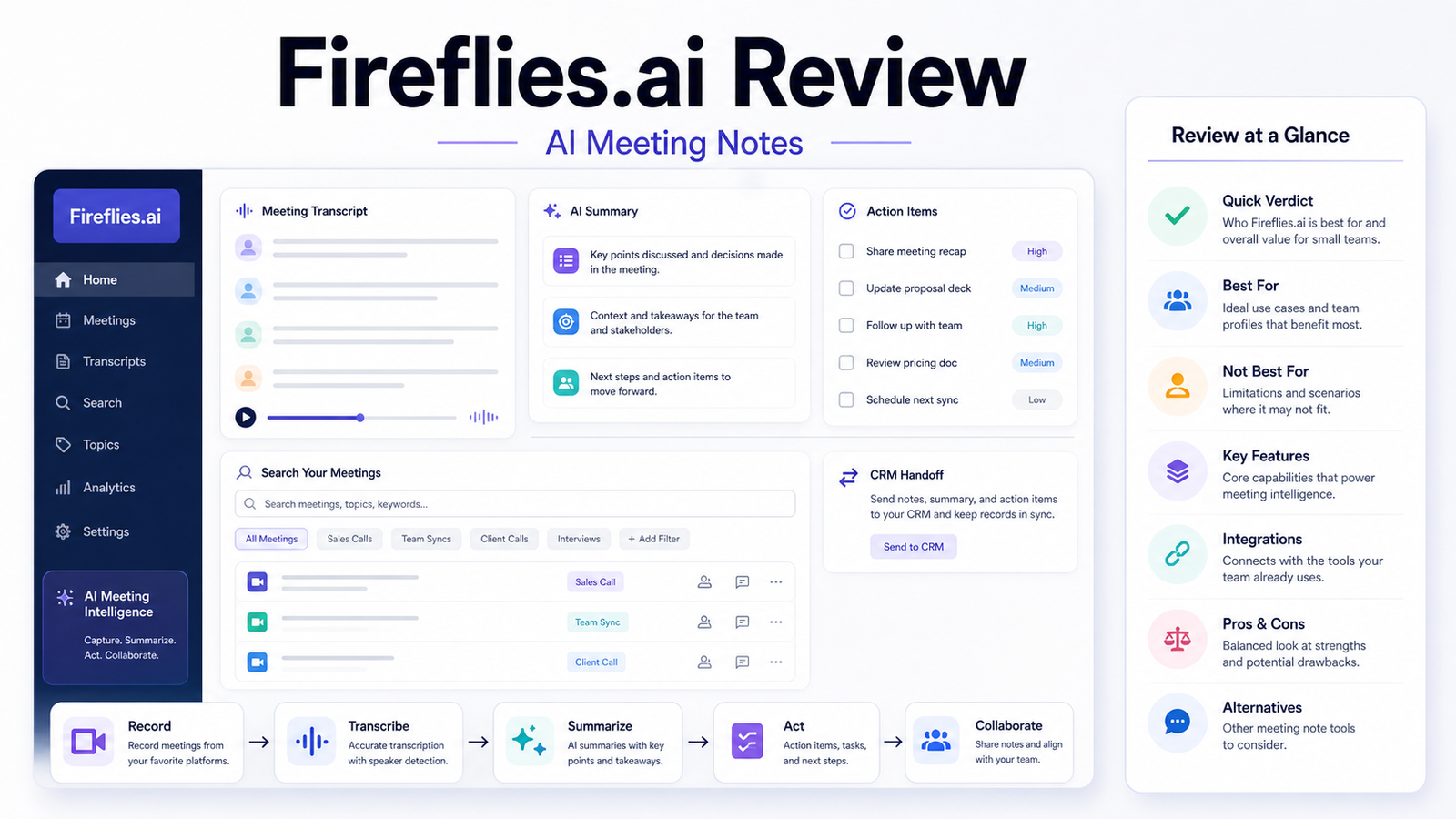
  • Fireflies.ai Review: Is It Worth It for Meeting Notes?

    Fireflies.ai Review: Is It Worth It for Meeting Notes?

    Fireflies.ai is an AI meeting assistant for teams that want transcripts, summaries, searchable meeting history, and action items without manually writing every note. It can be useful, but it is not a magic replacement for meeting discipline.

    This Fireflies.ai review is written for small businesses, agencies, SaaS teams, sales teams, customer success managers, and founders deciding whether to pay for an AI meeting notes tool.

    Quick Verdict

    Fireflies.ai is worth considering if your team has frequent meetings and repeatedly loses decisions, follow-ups, objections, or customer context. It is most useful when meeting notes need to become searchable knowledge, CRM updates, support handoffs, or next-step reminders.

    It is not the right tool if your team rarely meets, does not have consent practices for recording, or handles sensitive conversations that require stricter controls than a standard meeting bot workflow.

    Best For

    • Sales teams recording discovery calls and demos.
    • Customer success teams summarizing check-ins.
    • Founders who need searchable meeting history.
    • Agencies turning client calls into action items.
    • Teams that want meeting notes connected to follow-up workflows.

    Not Best For

    • Teams with very few meetings.
    • Meetings where recording consent is unclear.
    • Sensitive legal, medical, or HR conversations without governance review.
    • Teams that will not verify action items before sending follow-ups.

    Our Evaluation Criteria

    We looked at Fireflies.ai based on ease of setup, meeting transcription workflow, summary usefulness, action item capture, integrations, searchable meeting knowledge, pricing clarity, team controls, and value for small businesses.

    This review does not claim hands-on testing. It is based on official Fireflies product and pricing sources plus practical workflow analysis.

    Key Features

    Fireflies.ai focuses on capturing meeting conversations, turning them into transcripts, generating AI summaries, extracting action items, and making meetings searchable. That combination is valuable when meetings create knowledge that would otherwise disappear into scattered notes.

    For sales, Fireflies can help capture objections, next steps, account context, and customer language. For customer success, it can summarize check-ins and surface recurring issues. For operations, it can help turn meeting discussions into tasks and documentation.

    Real Use Cases

    Sales Follow-Up

    A sales rep can use Fireflies to summarize a prospect call, identify objections, list requested information, and draft a follow-up. The summary should be reviewed before sending anything to the prospect.

    Customer Success Handoff

    A customer success manager can use Fireflies to capture account risks, renewal topics, product questions, and open action items. This helps the team avoid relying on memory after a busy call day.

    Internal Project Meetings

    Teams can use Fireflies to capture decisions, owners, deadlines, and unresolved questions. This is useful when paired with a project management system rather than leaving action items inside the transcript.

    Knowledge Base Inputs

    Repeated customer questions can become raw material for a help center or internal knowledge base. For a broader process, see our AI knowledge base workflow once published.

    Pricing

    Fireflies publishes free and paid plan information on its official pricing page. Pricing last checked on June 22, 2026. Review the official plan page for current limits, transcription credits, storage, integrations, and team features before choosing a plan.

    Alternatives

    Alternative Best For Main Difference
    Otter.ai General meeting notes Strong brand recognition and meeting note workflows
    Fathom Simple call summaries Popular for fast meeting summaries
    tl;dv Sales and team calls Useful for recorded meetings and snippets
    Avoma Sales-focused teams Meeting intelligence with revenue workflow angle
    Native Zoom/Teams AI Existing suite users Less tool sprawl if your platform already includes AI notes

    For more meeting tool comparisons, see Otter.ai vs Fireflies.ai and Otter.ai vs Fathom.

    Pros

    • Helps reduce manual note taking.
    • Makes meetings searchable after the call.
    • Useful for sales, support, and customer success handoffs.
    • Can turn conversations into action item lists.
    • Practical for teams with recurring meeting volume.

    Cons

    • Transcripts and summaries still need human review.
    • Recording consent and privacy rules matter.
    • Meeting bots can feel intrusive in some conversations.
    • Value drops if the team does not act on the summaries.
    • Plan limits and integrations should be reviewed before rollout.

    Final Recommendation

    Fireflies.ai is a practical meeting assistant for teams that treat meetings as business data. It is strongest when summaries become follow-ups, CRM notes, support handoffs, or internal knowledge. It is weaker when used casually without review, consent practices, or a clear workflow.

    If your team spends hours each week in calls and often loses decisions afterward, Fireflies.ai is worth evaluating. If meetings are rare or sensitive, start cautiously and define recording rules first.

    FAQs

    Is Fireflies.ai good for small businesses?

    Yes, it can be useful for small businesses that need meeting transcription, summaries, action items, and searchable meeting history.

    Does Fireflies.ai replace a human note taker?

    No. It can reduce manual note taking, but important decisions, customer commitments, and action items still need human review.

    What is Fireflies.ai best for?

    It is best for recurring sales calls, customer success meetings, internal team meetings, interviews, and workflows where notes need to be searched later.

    Who should avoid Fireflies.ai?

    Teams with strict consent rules, highly sensitive meetings, or no process for reviewing AI summaries should be cautious.

    Does Fireflies.ai have a free plan?

    Fireflies publishes free and paid plan information on its official pricing page.

    Can Fireflies.ai help sales teams?

    Yes. Sales teams can use it to summarize calls, capture objections, prepare follow-ups, and hand notes to a CRM workflow.

    Can Fireflies.ai summarize Zoom or Google Meet calls?

    Fireflies positions itself around meeting transcription and integrations; review official integration pages for the current supported apps.

    What alternatives should I compare?

    Otter.ai, Fathom, tl;dv, Avoma, and Microsoft Teams/Zoom native AI features are common alternatives to review.

    Does Fireflies.ai claim perfect transcripts?

    No transcription tool should be treated as perfect. Accents, audio quality, overlapping speakers, and jargon can affect accuracy.

    What should I test before paying?

    Test one sales call, one internal meeting, and one customer success call, then review transcript quality, summary usefulness, action item accuracy, and privacy fit.

    Deeper Evaluation

    The value of Fireflies.ai depends on what happens after the meeting. If transcripts and summaries sit unused, the tool becomes another archive. If summaries become follow-ups, CRM notes, support handoffs, and action items, the value becomes much clearer.

    Evaluate Fireflies with three real meeting types: a sales call, an internal project meeting, and a customer success call. Review transcript accuracy, speaker separation, summary usefulness, action item quality, search, integrations, and whether the team actually trusts the output.

    Setup And Governance Checklist

    Before rolling out Fireflies.ai, write down when recording is allowed, who can access transcripts, which meetings should never be recorded, and who reviews summaries before they are sent externally.

    For sales teams, decide whether AI summaries can be copied into the CRM automatically or whether a rep must approve them first. For customer success teams, decide which account health notes belong in customer records. For internal teams, decide how long meeting records should stay accessible.

    Workflow Fit By Team

    Team Useful Workflow Watch-Out
    Sales Discovery summaries, objections, next steps Do not send follow-ups without checking facts
    Customer success Account notes and renewal risks Sensitive customer issues need careful handling
    Operations Decisions and action items Meeting notes must connect to task systems
    Agencies Client call summaries Client confidentiality rules must be clear
    Founders Searchable meeting memory Avoid recording conversations where consent is unclear

    Limitations To Understand

    No meeting assistant can guarantee perfect notes. Audio quality, accents, jargon, interruptions, and overlapping speakers can affect transcript quality. AI-generated action items can also miss nuance, especially when a meeting includes informal commitments or conditional decisions.

    Fireflies.ai is strongest when the team treats it as a capture and review system. It is weakest when the team lets it publish or send outputs without human judgment.

    Detailed Feature Review

    The most important Fireflies.ai feature is not transcription by itself. It is the combination of transcript, summary, search, and follow-up workflow. A transcript alone is often too long to be useful. A short summary alone can miss important context. The best outcome is a meeting record where the summary gives a fast overview, the transcript gives detail, and search lets the team find a decision later.

    For sales teams, the useful pieces are objections, buying criteria, next steps, competitor mentions, timeline, budget comments, and promised follow-up. For customer success teams, the useful pieces are risks, feature requests, unresolved issues, renewal concerns, and customer sentiment. For internal teams, the useful pieces are decisions, owners, deadlines, blockers, and open questions.

    Pricing And Plan Fit

    Fireflies publishes plan information on its official pricing page. A small team should not choose a plan only by the lowest monthly cost. Compare transcription limits, storage, AI summary access, integrations, team controls, and whether the plan supports your meeting volume. A sales team with many calls may need different limits than a founder who only records a few weekly meetings.

    Pricing last checked on June 22, 2026. Use the official pricing source linked in this article for current plan names, billing options, and limits.

    Alternatives Compared

    Otter.ai is a strong alternative for general meeting notes and transcription. Fathom is popular for simple meeting summaries. tl;dv is useful for teams that want clips and recorded meeting workflows. Avoma is more sales-meeting oriented. Native Zoom, Google Meet, or Microsoft Teams AI features may be enough if your team wants fewer tools.

    Fireflies.ai is worth comparing when searchable meeting memory matters. If you only need a quick summary after a call, a lighter tool may be enough. If meeting notes need to feed CRM, support, and knowledge workflows, Fireflies becomes more interesting.

    Final Buying Advice

    Pilot Fireflies with a small group before rolling it out company-wide. Choose users who have frequent meetings and will actually review the output. Track whether follow-ups improve, whether missed action items decrease, and whether people search old meetings. If the tool only creates more unread transcripts, it is not solving the problem.

    What A Real Fireflies.ai Pilot Should Measure

    A useful Fireflies.ai pilot should measure whether the meeting record improves work after the call. Do not judge the tool only by whether it produces a readable summary. A polished summary can still be weak if it misses the actual decision, assigns the wrong owner, or hides an important customer concern.

    For a sales team, review whether the summary captures the buyer's problem, objections, decision process, competitors mentioned, follow-up promises, and next meeting date. For a customer success team, review whether the notes capture risks, renewal issues, feature requests, unresolved tickets, and internal handoff details. For a founder or manager, review whether the tool makes past decisions easier to search.

    The pilot should include at least three meeting types:

    Meeting Type What To Review
    Sales discovery call Pain points, budget comments, timeline, objections, next steps
    Customer success call Account risks, open issues, product requests, support handoff
    Internal project meeting Decisions, owners, deadlines, blockers, unresolved questions

    After each meeting, compare the AI summary with the transcript and with what the meeting owner remembers. If the output saves time but still needs light review, that is normal. If the output repeatedly misses critical commitments, the team should adjust recording quality, meeting structure, or tool choice before rolling it out broadly.

    Best For And Not Best For

    Fireflies.ai is best for teams with recurring meetings and a real follow-up process. Sales reps, account managers, founders, recruiters, agencies, consultants, and customer success teams are the most obvious users. These teams often need a searchable record of what was said and what should happen next.

    It is not best for teams that rarely meet, teams that already have a strong native meeting summary workflow, or organizations that cannot record meetings because of consent, privacy, or client restrictions. It is also not the right answer if the company has no discipline around reviewing notes. AI meeting notes help most when they support an existing process.

    Human Review Workflow

    The safest workflow is simple. Let Fireflies capture and summarize the meeting. Have the meeting owner review the summary before it is sent to a client, copied into a CRM, or used as a project record. Then move only the useful parts into the system of record.

    This matters because meeting assistants can misunderstand conditional language. A customer saying "we might consider upgrading next quarter" is not the same as a firm renewal commitment. A manager saying "let's explore this" is not the same as an assigned task. Human review keeps AI summaries from becoming accidental promises.

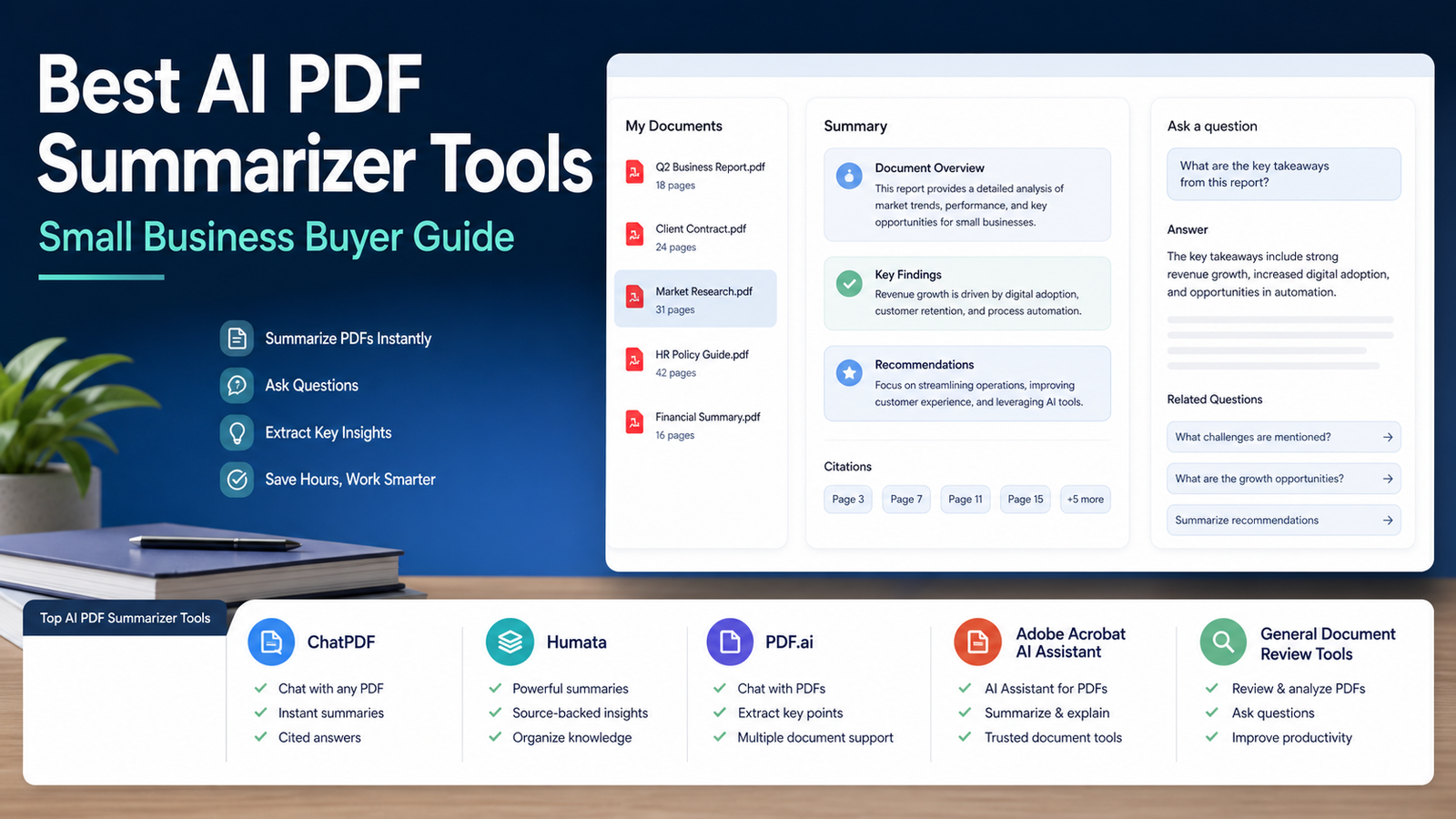
  • Best AI PDF Summarizer Tools for Small Business

    Best AI PDF Summarizer Tools for Small Business

    Small businesses handle more PDF documents than they realize: contracts, vendor proposals, invoices, client reports, policy documents, research papers, product manuals, onboarding files, and sales decks. AI PDF summarizer tools can help teams find answers faster, but they also create risk if people treat summaries as final truth.

    This guide compares practical AI PDF summarizer tools for small business workflows: ChatPDF, Humata, PDF.ai, Adobe Acrobat AI Assistant, and NotebookLM. The goal is not to crown a magic document reader. The goal is to help you choose the right tool for the kind of PDF work your team actually does.

    Quick Answer

    Choose ChatPDF if you want a simple way to ask questions about a PDF. Choose Humata if your workflow needs source-backed document analysis and research-style answers. Choose PDF.ai if you want a lightweight PDF chat product with a simple user experience. Choose Adobe Acrobat AI Assistant if your team already works inside Acrobat. Choose NotebookLM if your research includes multiple files, notes, and source material rather than one-off PDF chats.

    For sensitive business documents, the best tool is the one your team can govern. That means clear source references, cautious data handling, human review, and a workflow that does not let AI summaries replace the original document.

    Comparison Table

    Tool Best For Main Strength Limitation To Consider
    ChatPDF Fast PDF Q&A Simple document chat workflow Better for quick answers than deep document operations
    Humata Source-backed document research Research-style answers across documents Team and enterprise needs should be reviewed carefully
    PDF.ai Lightweight PDF chat Easy summaries and questions May be too simple for governed enterprise workflows
    Adobe Acrobat AI Assistant Acrobat users Built into a familiar PDF environment Best value if your team already uses Acrobat
    NotebookLM Multi-source research Source-grounded notebooks and summaries Not a pure PDF-only business document system

    Pricing last checked on June 22, 2026. Official pricing and product pages are linked in the article.

    Our Evaluation Criteria

    We evaluated these tools by practical small-business fit: ease of use, document Q&A quality, source traceability, pricing clarity, team workflow support, privacy considerations, export options, and whether a non-technical team can adopt the tool without creating a risky shortcut.

    This article does not claim hands-on testing. It uses official product and pricing sources, then turns those facts into buying guidance for common small-business workflows.

    1. ChatPDF

    ChatPDF is the simplest fit when someone wants to upload a PDF and ask questions. A consultant could use it to understand a report, a founder could summarize a vendor proposal, and a marketer could pull key points from a long research PDF.

    ChatPDF is best when speed and simplicity matter more than enterprise governance. It is not the strongest choice when a company needs strict approval workflows, complex document repositories, or formal compliance review.

    ChatPDF Pricing

    ChatPDF publishes plan and upgrade information on its official pricing and product surfaces. Use the official page linked below for the current plan details and limits.

    2. Humata

    Humata is a better fit for research-heavy document analysis. It is positioned around asking questions across documents and getting answers from source material. That makes it useful for teams reading lengthy policies, legal support documents, research reports, technical papers, or client files.

    A SaaS team could use Humata to summarize customer research PDFs, extract repeated objections, and create internal notes. A professional services firm could use it to speed up first-pass review before a human specialist validates the output.

    3. PDF.ai

    PDF.ai is a lightweight PDF chat option for people who want a simple experience. It can fit freelancers, students, small agencies, and operations teams that need quick document summaries without adopting a broad knowledge management platform.

    Its limitation is the same as its strength: simplicity. If you need sophisticated user permissions, workflow governance, or enterprise document operations, review the official plan details before making it the team standard.

    4. Adobe Acrobat AI Assistant

    Adobe Acrobat AI Assistant is useful when PDF work already lives in Acrobat. Instead of moving files into another standalone AI PDF product, teams can add AI assistance to a familiar PDF environment.

    This is especially relevant for companies that review contracts, proposals, and policy files in Acrobat every day. The buying decision is less about whether Acrobat can summarize documents and more about whether keeping the workflow inside Acrobat reduces friction.

    5. NotebookLM

    NotebookLM is not only a PDF summarizer. It is better described as a source-grounded research workspace. It can be useful when your work includes PDFs, notes, documents, and research sources together.

    If your team is building a research process, NotebookLM may be a better fit than a one-PDF chat tool. If you only want to ask one PDF a few questions, ChatPDF or PDF.ai may feel faster.

    Real Small-Business Use Cases

    Contract First-Pass Review

    A small business could upload a vendor contract and ask for renewal dates, termination clauses, payment terms, unusual obligations, and unclear sections. The AI output should become a review checklist, not a final legal decision.

    Client Report Summaries

    Agencies can use PDF summarizers to extract findings, action items, and open questions from client reports. This helps account managers prepare faster while still opening the original source before sending client advice.

    Internal Policy Search

    HR and operations teams can use AI PDF tools to locate rules inside policy documents. This is useful for onboarding, benefits questions, travel policies, and equipment procedures.

    Research And Content Briefs

    Marketing teams can summarize research PDFs before creating briefs. Pair this with the AI SEO content brief workflow and best AI SEO tools for small business when turning research into content.

    Meeting And Sales Documents

    Sales teams can summarize proposals, RFPs, and account documents before calls. If meetings are also part of the workflow, see the Fireflies.ai review once it is published and our AI competitor analysis workflow.

    Pricing Notes

    Tool Official Pricing Source Pricing Guidance
    ChatPDF Official pricing/product page Use the current plan page for upload and question limits
    Humata Official pricing page Review document limits, seats, and business features
    PDF.ai Official pricing page Review individual and team plan limits
    Adobe Acrobat AI Assistant Official Adobe pricing/product page Best reviewed alongside existing Acrobat subscription needs
    NotebookLM Official Google product/help pages Review current availability and workspace fit

    Pros And Cons

    Pros

    • Faster first-pass review of long documents.
    • Helpful for extracting questions, obligations, and summaries.
    • Useful for teams that handle repetitive PDF reading.
    • Can support research workflows when source references are available.
    • Reduces the blank-page problem when preparing briefs or notes.

    Cons

    • Summaries can miss context or nuance.
    • Sensitive documents require vendor and plan review.
    • AI answers should not replace legal, financial, or compliance review.
    • Some tools are simple PDF chat products, not full document management systems.
    • Poor source traceability makes important decisions riskier.

    Final Recommendation

    Start with the document type. If your team mostly asks quick questions about individual PDFs, ChatPDF or PDF.ai may be enough. If your work is research-heavy, Humata or NotebookLM may fit better. If your business already lives in Acrobat, Adobe Acrobat AI Assistant is the most natural option to evaluate.

    The best AI PDF summarizer is not the flashiest one. It is the one that gives your team faster answers while keeping source review, privacy, and human judgment intact.

    FAQs

    What is the best AI PDF summarizer for small business?

    The best choice depends on the document type. ChatPDF is easy for quick PDF questions, Humata is useful for source-backed document analysis, PDF.ai is simple for chat-style summaries, Adobe Acrobat AI Assistant fits teams already using Acrobat, and NotebookLM is useful when your research includes multiple sources.

    Can AI PDF tools summarize contracts?

    They can summarize contract language, but a business should not treat the output as legal advice. Use them to speed up review, then ask a qualified human to verify important obligations, risks, and deadlines.

    Do these tools replace reading the original PDF?

    No. They help identify likely answers, summaries, and source sections, but important decisions still require reading the original source pages.

    Which tool is best for research reports?

    NotebookLM and Humata are strong options for source-heavy research workflows. ChatPDF and PDF.ai can also work for quick document Q&A.

    Which tool is best if my team already uses Adobe Acrobat?

    Adobe Acrobat AI Assistant is the most natural option if the team already works inside Acrobat and wants AI help without adding another standalone document tool.

    Are AI PDF summarizers safe for confidential files?

    That depends on the vendor, plan, and data policy. Review the official privacy and enterprise information before uploading private contracts, customer records, or financial documents.

    Do PDF summarizers keep citations?

    Some tools provide source references or page-linked answers, while others focus on summaries. Choose a tool with citation support if source traceability matters.

    Can I use these tools for invoices?

    Yes, for extracting and summarizing invoice details, but accounting data should still be checked against the original file before payment or reporting.

    Should agencies use one tool or several?

    Most agencies should start with one tool and standardize review steps. Add a second only when a client workflow requires it.

    What should I test before paying?

    Test one contract, one report, and one policy document. Check answer accuracy, source references, export options, team controls, and whether the tool saves time without hiding important details.

    How To Evaluate An AI PDF Summarizer

    Do not evaluate an AI PDF tool only by how impressive the first summary looks. A useful small-business tool should handle real documents with messy formatting, tables, long sections, footnotes, and repeated language. It should also make it easy to trace an answer back to the original document.

    The most important test is source reliability. If a tool gives a confident answer but does not help you find the source section, it can create more risk than value. This matters for contracts, policies, client reports, compliance documents, product manuals, and invoices.

    The second test is workflow fit. A solo consultant may only need one-file Q&A. A support team may need searchable policy answers. An agency may need project folders and exports. A finance team may need stricter access controls and review steps.

    Use these criteria before paying:

    Criterion What To Look For
    Source references Can users trace answers back to pages or document sections?
    Document limits Does the plan support your file sizes and document volume?
    Team controls Can the business manage users and access?
    Export options Can summaries become notes, briefs, or tasks?
    Privacy fit Is the vendor acceptable for your document sensitivity?
    Accuracy workflow Does the tool encourage review rather than blind trust?

    Practical Rollout Plan

    Start with a small document set. Choose one vendor proposal, one policy PDF, one client report, and one long research document. Ask the same questions in each tool: What are the main points? What decisions are required? What risks or open questions appear? Which source pages support the answer?

    Then compare the output against the original PDFs. You are not looking for a perfect paragraph. You are looking for reliable navigation, useful summaries, and fewer missed details.

    After that, create a team rule: AI summaries are drafts, not approvals. Anyone using the summary for money, legal, customer, or policy decisions must open the original file.

    Common Limitations

    AI PDF summarizers can struggle with scanned documents, poor OCR, tables, charts, handwritten notes, legal nuance, and documents where the answer depends on context across several sections. They may also miss attachments, appendices, or small-print conditions.

    This does not make them useless. It means the safest workflow uses AI for first-pass understanding and humans for final judgment.

  • ChatGPT Business vs Claude Team: Which AI Workspace Should Your Company Choose?

    ChatGPT Business vs Claude Team: Which AI Workspace Should Your Company Choose?

    ChatGPT Business and Claude Team are both built for companies that want AI in a managed workspace instead of scattered personal accounts. They are not just "paid chatbots." They are team AI workspaces with administration, billing, privacy controls, collaboration features, and access to advanced AI capabilities.

    This comparison is for small businesses, agencies, SaaS teams, operations teams, marketers, and founders deciding between OpenAI's ChatGPT Business and Anthropic's Claude Team. It focuses on practical buying questions: seat minimums, pricing, admin controls, collaboration, connectors, daily workflows, privacy positioning, and which plan is easier to roll out.

    This article does not claim hands-on testing. It is based on official OpenAI and Anthropic product, pricing, and Help Center sources available on June 21, 2026.

    Quick Verdict

    Choose ChatGPT Business if your company wants a broad AI workspace with ChatGPT, GPTs, Projects, apps/connectors, Company Knowledge, Deep Research, Codex access, admin controls, centralized billing, SAML SSO, MFA, usage analytics, budgeting, spend controls, and a low business-plan entry point starting at two users.

    Choose Claude Team if your company prefers Claude's writing and reasoning style, wants team collaboration around Claude, needs shared projects, wants standard and premium seat choices, and can meet Anthropic's Team minimum. Claude Team can be especially appealing for teams that already like Claude for long-form writing, analysis, product planning, research notes, and document-heavy work.

    For most small businesses choosing their first managed AI workspace, ChatGPT Business is easier to start because of the two-user minimum and broad feature set. Claude Team is strongest when your team specifically prefers Claude and is ready for at least five members.

    Pricing At A Glance

    Plan Official Starting Price Minimum Users Best Fit
    ChatGPT Business OpenAI Help Center lists $25/user/month when billed monthly and $20/user/month when billed annually in most countries 2 users Small teams that want a managed ChatGPT workspace
    Claude Team Standard Anthropic Help Center lists $25/member/month billed monthly and $20/member/month billed annually 5 members Teams that want a managed Claude workspace
    Claude Team Premium Anthropic Help Center lists $125/member/month billed monthly and $100/member/month billed annually 5 members Heavier Claude users or technical teams needing higher limits/features

    Pricing last checked on June 21, 2026. Prices may vary by country, taxes, billing interval, seat type, promotions, or future plan changes. Use the official pages linked in this article for the current checkout details before purchasing.

    What Is ChatGPT Business?

    ChatGPT Business is OpenAI's team plan for companies that want ChatGPT in a secure shared workspace. The official ChatGPT Business page describes it as a way to use ChatGPT for work with shared workspaces, admin controls, apps for company tools, access to advanced models, Deep Research, Codex, and other capabilities.

    OpenAI's business pricing page lists core business features such as centralized billing and administration, usage analytics, budgeting and spend controls, a secure workspace with SAML SSO and MFA, and no training on business data by default. The OpenAI Help Center says ChatGPT Business pricing is $25 per user per month when billed monthly and $20 per user per month when billed annually for most countries, and that pricing may vary.

    In a typical small business workflow, ChatGPT Business can be used by a founder, marketer, operations lead, salesperson, and support manager inside one shared workspace. The company can manage users centrally instead of asking each employee to buy an individual plan.

    ChatGPT Business Is Best For

    • Small teams that want to start with as few as two users.
    • Companies that already use ChatGPT heavily.
    • Teams that want a broad AI workspace with GPTs, Projects, apps, Company Knowledge, Deep Research, and Codex.
    • Businesses that need centralized billing, SSO, MFA, usage analytics, and admin controls.
    • Teams that want one workspace for writing, research, analysis, coding support, and process assistance.

    ChatGPT Business Is Not Best For

    • Teams that strongly prefer Claude's writing style and reasoning workflow.
    • Organizations that need custom enterprise procurement instead of self-serve business plans.
    • Buyers who only need one individual account.
    • Teams that are not ready to set user policies, workspace structure, and review habits.

    What Is Claude Team?

    Claude Team is Anthropic's team plan for organizations using Claude collaboratively. Anthropic's Help Center describes Team plan pricing with standard seats and premium seats. Standard seats are listed at $25 per member per month billed monthly or $20 billed annually. Premium seats are listed at $125 per member per month billed monthly or $100 billed annually. Anthropic also says Team plans require a minimum of five members.

    Claude Team is useful when a company wants employees working inside a shared Claude environment rather than personal accounts. It is especially relevant for teams that like Claude for long-form writing, strategy memos, policy review, product planning, summarization, code explanation, and document-heavy reasoning.

    The five-member minimum matters. A two-person company may find ChatGPT Business easier to start. A five-person or larger team that already prefers Claude may find Claude Team a natural fit.

    Claude Team Is Best For

    • Teams that already prefer Claude's writing, analysis, and reasoning style.
    • Companies with at least five members ready to use the workspace.
    • Teams that want standard and premium seat options.
    • Knowledge workers doing research, writing, documentation, strategy, or planning.
    • Teams comparing Claude against ChatGPT for a managed company workspace.

    Claude Team Is Not Best For

    • Two-person businesses that cannot meet the five-member minimum.
    • Companies that specifically need OpenAI tools such as GPTs, ChatGPT Projects, Codex, or OpenAI app/connectors.
    • Buyers who want the lowest possible team entry commitment.
    • Teams that do not yet have a clear policy for AI usage, data sharing, and review.

    Feature Comparison

    Area ChatGPT Business Claude Team
    Minimum team size Starts at 2 users according to OpenAI pricing page Requires 5 members according to Anthropic Help Center
    Pricing structure Standard business seat pricing; OpenAI Help Center lists monthly and annual rates for most countries Standard and Premium seats with monthly and annual pricing
    Admin controls Centralized billing/admin, SAML SSO, MFA, usage analytics, budgeting, spend controls listed on official OpenAI pricing page Team organization controls and plan management through Claude Team
    Workspace style Broad ChatGPT workspace with GPTs, Projects, Apps, Company Knowledge, Deep Research, Codex, and related capabilities Claude workspace focused on team use of Claude, shared work, projects, and higher team limits
    Best fit Teams that want broad AI capability across departments Teams that prefer Claude for writing, reasoning, planning, and document-heavy work
    Buying friction Lower minimum user count Higher minimum member count but flexible seat types

    Our Evaluation Criteria

    We compared the two plans using criteria a small business would care about:

    • Ease of rollout: How hard is it to get started?
    • Pricing clarity: Are official public prices visible?
    • Minimum commitment: How many users are required?
    • Admin controls: Can a company manage users, billing, and workspace settings?
    • Collaboration: Does the product support team work rather than isolated personal accounts?
    • AI capability breadth: Does it cover research, writing, analysis, coding, document work, and business workflows?
    • Privacy positioning: Does the vendor make business-data handling clear?
    • Value for money: Does the plan solve enough real company work to justify the monthly cost?

    Real Business Use Cases

    Marketing And Content Workflows

    A marketing team could use ChatGPT Business or Claude Team to create briefs, summarize source material, draft outlines, rewrite landing page copy, compare positioning, and prepare campaign notes. ChatGPT Business may fit teams that want GPTs, Projects, apps/connectors, and a broad workspace. Claude Team may fit teams that prefer Claude for longer writing, editorial cleanup, and strategy documents.

    For content operations, pair either workspace with a repeatable process like our AI SEO content brief workflow and best AI SEO tools for small business guide.

    Sales And Customer Support

    A sales team could use either workspace to summarize call notes, draft follow-up emails, create account research briefs, and prepare objection-handling notes. A support team could summarize help docs, draft response templates, and create internal knowledge-base notes.

    ChatGPT Business is attractive if the company wants a broader shared AI workspace with app connections and admin controls. Claude Team is attractive if the team values Claude's tone and long-context style for support explanations and policy summaries.

    Product And Operations

    Product managers can use either tool to summarize customer feedback, draft product requirement notes, compare competitor positioning, and turn messy notes into structured plans. Operations teams can use them for SOP drafts, policy summaries, training material, and internal process documentation.

    For competitor research specifically, our AI competitor analysis workflow shows how to keep source-backed research organized.

    Engineering And Technical Teams

    ChatGPT Business has a stronger official connection to Codex in its business messaging and Help Center language. That makes it appealing for teams that want AI support across writing, analysis, and coding workflows inside one OpenAI workspace.

    Claude Team may still be attractive for engineering teams that prefer Claude's reasoning, code explanation, and documentation style. Anthropic's premium seat option may matter for heavier users, depending on the team's needs and limits.

    Company Knowledge And Internal Research

    The real benefit of a managed AI workspace is consistency. Instead of every employee saving prompts, files, and research in personal accounts, the company can set policy, manage users, and build more repeatable workflows.

    This matters for internal research, client reports, HR policies, onboarding documents, sales enablement, and operational playbooks. The tool should make work easier without weakening fact-checking, privacy judgment, or approval processes.

    Pros And Cons

    ChatGPT Business Pros

    • Lower entry point with a two-user minimum.
    • Broad workspace capabilities across writing, research, analysis, apps, Company Knowledge, Deep Research, and Codex.
    • Official business pricing is clear for most countries.
    • Strong admin and security controls listed on OpenAI's business pricing page.
    • Good fit for cross-functional small businesses.

    ChatGPT Business Cons

    • Teams that prefer Claude's writing style may not adopt it as naturally.
    • Some advanced enterprise needs may require ChatGPT Enterprise instead.
    • Companies still need internal AI policies and review workflows.
    • Broad capability can become messy without workspace organization.

    Claude Team Pros

    • Strong fit for teams that prefer Claude's response style.
    • Standard and Premium seat choices give teams a way to match usage levels.
    • Good for writing, analysis, long-form documents, and knowledge work.
    • Anthropic publishes clear Team plan pricing in its Help Center.
    • Useful for teams already centered on Claude.

    Claude Team Cons

    • Five-member minimum makes it less convenient for very small companies.
    • Premium seats cost significantly more than standard seats.
    • Teams specifically wanting OpenAI features such as GPTs or Codex may prefer ChatGPT Business.
    • Company rollout still requires data-use policies and review standards.

    Which Should You Choose?

    Choose ChatGPT Business if you want the easiest small-team entry, broad AI workspace features, strong OpenAI ecosystem access, and a plan that can start with two users.

    Choose Claude Team if your team already prefers Claude and has at least five members who will use it enough to justify the minimum commitment.

    Choose ChatGPT Business for cross-functional teams where marketing, operations, sales, support, and engineering all need a shared AI workspace.

    Choose Claude Team for teams that care most about long-form writing, analysis, planning documents, and Claude's style.

    Use both only if you have separate workflows that justify the overlap. Many small businesses should start with one managed workspace, build a policy, create templates, and evaluate usage before adding a second vendor.

    Pricing Sources

    The official sources used for this article include:

    Final Recommendation

    For most small businesses, ChatGPT Business is the safer first managed AI workspace because it has a lower user minimum, broad business features, and clear admin controls. It is especially strong when the company wants one AI workspace across departments and expects employees to use writing, research, analysis, apps, Company Knowledge, Deep Research, or Codex.

    Claude Team is the better choice when your team already prefers Claude and has enough members to use it consistently. It can be excellent for writing-heavy, research-heavy, and planning-heavy work where Claude's style fits the team's expectations.

    Do not choose based only on brand preference. Choose based on the work your team repeats every week, the minimum seat commitment, the admin controls you need, and whether employees will actually use the workspace.

    FAQs

    Is ChatGPT Business the same as ChatGPT Enterprise?

    No. ChatGPT Business is the self-serve business plan for teams, while ChatGPT Enterprise is designed for larger organizations with enterprise procurement and requirements.

    How much does ChatGPT Business cost?

    OpenAI's Help Center says that for most countries, ChatGPT Business is $25 per user per month if billed monthly and $20 per user per month if billed annually. Pricing may vary by country.

    How many users does ChatGPT Business require?

    OpenAI's business pricing page says Business plans are available starting at two users.

    How much does Claude Team cost?

    Anthropic's Help Center lists Claude Team Standard seats at $25 per member per month billed monthly or $20 billed annually. Premium seats are listed at $125 monthly or $100 annually.

    How many members does Claude Team require?

    Anthropic's Help Center says Team plans require a minimum of five members.

    Which is better for a two-person business?

    ChatGPT Business is usually easier for a two-person business because it starts at two users. Claude Team requires at least five members.

    Which is better for writing and strategy documents?

    Claude Team may be better if your team strongly prefers Claude's writing and reasoning style. ChatGPT Business can also handle writing and strategy work, especially if the team wants a broader AI workspace.

    Which is better for coding support?

    ChatGPT Business has stronger official positioning around Codex access inside the business workspace. Claude Team may still be useful for code explanation, technical writing, and planning, especially for teams that prefer Claude.

    Should a company use both ChatGPT Business and Claude Team?

    Most small businesses should start with one managed workspace. Use both only when separate teams have clear, recurring workflows that justify the cost and administration.

    Do these tools replace company AI policy?

    No. A managed workspace helps with administration, but companies still need policies for sensitive data, fact-checking, client work, source review, and approval before publishing or sharing important outputs.

  • Perplexity Pricing Explained: Free vs Pro vs Max

    Perplexity Pricing Explained: Free vs Pro vs Max

    Perplexity has become one of the most useful AI research tools for people who want sourced answers instead of a blank chat box. The pricing decision is not only about whether you can afford a paid plan. It is about how often you research, how much you rely on advanced models, whether you need deep research, and whether your work belongs in a personal account or a managed business workspace.

    This guide explains Perplexity pricing for Free, Pro, Max, Enterprise Pro, and Enterprise Max using official Perplexity sources. It is written for small business owners, marketers, consultants, researchers, students, creators, and teams that want to know which plan makes sense before paying.

    Quick Answer

    Use Perplexity Free if you only need occasional AI search, basic answers, and lightweight research. Upgrade to Perplexity Pro if you use Perplexity every week for serious research, writing support, source discovery, or model access. Choose Perplexity Max only if you are a heavy individual user who needs the highest consumer-level access to advanced models, deep research, file/app creation, and newer Perplexity features.

    For companies, Enterprise Pro is the practical team plan because it adds business administration, stronger privacy controls, team search, SSO or SCIM provisioning, user management, permissions, and dedicated enterprise support. Enterprise Max is for power users inside organizations who need the highest enterprise access and larger research/file limits.

    Pricing last checked on June 21, 2026. The official Perplexity pricing page currently presents annual-billing monthly equivalents for some plans, while Perplexity Help Center articles list standard monthly and annual plan amounts. This article uses those official sources and avoids guessing hidden discounts, regional differences, or promotional offers.

    Perplexity Pricing At A Glance

    Plan Best For Official Pricing Snapshot Main Limitation
    Free Occasional AI search and basic research Free Lower limits and less access than paid plans
    Pro Regular individual users and small-business research Official pricing surface shows $17/month when billed annually; Help Center material describes Pro as the standard paid individual plan Not designed for centralized company controls
    Max Heavy individual users Help Center lists $200/month or $2,000/year Expensive unless you use advanced features heavily
    Enterprise Pro Teams and organizations Help Center lists $40/seat/month or $400/seat/year; pricing surface shows $34/month per seat when billed annually Requires team setup and seat management
    Enterprise Max Advanced enterprise power users Help Center lists $325/seat/month or $3,250/seat/year; pricing surface shows $271/month per seat when billed annually High cost; best for a small number of advanced users

    The official pages linked in this article are the source of record for current plan details, billing choices, feature limits, and regional availability.

    What Perplexity Free Includes

    Perplexity Free is the right starting point if you are still learning how the product fits into your work. It lets you ask questions, search the web with AI assistance, review citations, and use Perplexity as a research companion without committing to a subscription.

    In a typical small business workflow, the free plan can handle occasional tasks such as checking a definition, summarizing a topic, finding source links for a blog outline, or comparing a few product categories before deeper research. It is also useful for evaluating whether Perplexity's answer-first style feels better than a traditional search engine for your daily work.

    The limitation is usage depth. If you repeatedly need advanced models, longer research sessions, file-heavy work, or better access to new features, the free plan can become a bottleneck. It is best as an evaluation plan, not as the main research system for a busy team.

    Free Plan Best For

    • People trying Perplexity for the first time.
    • Occasional research questions.
    • Light source discovery.
    • Students or creators who do not need heavy daily usage.
    • Small businesses that want to test whether AI search belongs in their workflow.

    Free Plan Not Best For

    • Daily research work.
    • Business users who need team controls.
    • Heavy document or file analysis.
    • Users who regularly need advanced models.
    • Teams that need data governance, SSO, user management, or dedicated support.

    What Perplexity Pro Adds

    Perplexity Pro is the most realistic paid plan for regular individual users. It is designed for people who use Perplexity often enough that the free plan becomes limiting but who do not need the expensive Max tier or enterprise administration.

    The official pricing surface currently positions Pro with access to the latest AI models, model selection across providers such as GPT, Claude, Gemini, and others, deeper sourcing from Perplexity's index, and usage limits that are better for most users. Perplexity's Pro page also describes access to newer product capabilities such as Perplexity Computer and bonus credits.

    For a consultant, marketer, founder, or content strategist, Pro can make sense when Perplexity is part of weekly research. You might use it to compare tools, collect source links, understand market categories, summarize competitor positioning, draft research notes, or prepare client-facing explanations with citations.

    Pro is not automatically the best plan for everyone. If your use is occasional, Free may be enough. If you are a research-heavy power user who constantly hits limits, Max may be worth reviewing. If the account is for company-wide use, Enterprise Pro is usually the more appropriate buying path.

    Pro Plan Best For

    • Solo professionals who use AI search several times per week.
    • Marketers building research-backed briefs.
    • Consultants preparing client notes.
    • Writers who want source discovery before drafting.
    • Small business owners who need faster research but not team administration.

    Pro Plan Not Best For

    • People who only ask a few questions each month.
    • Teams that need centralized privacy and admin controls.
    • Heavy users who need the highest access level.
    • Organizations that require SSO, SCIM, user management, or dedicated enterprise support.

    What Perplexity Max Adds

    Perplexity Max is the premium consumer plan for individuals who use Perplexity heavily. Perplexity's Help Center says Max costs $200 monthly or $2,000 annually, with annual billing available on the web app. It is positioned for users who need a higher level of access to advanced models, research modes, file/app creation, Comet Assistant, and newer Perplexity features.

    Max is not a casual upgrade. A $200 monthly plan only makes sense if Perplexity is central to your work. For example, a founder who researches markets every day, a financial analyst working through source-heavy questions, or a creator building detailed reports might consider Max if Pro limits interrupt real work.

    For most small-business users, the key question is simple: does Pro actually block your work? If not, Max is probably more than you need. If yes, and Perplexity saves enough time to justify the cost, Max may be worth testing for one billing cycle.

    Max Plan Best For

    • Heavy individual researchers.
    • Power users who frequently hit Pro limits.
    • People using deep research and advanced model access as part of daily work.
    • Professionals who need higher access to file, app, or advanced assistant features.
    • Users who can clearly connect the plan cost to time saved or client value.

    Max Plan Not Best For

    • Occasional users.
    • Buyers who only want "the best plan" without a clear use case.
    • Small teams that need business administration instead of an individual account.
    • Users who have not yet tested Pro enough to know where the limits appear.

    Enterprise Pro And Enterprise Max

    Perplexity Enterprise is separate from individual Pro and Max buying decisions. The Enterprise pages position the product around secure team research, access to the latest AI models, search across web and work apps, premium citations, SSO or SCIM provisioning, user management, permissions, dedicated enterprise support, and compliance language such as SOC 2 Type II, HIPAA, GDPR, and PCI DSS.

    Perplexity's Enterprise pricing FAQ says Enterprise Pro is $40 per seat per month or $400 per seat per year. It also says Enterprise Max is $325 per seat per month or $3,250 per seat per year. The public pricing page currently shows annual-billing monthly equivalents of $34 per month per seat for Enterprise Pro and $271 per month per seat for Enterprise Max.

    Enterprise Pro is the more common starting point for teams. It is for companies that want users working in a managed environment instead of scattered personal subscriptions. Enterprise Max is for the subset of users who need the highest level of enterprise access.

    Enterprise Plans Best For

    • Teams that need user management and permissions.
    • Companies that want stronger privacy controls than personal accounts.
    • Organizations that need SSO or SCIM provisioning.
    • Teams searching across web, team files, and work apps.
    • Power users who need Enterprise Max limits inside a company environment.

    Enterprise Plans Not Best For

    • Solo users who only need personal research.
    • Very small teams that do not need centralized controls yet.
    • Companies unwilling to manage seats, permissions, and admin setup.
    • Casual Perplexity users who do not need enterprise privacy or support.

    Perplexity Plan Comparison

    Need Best Plan Why
    Trying AI search for the first time Free No paid commitment and enough access for basic evaluation
    Weekly research for a solo user Pro Better fit for recurring research without Max-level cost
    Heavy daily individual research Max Higher access for advanced users who can justify the price
    Small company team research Enterprise Pro Adds team controls, privacy, permissions, and support
    Enterprise power users Enterprise Max Highest enterprise access for demanding research workflows
    Student, casual creator, or occasional blogger Free or Pro Start free, upgrade only if limits block real work

    Real Use Cases By Plan

    Small Business Research

    A small business owner could use Perplexity Free to research a new product category, compare software options, or understand a market trend. If that research becomes a weekly habit, Pro is the more practical upgrade because it gives more room for serious work.

    Content And SEO Work

    A content marketer could use Pro to gather source links, compare competing articles, find definitions, build outlines, and prepare research notes before writing. Perplexity should not replace editorial judgment, but it can speed up the research stage.

    If your team is also building a repeatable publishing process, pair this with our AI SEO content brief workflow and best AI SEO tools for small business guide.

    Competitive Analysis

    Perplexity can help collect public information about competitors, categories, product positioning, and market language. A small team could use Pro for recurring competitor research, while an organization with several users may prefer Enterprise Pro for shared controls.

    For process design, see our AI competitor analysis workflow.

    Research Notes And Knowledge Work

    A consultant, analyst, or operations lead could use Perplexity to collect citations and summarize source-backed answers before writing a report. Pro is often enough for this. Max becomes relevant only if the work is daily, heavy, and limit-sensitive.

    If your work involves private source documents, compare Perplexity with our NotebookLM review and NotebookLM vs Perplexity comparison.

    Team Research And Governance

    A SaaS company, agency, or operations team may want employees using one managed research environment. Enterprise Pro is more appropriate than reimbursing several personal Pro subscriptions because it adds business controls, support, and stronger privacy positioning.

    Pros And Cons Of Paying For Perplexity

    Pros

    • Perplexity is useful for source-backed research and answer discovery.
    • Pro can save time for recurring research-heavy work.
    • Max gives heavy users a higher-access personal plan.
    • Enterprise Pro adds team administration, permissions, privacy controls, and support.
    • Enterprise Max gives organizations a higher tier for advanced power users.

    Cons

    • Free may be enough for casual users, so paying too early can waste money.
    • Max is expensive for people who do not use advanced features daily.
    • Enterprise plans require seat management and admin ownership.
    • Pricing surfaces can show annual monthly equivalents, standard monthly prices, and discounts differently.
    • Perplexity still requires human review; citations and summaries should be checked before publishing or client use.

    Perplexity Pricing Sources

    The official sources used for this guide include:

    Which Plan Should You Choose?

    Choose Free if you are still evaluating Perplexity or only need light AI search.

    Choose Pro if you use Perplexity for recurring research, content planning, competitor checks, writing preparation, or business learning and the free limits slow you down.

    Choose Max if you are a heavy individual user who depends on Perplexity daily and needs the highest consumer access level enough to justify the cost.

    Choose Enterprise Pro if your organization needs team controls, privacy, user management, SSO or SCIM, support, and secure business research.

    Choose Enterprise Max only for the most advanced users inside an organization, not as the default seat for everyone.

    Final Recommendation

    Most readers should start with Free, move to Pro only after they know Perplexity is part of their regular workflow, and consider Max only when Pro limits create real friction. For organizations, Enterprise Pro is usually the cleanest buying path because it adds the controls and privacy language that personal subscriptions do not provide.

    The best plan is not the most expensive one. It is the plan that matches your research volume, governance needs, and real business value. If Perplexity helps you make better decisions faster and you can point to a recurring workflow, paying can make sense. If you only use it occasionally, the free plan may already be enough.

    FAQs

    Is Perplexity free?

    Yes. Perplexity has a free plan for basic AI search and occasional research. It is the right starting point for most new users.

    How much does Perplexity Pro cost?

    Perplexity's current public pricing surface shows Pro at $17/month when billed annually. Perplexity presents pricing and billing options on official plan pages, so use those pages for the current checkout details before buying.

    How much does Perplexity Max cost?

    Perplexity's Help Center lists Max at $200/month or $2,000/year. The annual billing option is described as available on the web app.

    What is the difference between Pro and Max?

    Pro is the practical paid plan for regular individual research. Max is for heavy individual users who need higher access to advanced models, research modes, file/app creation, Comet Assistant, and newer Perplexity capabilities.

    How much does Perplexity Enterprise Pro cost?

    Perplexity's Enterprise pricing FAQ lists Enterprise Pro at $40 per seat per month or $400 per seat per year. The public pricing page may show the annual-billing monthly equivalent.

    How much does Enterprise Max cost?

    Perplexity's Enterprise pricing FAQ lists Enterprise Max at $325 per seat per month or $3,250 per seat per year. The public pricing page may show the annual-billing monthly equivalent.

    Should a small business choose Pro or Enterprise Pro?

    A solo owner can usually start with Pro. A company with multiple employees, privacy requirements, admin controls, or SSO needs should review Enterprise Pro.

    Is Perplexity Max worth it?

    Max is worth considering only if you use Perplexity heavily and Pro limits interrupt valuable work. Casual users and most small-business owners should start with Free or Pro.

    Can teams mix Enterprise Pro and Enterprise Max?

    Perplexity's Enterprise pricing FAQ says organizations can flexibly combine Enterprise Pro and Enterprise Max seats to meet user needs.

    Does Perplexity replace Google Search?

    Not completely. Perplexity can speed up source discovery and answer synthesis, but users should still verify important facts, open sources, and apply their own judgment before making business decisions.

  • Gamma Review: Is It Worth Using for AI Presentations?

    Gamma Review: Is It Worth Using for AI Presentations?

    Gamma is worth considering if your team needs to turn ideas, notes, outlines, or messy briefs into polished presentation-style documents quickly. It is strongest for small business owners, consultants, marketers, educators, sales teams, and founders who need a clean deck, proposal, training resource, microsite, or visual document without building every slide manually.

    It is not the best choice if your team needs full enterprise presentation governance, advanced PowerPoint animation control, complex spreadsheet-linked charts, or a design workflow built around heavy brand production. Gamma works best when speed, structure, and presentation quality matter more than fine-grained slide-by-slide design control.

    This Gamma review is based on official product and pricing information available from Gamma, the official Gamma pricing page, and Gamma help documentation. It does not include hands-on testing claims, fake ratings, or fake customer results.

    If you are choosing between Gamma and Canva, see our Gamma vs Canva AI comparison. If your team is building broader research content before presentations, our NotebookLM review and AI research workflow for teams are useful supporting reads.

    Quick Verdict

    Gamma is a strong AI presentation tool for teams that want faster first drafts, cleaner layouts, and flexible presentation formats. It helps users generate decks, refine content, apply themes, export to common formats, and turn structured ideas into shareable visual pages.

    Choose Gamma if you want:

    • fast AI-generated presentation drafts
    • clean visual documents without heavy design work
    • decks, proposals, guides, training material, or microsites
    • exports to presentation-friendly formats
    • simple branding and theme controls
    • collaboration around visual content
    • a tool that feels lighter than traditional slide software

    Avoid Gamma if you need:

    • advanced PowerPoint animation workflows
    • complex Excel-linked business reporting decks
    • strict enterprise template governance
    • pixel-level layout control for every slide
    • a pure graphic design tool
    • guaranteed offline desktop editing

    The practical answer: Gamma is useful when your team starts with content and needs a polished presentation quickly. It is less useful when your team starts with a strict design system and needs every visual detail controlled manually.

    Best For

    Gamma is best for small teams that create repeatable visual business content. A consultant can use it for proposals. A founder can use it for investor-style updates. A marketer can use it for campaign briefs. A sales team can use it for product explainers. An educator can use it for training material.

    The tool is especially useful when the input is an outline, meeting note, document, or rough idea. Instead of opening a blank slide deck, the user can start with a prompt and let Gamma create a structured draft. That can reduce the friction of getting from idea to presentable version.

    Not Best For

    Gamma is not ideal for teams that already have a strict PowerPoint production process with approved slide masters, detailed animation sequences, and heavy executive formatting requirements. It can export to presentation formats, but its core value is AI-assisted creation inside Gamma, not replacing every advanced desktop presentation feature.

    It is also not a full design suite. Canva may be better for broad graphic design, social posts, brand kits, and visual asset production. PowerPoint or Google Slides may still be better when the team needs native slide editing, offline compatibility, or established corporate templates.

    Our Evaluation Criteria

    For this review, the most important evaluation criteria are practical business criteria rather than hype-heavy AI claims:

    Criteria What We Looked For Why It Matters
    Ease of use Can a non-designer create a useful first draft? Small teams need speed without design bottlenecks
    Setup Does the tool require heavy configuration? A presentation tool should not need weeks of rollout
    AI quality Does AI help structure useful presentation content? The draft needs to save real thinking time
    Layout quality Are the generated pages clean and readable? Visual polish matters for sales, clients, and internal teams
    Editing control Can users refine the output after generation? AI drafts usually need human judgment
    Export options Can teams move work into common formats? Presentations often need sharing outside the tool
    Pricing clarity Are plans, limits, and credits explained by official sources? Small businesses need predictable tool costs
    Value for money Does it replace enough manual work to justify adoption? A tool should solve a real workflow problem

    This framework is intentionally practical. The goal is not to declare Gamma as universally best. The goal is to show where it fits and where another tool may be safer.

    Key Features

    AI Presentation Generation

    Gamma's main value is the ability to generate a structured presentation or visual document from a prompt. In a typical small business workflow, someone might paste a campaign idea, sales outline, training topic, or client proposal summary and ask Gamma to turn it into a first draft.

    That first draft still needs review. The benefit is not that AI replaces the presenter. The benefit is that it creates a starting structure, visual rhythm, and page flow faster than a blank deck.

    Flexible Cards Instead Of Traditional Slides

    Gamma uses a card-based format. This makes the output feel like a mix between slides, documents, and web pages. That can work well for business explainers, internal guides, pitch summaries, and educational material.

    For teams used to PowerPoint, the card model may take adjustment. But it can also reduce the rigid feeling of slide-by-slide editing.

    Themes And Layouts

    Gamma includes themes and layout tools that help users keep documents visually consistent. This matters for non-designers. A weak deck often fails because spacing, hierarchy, and visual balance are inconsistent. Gamma tries to handle more of that structure automatically.

    The best use is to start with a reasonable theme, generate the draft, and then edit for clarity. Do not rely on the first output as final client-ready material.

    Export And Sharing

    The official pricing page references exports to PDF, PPTX, PNG, and Google Slides across paid tiers. This is important because many teams still need to present, send, or archive content outside the original tool.

    A small agency might create a client proposal in Gamma, export it to PDF for delivery, and keep the editable version inside Gamma. A sales team might draft a product explainer and export it when a prospect needs a file.

    Branding And Customization

    Gamma's paid plans include stronger branding options than the free tier. That matters when a business wants presentations to look consistent with its own brand rather than like a generic AI deck.

    For small businesses, the practical question is not whether Gamma has every branding feature. The question is whether the branding controls are enough for the kind of decks the team creates most often.

    Real Use Cases

    Sales Presentations

    A SaaS team could use Gamma to create a product explainer for prospects. The team might start with the problem, product value, core features, customer workflow, and next steps. Gamma can turn that outline into a deck-like flow, then the salesperson can edit the claims and remove anything too generic.

    This is useful for early-stage teams that do not have a dedicated designer for every sales asset.

    Client Proposals

    A consultant or agency could use Gamma to create proposal drafts. In a typical small business workflow, the consultant might paste a discovery-call summary, project scope, deliverables, timeline, and pricing approach. Gamma can help turn that into a structured proposal format.

    The user still needs to verify the scope and pricing. Gamma should not invent client-specific claims or results.

    Training And Onboarding

    Gamma can be useful for internal training. A manager could create a short onboarding deck for new staff, a process explanation, or a policy walkthrough. The card format works well when the goal is to explain a process in digestible sections.

    For sensitive policies, the final version should be reviewed by the relevant manager before publishing internally.

    Marketing Campaign Briefs

    A marketing team could use Gamma to turn campaign notes into a visual brief. The output might include audience, offer, key messages, channels, content ideas, timeline, and measurement plan.

    This is useful when a team needs alignment quickly. It is not a replacement for campaign strategy, but it can help make the strategy easier to review.

    Founder Updates

    A founder could use Gamma for monthly updates, board-style summaries, product plans, hiring plans, or investor-style narrative decks. The value is speed and structure. A founder can create a readable update faster, then refine the important points.

    Pricing

    Pricing last checked on June 21, 2026.

    Gamma's official pricing page lists a Free plan plus paid plans such as Plus, Pro, and Ultra. The page also describes plan differences around AI credits, cards per generation, exports, Gamma branding, custom domains, custom fonts, analytics, and advanced model access.

    Because pricing can be affected by plan, billing selection, usage, credits, or add-ons, use the official Gamma pricing page for the latest current details before buying.

    For most small businesses, the decision should start with workload. If Gamma is used once a month, the free plan may be enough to evaluate. If it becomes part of sales, marketing, or client delivery, the paid plans are more realistic.

    Pros

    • Fast first drafts for decks and visual documents.
    • Cleaner starting layouts than many blank-slide workflows.
    • Useful for non-designers who need presentable business content.
    • Flexible card format works for decks, proposals, guides, and microsites.
    • Export options make it easier to share work outside the tool.
    • Paid plans add more practical controls for branding and heavier use.

    Cons

    • Not a full replacement for advanced PowerPoint workflows.
    • AI-generated drafts still need human review and editing.
    • Teams with strict brand systems may need more control than Gamma provides.
    • Exact pricing and limits should be checked on the official page before purchase.
    • Some users may prefer traditional slide tools if they need familiar desktop editing.

    Gamma Alternatives

    Tool Best For Main Strength Limitation
    Gamma Fast AI-generated decks and visual documents Strong first-draft workflow and modern layouts Less ideal for advanced PowerPoint control
    Canva Broad design, presentations, social assets, brand kits Wide design ecosystem and templates Can feel broader than needed for AI deck creation
    Beautiful.ai Structured business presentations Professional slide automation Less flexible for document-style content
    Plus AI Google Slides and PowerPoint-focused AI workflows Works closer to traditional slide tools Less of a standalone visual document workspace
    Tome Narrative presentations and visual storytelling Good for story-led decks May not fit teams needing standard business formats

    Choose Gamma if your priority is fast, polished, AI-assisted presentation creation. Choose Canva if you need a broader design platform. Choose Beautiful.ai if you want structured business slides. Choose Plus AI if your team wants AI help inside Google Slides or PowerPoint-style workflows.

    Final Recommendation

    Gamma is worth using if your team regularly turns ideas, notes, briefs, or documents into presentations. It is especially useful for small businesses that need better-looking decks without hiring a designer for every internal update, sales explainer, training guide, or proposal.

    The best way to evaluate it is simple: take one real presentation task, create a Gamma draft, edit it carefully, and compare the result with your normal slide workflow. If it saves time and produces a cleaner starting point, Gamma can justify a place in your content and presentation stack.

    Do not treat it as a magic presentation writer. Treat it as a strong first-draft and layout assistant. The final business logic, claims, pricing, and recommendations still need human review.

    FAQs

    Is Gamma good for small businesses?

    Yes. Gamma is useful for small businesses that need fast presentation drafts, proposals, training material, visual guides, or sales explainers. It is most useful when the team has content ideas but limited design time.

    Is Gamma better than Canva?

    Gamma is better for fast AI-generated presentation-style documents. Canva is better for broader design work, social assets, and template-heavy visual production. The better choice depends on whether your workflow starts with a deck idea or a design asset.

    Can Gamma replace PowerPoint?

    Gamma can replace PowerPoint for some lightweight presentation workflows, but not for every team. If your team depends on advanced animations, complex corporate templates, or desktop slide editing, PowerPoint may still be necessary.

    Does Gamma have a free plan?

    Gamma's official pricing page lists a Free plan. The free tier is useful for testing the workflow, but regular business use may require a paid plan depending on exports, credits, branding, and usage needs.

    What should I use Gamma for first?

    Start with a real but low-risk deck, such as a campaign brief, internal training guide, product explainer, or client proposal draft. This shows whether Gamma improves your workflow without putting critical business material at risk.

    Does Gamma create finished presentations automatically?

    Gamma can create a strong first draft, but it should not be treated as a final approval system. Review the claims, structure, visual hierarchy, and business details before sending the deck to clients or stakeholders.

    Who should avoid Gamma?

    Teams that need strict slide masters, detailed animation control, offline desktop workflows, or complex spreadsheet-linked reporting may prefer PowerPoint, Google Slides, or a specialized presentation system.

    What are the best Gamma alternatives?

    The main alternatives are Canva, Beautiful.ai, Plus AI, Tome, Google Slides, and PowerPoint. Canva is broader for design, Beautiful.ai is structured for business decks, and Plus AI is useful when teams want AI inside traditional slide workflows.

  • NotebookLM Review: Is It Useful for Small Business Research?

    NotebookLM Review: Is It Useful for Small Business Research?

    NotebookLM is useful for small business research when your team needs answers grounded in specific source material instead of broad web guesses. It is best for turning documents, PDFs, notes, web pages, slides, transcripts, and research packs into summaries, briefing notes, study tools, mind maps, and question-and-answer sessions.

    It is not a replacement for a full project management system, CRM, legal review process, or a general chatbot that can reason across live business context. Its biggest strength is narrower: you give NotebookLM a set of sources, then use it as a thinking partner for those sources.

    For a small team, that can be valuable. A founder can review competitor notes, a marketer can analyze customer interviews, a consultant can digest client documents, and an operations lead can turn SOPs into training material. The key is to use it for source-based work, not unsupported decision-making.

    Google describes NotebookLM as an AI research and thinking partner, and Google Help lists features such as creating notebooks, adding sources, chat, notes, Mind Maps, Audio Overviews, Video Overviews, flashcards, quizzes, infographics, and slide decks. The Google Workspace NotebookLM page also positions it for teams that need to centralize information and move from documents to insights faster.

    If you are comparing it with answer engines, see our NotebookLM vs Perplexity guide. If your team needs a broader research process, our AI research workflow for teams is a better next read.

    Quick Verdict

    NotebookLM is worth using when your business already has source material and wants faster synthesis. It is especially useful for reviewing long PDFs, customer interview notes, research folders, training documents, sales enablement material, meeting notes, and internal policies.

    Choose NotebookLM if you need:

    • answers tied to uploaded or selected sources
    • fast summaries of long documents
    • briefing docs from research packs
    • study-style outputs for training
    • audio-style summaries for listening
    • mind maps to explore a topic
    • a lightweight research workspace

    Do not choose NotebookLM as your main system if you need:

    • live web monitoring
    • CRM automation
    • ticketing or support workflows
    • team task management
    • final legal, financial, or compliance decisions
    • a single knowledge base with permission-heavy operations

    The product is strongest when the source set is clear, current, and narrow enough for the question you are asking.

    What NotebookLM Does Well

    NotebookLM helps you create a notebook around a topic or project, add sources, and then ask questions against those materials. Google Cloud documentation for NotebookLM Enterprise explains the same core idea in business terms: users add data sources such as PDFs, Google Docs, Google Slides, and website URLs, then interact with the content to query, chat, or generate summaries, with responses grounded in those documents.

    That source-grounded model is the reason NotebookLM feels different from a normal chatbot. A general chatbot is useful for brainstorming, drafting, and broad reasoning. NotebookLM is more useful when you want to ask, "What do these documents say?" or "What themes appear across these interviews?"

    For small businesses, this is practical because most research is scattered. Notes sit in Docs. Product material sits in PDFs. Customer feedback sits in transcripts. Training content sits in slides. NotebookLM gives teams a lightweight place to explore that material without building a formal internal search system.

    Best Use Cases for Small Business

    Customer Research

    NotebookLM can help summarize customer interviews, survey exports, sales call notes, and support themes. A marketer can add transcripts and ask which objections appear most often. A founder can ask which features customers mention repeatedly. A product lead can create a briefing doc before prioritizing roadmap themes.

    The important boundary is that NotebookLM should support analysis, not replace judgment. If five interviews mention the same issue, that is useful signal. It is not automatically market proof. The team still needs to review examples and decide what to do.

    Competitor And Market Notes

    A small business can collect competitor pages, product docs, public positioning, and sales notes into a notebook. NotebookLM can help compare claims, extract recurring messaging, and summarize category language.

    This is more controlled than asking a broad chatbot for competitor analysis because you decide which sources are in scope. That makes the output easier to audit.

    Training And SOP Review

    NotebookLM can turn internal documentation into easier learning material. Google Help lists outputs such as flashcards, quizzes, slide decks, Audio Overviews, and Mind Maps, which makes the tool useful for onboarding and training review.

    For example, a service business could load SOPs and ask for a training outline. A small ecommerce team could add return policy docs and create a short FAQ for new support staff. A consultant could add client onboarding documents and generate a briefing before a kickoff call.

    Content Research

    NotebookLM can help content teams organize source packs before writing. A writer can add research documents and ask for themes, source-backed outlines, audience questions, and contradictions.

    This does not mean the article should be copied from NotebookLM output. It means NotebookLM can reduce the time spent reading and structuring source material before a human writes the final piece.

    Meeting And Project Notes

    If your team already records meetings or keeps structured notes, NotebookLM can help turn those notes into action context. It can summarize decisions, surface open questions, and help someone prepare for the next meeting.

    For task tracking, however, it should feed a project management tool rather than replace one. NotebookLM can explain the notes. It is not the system of record for ownership, deadlines, and status.

    Where NotebookLM Is Weak

    NotebookLM is only as useful as the sources you add. If the source material is old, messy, incomplete, or biased, the output will reflect that problem. This is a tool for working through sources, not a guarantee that the sources are correct.

    It also may not fit teams that need strict workflow controls. A support team may need ticket routing. A sales team may need CRM fields. A legal or finance process may need approvals and audit trails. NotebookLM can assist research, but it should not become a hidden replacement for business systems that require accountability.

    The other limitation is scope discipline. When a notebook becomes too broad, answers can become harder to interpret. Small businesses should create focused notebooks by project or decision: one notebook for customer interviews, one for a competitor review, one for training documents, and one for a content research pack.

    NotebookLM vs A General Chatbot

    Use NotebookLM when your question depends on a known set of documents. Use a general chatbot when you need brainstorming, broad drafting help, or flexible reasoning that is not tied to a source set.

    A practical split looks like this:

    Need Better Fit Why
    Summarize a PDF pack NotebookLM The task depends on specific uploaded sources
    Brainstorm campaign ideas General chatbot You need open-ended ideation
    Analyze customer interview transcripts NotebookLM Source grounding matters
    Draft a social post from a brief General chatbot The output is creative and flexible
    Create training notes from SOPs NotebookLM The source documents are the reference point
    Ask current web questions Search or answer engine NotebookLM is strongest around selected sources

    Many teams should use both. NotebookLM is the reading room. A general chatbot is the drafting and brainstorming assistant.

    How to Use NotebookLM Safely

    Start with a narrow notebook. Add only the sources needed for one decision or project. Then ask specific questions such as:

    • What are the top five customer objections in these interviews?
    • Which policy details are unclear for a new employee?
    • What are the strongest claims repeated across these product docs?
    • Which questions should we answer before choosing a vendor?
    • What should go into a one-page internal briefing?

    After NotebookLM responds, review the cited or referenced source context. Do not paste outputs directly into public content, proposals, or policy documents without human review.

    For business information, also think about privacy and data handling. Teams using Workspace or enterprise setups should review the relevant Google Workspace, Google Cloud, and admin documentation before adding sensitive customer, financial, legal, or HR material.

    Setup Checklist

    Before you use NotebookLM for business research, run this simple checklist:

    1. define one research question 2. choose a focused source set 3. remove outdated documents 4. avoid uploading sensitive material unless your plan and policies allow it 5. ask narrow questions 6. check the answer against the sources 7. export or copy only reviewed conclusions 8. store final decisions in your normal business system

    This keeps NotebookLM in the right role: research assistant, not final authority.

    Final Recommendation

    NotebookLM is a strong choice for small businesses that need to make sense of source material quickly. It is especially useful for customer research, training docs, SOPs, content research, meeting notes, and document-heavy projects.

    Use it when accuracy depends on a defined set of sources. Avoid using it as a general business operating system, a live web research tool, or a replacement for expert review.

    The best starting point is simple: create one notebook for one current decision, add the cleanest sources you have, ask five focused questions, and review the answers against the original material. If that saves your team time without hiding important judgment, NotebookLM deserves a place in your research stack.

    FAQs

    Is NotebookLM good for small business research?

    Yes, NotebookLM is good for small business research when the task depends on specific documents, notes, or source material. It is less useful for open-ended questions that require live web research or broad market monitoring.

    What is NotebookLM best used for?

    NotebookLM is best used for summarizing and exploring source material. Common small business uses include customer interview analysis, training document review, content research, competitor notes, SOP review, and meeting briefings.

    Is NotebookLM better than ChatGPT?

    NotebookLM is better when you need answers grounded in selected sources. ChatGPT is often better for brainstorming, drafting, and broad creative work. Many teams can use both tools for different parts of the research and writing process.

    Can NotebookLM create audio summaries?

    Yes. Google Help describes Audio Overviews as summaries based on uploaded sources, and the NotebookLM product page highlights Audio Overviews as one way to listen to a summary of source material.

    Should a business upload sensitive documents to NotebookLM?

    A business should review its plan, admin settings, internal privacy rules, and Google documentation before uploading sensitive customer, employee, legal, financial, or confidential material. Use NotebookLM first with low-risk source sets.

    Does NotebookLM replace a knowledge base?

    No. NotebookLM can help explore and summarize knowledge, but it should not replace a maintained knowledge base, project management system, CRM, or official policy repository.

    Who should try NotebookLM first in a small business?

    Founders, marketers, consultants, content leads, trainers, and operations managers are good first users because they often work with scattered source material and need faster synthesis.

    What is the safest way to start?

    Start with one focused notebook, add non-sensitive documents, ask narrow questions, review source references, and store final conclusions in your normal business tools.