Category: AI Productivity Tools

  • How to Build an AI Invoice Processing Workflow for Small Business

    How to Build an AI Invoice Processing Workflow for Small Business

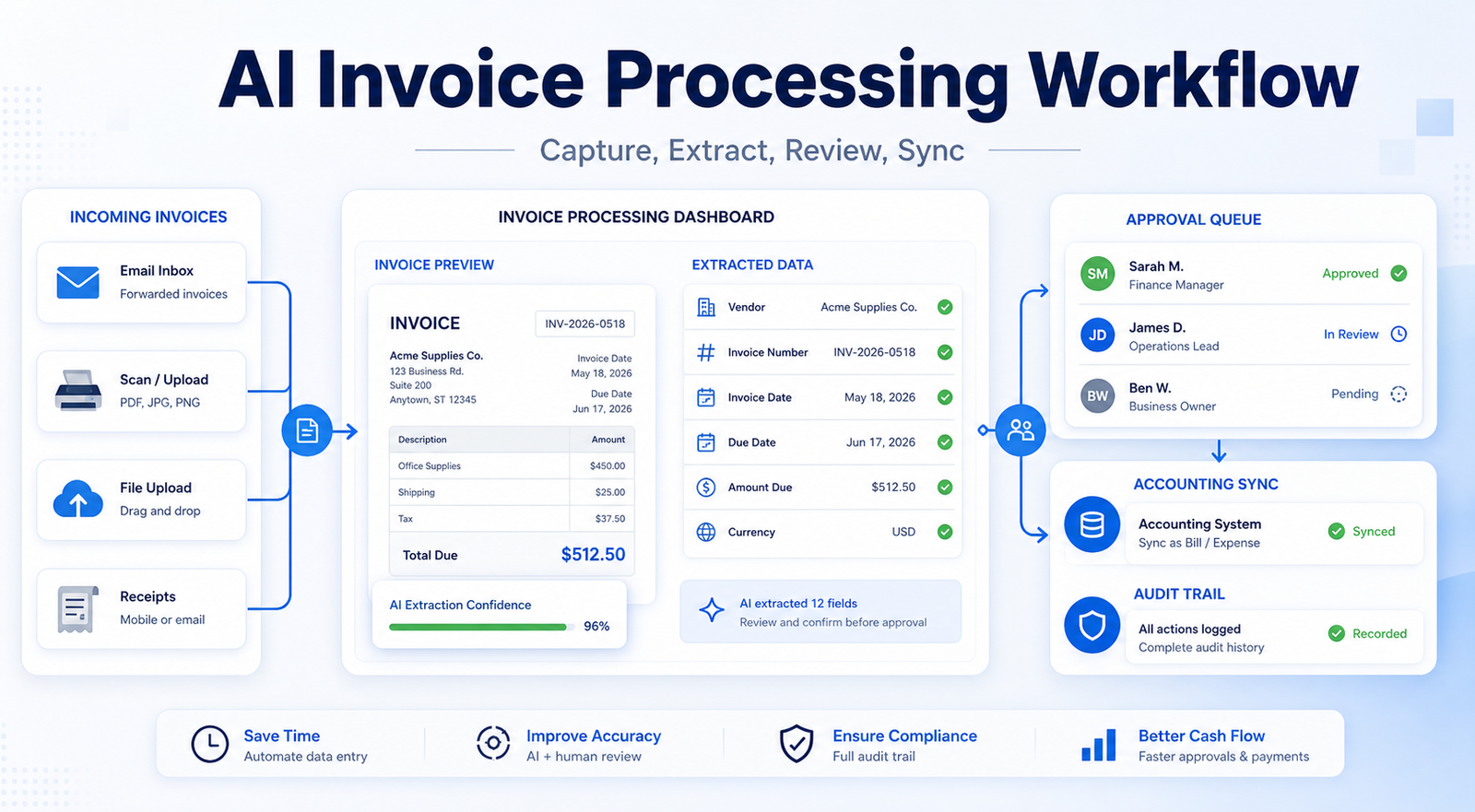
    Invoice processing is one of those back-office jobs that looks simple until the volume grows. A supplier emails a PDF, someone downloads it, another person checks the amount, the due date gets copied into accounting software, approval waits in a message thread, and the original document disappears into a folder nobody wants to open. An AI invoice processing workflow makes that routine more reliable by turning incoming invoices into structured records, routing exceptions to humans, and keeping an audit trail before anything reaches payment.

    The goal is not to let AI pay bills on its own. The goal is to reduce manual entry while keeping finance control where it belongs. Tools such as Microsoft AI Builder invoice processing, Hubdoc document capture, and DocuWare Intelligent Document Processing show how modern systems can extract invoice fields, classify documents, and support automated workflows. Your exact stack may differ, but the workflow below gives small businesses a practical structure.

    The Short Workflow

    Stage What AI helps with What a human must confirm
    Capture Collect invoices from email, upload, scan, or mobile photo Whether the invoice belongs in the process
    Extraction Read vendor, invoice number, dates, totals, tax, and line items Whether the extracted fields are correct
    Matching Compare invoice data with purchase orders, receipts, or vendor records Whether exceptions should be approved
    Approval Route invoices to the right owner or manager Whether the spend is legitimate
    Sync Prepare the bill or expense record for accounting software Whether it should be posted or held
    Archive Store the source document and history Whether the audit trail is complete

    Start With The Invoice Inbox

    The first step is deciding where invoices enter the system. Small businesses often receive invoices in several places: a shared finance inbox, an owner???s personal email, a scanned PDF, a vendor portal download, or a paper receipt captured by phone. If invoices enter through too many channels, AI extraction will not solve the bigger process problem.

    Create one intake rule. For example, all vendor invoices should go to a shared finance email or upload folder before they are reviewed. If your team uses Microsoft 365, a SharePoint folder can trigger a Power Automate flow. Microsoft???s invoice processing example shows a cloud flow triggered when a new invoice is added to a SharePoint folder, then the invoice model extracts data for downstream steps. If your team uses Xero or QuickBooks workflows, Hubdoc can capture documents from upload, email, scan, or mobile photo and extract key information from bills and receipts.

    The intake rule should also define what does not belong. Quotes, contracts, packing slips, payment confirmations, and duplicate invoices should not move through the same approval path as a real supplier invoice.

    Extract The Fields That Actually Matter

    AI invoice extraction is useful because it turns a document into fields your accounting process can review. The most important fields are usually supplier name, invoice number, invoice date, due date, total amount, tax amount, currency, purchase order number, and line-item description. Microsoft describes its prebuilt invoice model as optimized for common invoice elements such as invoice ID, invoice date, and amount due. Hubdoc says it extracts supplier names, amounts, invoice numbers, and due dates so documents can become usable accounting data.

    Do not ask AI to extract every possible detail at first. Start with the fields needed to decide whether an invoice should be approved, coded, or sent back to the vendor. A smaller field set is easier to review and easier to trust.

    Add a confidence rule. If the extraction confidence is high and the vendor is known, the invoice can move to normal review. If the total, tax, currency, or supplier name looks uncertain, the workflow should route it to manual review. Low-confidence invoices should never slide directly into payment.

    Add Matching Before Approval

    Invoice processing becomes safer when extracted data is compared with existing records. A simple workflow can check whether the vendor exists, whether the invoice number has already been seen, whether the total matches a purchase order, and whether the invoice date is reasonable.

    Small teams do not always use purchase orders, but they can still create useful checks. Flag duplicate invoice numbers. Flag invoices from vendors that are not in the approved vendor list. Flag amounts above a review threshold. Flag invoices that arrive from an email domain unrelated to the vendor. These checks are not glamorous, but they prevent expensive mistakes.

    AI should support matching, not override it. If the workflow detects a mismatch, the invoice should pause. The right person should decide whether it is a legitimate exception, a vendor mistake, a duplicate, or a possible fraud risk.

    Route Approval By Amount And Owner

    Approval routing should be simple enough that everyone understands it. A small business might use three paths: low-value recurring invoices approved by the finance admin, department spend approved by the team owner, and high-value or unusual invoices approved by the business owner.

    The AI role is to prepare the approval packet. That packet should include the original invoice, extracted fields, vendor history, matching results, and a short explanation of why the invoice needs review. The human approver should not have to open five systems just to understand what they are approving.

    Avoid approval by chat memory. If someone approves an invoice in Slack, WhatsApp, or an email thread, the decision should still be recorded in the invoice system or accounting workflow. The audit trail matters later when a vendor disputes a balance or your accountant asks why a payment was made.

    For broader small-business automation planning, see AI sales follow-up workflow and AI project management workflow. Both follow the same principle: AI can prepare work, but humans approve decisions with business consequences.

    Sync Only Reviewed Records

    Once an invoice is approved, the workflow can prepare the accounting record. That might mean creating a bill, expense, or document attachment in your accounting system. QuickBooks describes invoicing software as a way to create, send, track invoices, record payments, and monitor balances. For incoming vendor documents, systems like Hubdoc can turn extracted information into records for Xero or QuickBooks with the source document attached.

    The important rule is that reviewed records sync, not raw AI guesses. If the due date, amount, vendor, or tax field is uncertain, fix it before syncing. If the invoice is rejected, archive the source document with the reason instead of deleting it.

    Create a naming rule for attachments. Include the vendor name, invoice number, and date when possible. Clean file names make later searches much easier.

    Keep A Real Audit Trail

    An AI invoice workflow should make the process easier to inspect, not harder. Keep the original document, extracted fields, approval decision, approver name, sync time, and any exception notes. DocuWare frames intelligent document processing around classification, extraction, and workflow automation, and that matters because invoice processing is not just data entry. It is a financial control.

    A good audit trail answers basic questions quickly: Who submitted this invoice? What did AI extract? What changed before approval? Who approved it? When did it sync? Where is the source document?

    If the workflow cannot answer those questions, slow down and improve the process before automating more steps.

    Common Mistakes To Avoid

    Do not start with payment automation. Start with capture, extraction, review, and approval. Payment should remain separate until the intake process is dependable.

    Do not assume AI extraction is always right. Invoices vary widely by vendor, country, format, currency, tax treatment, and line-item structure. Even strong models can misread totals or dates when scans are blurry or layouts are unusual.

    Do not route every invoice to the business owner. That creates a bottleneck and defeats the point of the workflow. Use thresholds and owners.

    Do not skip duplicate checks. A duplicate invoice can look legitimate because it is a real invoice. The workflow should check invoice number, supplier, amount, and date before approval.

    Do not add pricing claims to your internal tool comparison unless you have verified the exact current plan terms from official pricing pages. For this workflow, pricing is less important than process fit, accounting integration, audit trail, and review control.

    FAQ

    What is an AI invoice processing workflow?

    An AI invoice processing workflow is a repeatable process that uses AI to capture invoice documents, extract key fields, route approvals, sync reviewed records, and preserve an audit trail.

    Is this the same as automatic payment?

    No. Invoice processing prepares and reviews invoice records. Payment approval should remain a separate control, especially for small businesses.

    Which invoice fields should AI extract first?

    Start with supplier name, invoice number, invoice date, due date, amount due, tax, currency, purchase order number, and line-item summary.

    Can AI process scanned paper invoices?

    It can help when the scan is clear, but blurry scans and unusual layouts should be routed to manual review.

    Should low-confidence fields sync to accounting software?

    No. Low-confidence fields should be reviewed and corrected before the record is posted or synced.

    What tools can support invoice extraction?

    Microsoft AI Builder, Hubdoc, and DocuWare IDP are examples of official tools that support invoice or document capture and extraction workflows.

    Do small businesses need purchase orders for this workflow?

    Not always. Purchase orders help with matching, but small teams can still check vendor records, duplicate invoice numbers, approval thresholds, and source documents.

    How do I prevent duplicate invoice payments?

    Check vendor name, invoice number, invoice date, amount, and payment status before approval. Duplicate detection should happen before syncing or payment.

    What should humans approve?

    Humans should approve exceptions, new vendors, unusual amounts, mismatches, low-confidence extractions, and any invoice that affects cash flow materially.

    What is the biggest limitation?

    AI depends on document quality and process discipline. If invoices arrive through scattered channels or vendor data is messy, extraction accuracy and routing quality will suffer.

    Final Decision

    Use an AI invoice processing workflow when your team spends too much time copying invoice data, chasing approvals, or searching for source documents. Start with a single intake channel, extract only the fields you need, route exceptions to humans, and sync only reviewed records. Do not use AI as a shortcut around financial controls. The best workflow saves time because it makes the process clearer, not because it removes judgment.
  • How to Build an AI Project Management Workflow for Small Teams

    How to Build an AI Project Management Workflow for Small Teams

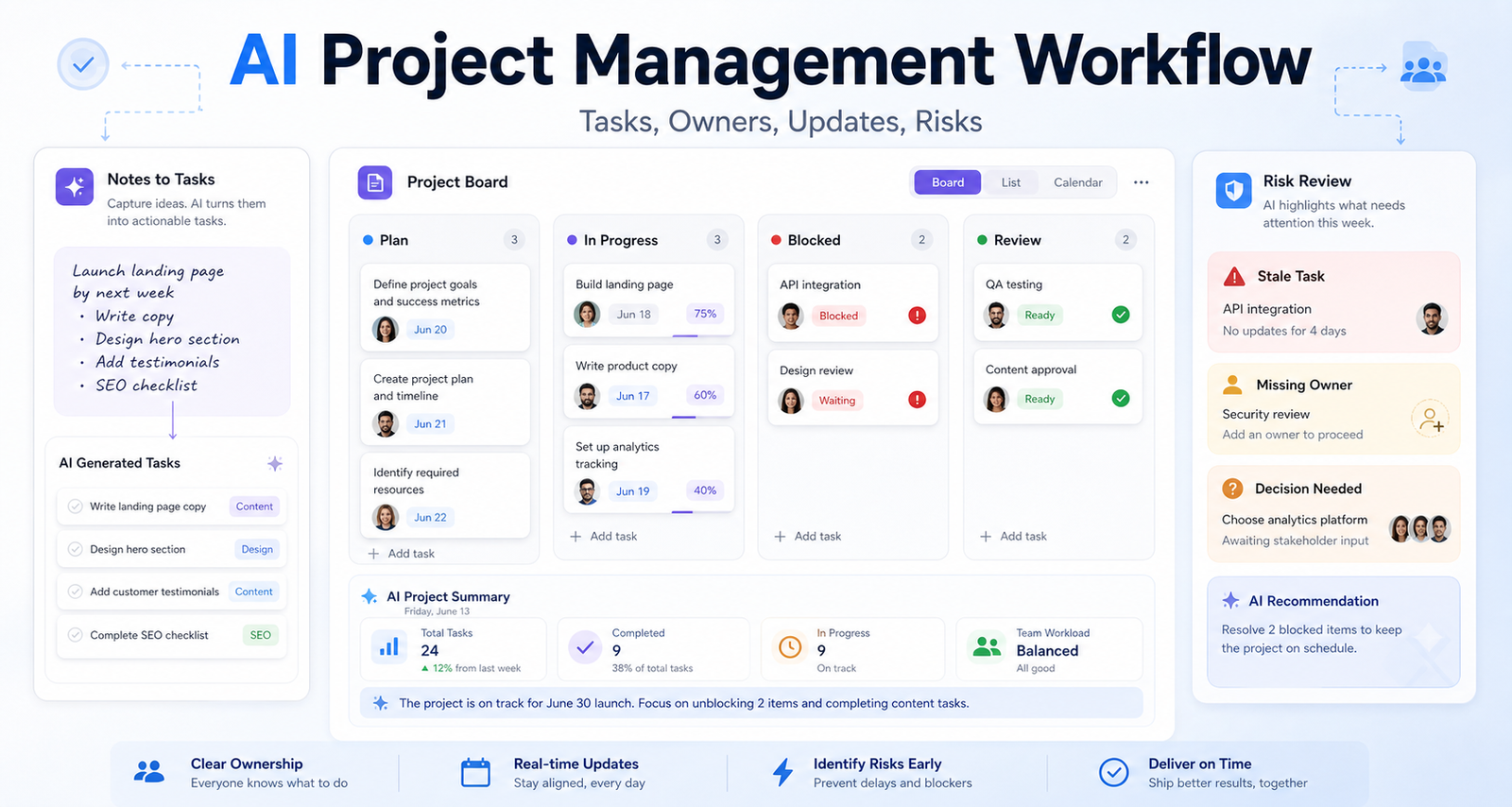
    Small teams do not need more project noise. They need clearer tasks, better handoffs, faster status updates, and fewer surprises. An AI project management workflow helps when it turns scattered updates into structured work. It does not help when it creates more summaries nobody reads.

    Several project platforms now offer AI features for this kind of work. ClickUp Brain connects projects, docs, people, and company knowledge inside ClickUp. Asana AI positions AI around work management and team workflows, including AI Teammates. Notion AI supports search, agents, and workspace assistance. monday AI support describes AI workflows and automation features.

    The Project Workflow

    Stage AI role Human role
    Capture Turn notes into tasks Decide what is real work
    Plan Suggest owners, dependencies, and due dates Confirm priority and capacity
    Update Summarize progress and blockers Validate status
    Risk review Flag stale tasks and missing owners Decide action
    Retrospective Summarize lessons and patterns Improve the process

    Put All Work In One System

    AI project management fails when work lives everywhere. If tasks are split across chat, email, documents, and memory, AI will summarize fragments instead of reality. Start by choosing one system for projects and one rule: important work must become a task with an owner.

    That task should include a clear title, outcome, owner, due date, status, and link to relevant context. AI can help draft the task, but a human should decide whether it belongs in the project at all.

    This foundation matters more than the tool. ClickUp, Asana, Notion, and monday.com can all support small-team workflows, but none can rescue a team that refuses to write work down.

    Use AI For Status Updates

    Status updates are a strong AI use case because they require summarizing recent activity. Ask AI to produce a weekly project update with completed work, current blockers, decisions needed, and next priorities.

    The project owner should review the update before sending it. AI may overstate progress if task comments are vague. It may miss a blocker buried in a conversation. Human review keeps the update trustworthy.

    A good update is short. It should answer: are we on track, what changed, what is blocked, and who needs to act? If the update does not drive action, it is decoration.

    Build Task Creation Rules

    Teams often ask AI to create tasks from meetings, documents, or briefs. That is useful, but only if tasks follow a standard. Each AI-created task should have a verb, owner, due date, acceptance criteria, and link to context.

    For example, “Update landing page” is weak. “Rewrite hero copy for product launch page and send to design review by Friday” is stronger. AI can help convert vague notes into stronger tasks, but the owner should confirm scope.

    For adjacent workflows, see AI meeting notes workflow and AI customer support workflow.

    Review Risks Weekly

    AI can surface stale tasks, missing owners, delayed dependencies, and repeated blockers. That makes it useful for weekly risk review. Ask it to find tasks with no updates, tasks past due, work without an owner, and projects with too many active priorities.

    The project manager should then make decisions. Extend the timeline, reduce scope, reassign ownership, unblock a dependency, or close work that no longer matters. AI can identify signals; people make trade-offs.

    Keep Accountability Human

    The main danger of AI project management is false clarity. A beautiful summary can make a messy project look organized. Do not confuse AI-generated order with real execution.

    Keep ownership visible. Every task needs a person. Every project needs a decision-maker. Every update needs a source. If AI cannot point to the task, comment, document, or meeting note behind a claim, treat the claim as a suggestion.

    FAQ

    What is an AI project management workflow?

    It is a structured process for using AI to create tasks, summarize updates, flag risks, and improve follow-through inside a project system.

    Is AI project management useful for small teams?

    Yes, especially when small teams have many handoffs and limited project-management time.

    Which tool should I use?

    Use the platform where your team already tracks work. ClickUp, Asana, Notion, and monday.com all offer AI capabilities, but adoption matters more than feature count.

    Can AI assign task owners?

    AI can suggest owners, but a human project lead should confirm accountability.

    What should AI summarize?

    Project updates, meeting notes, task comments, blockers, decisions, and retrospective notes are good candidates.

    What should AI not decide?

    AI should not make priority trade-offs, approve scope changes, or commit team capacity without a human.

    How often should I run an AI project review?

    Weekly is enough for most small teams. Fast-moving launches may need a shorter cycle.

    How do I prevent bad AI tasks?

    Require every task to include outcome, owner, due date, acceptance criteria, and source context.

    What metrics matter?

    Track overdue tasks, blocked tasks, ownerless work, cycle time, and project completion predictability.

    What is the biggest limitation?

    AI cannot infer accurate project status from incomplete or outdated task data.

    Final Decision

    Use this workflow if your team already has the core business process in place and wants AI to remove drafting, summarizing, sorting, and follow-up friction. Do not use it as a substitute for human review, legal approval, customer-sensitive judgment, or final publishing decisions. The best setup is simple: one source of truth, one review owner, a short list of approved prompts, and a weekly check of what the AI helped create.

  • How to Build an AI Email Response Workflow for Busy Teams

    How to Build an AI Email Response Workflow for Busy Teams

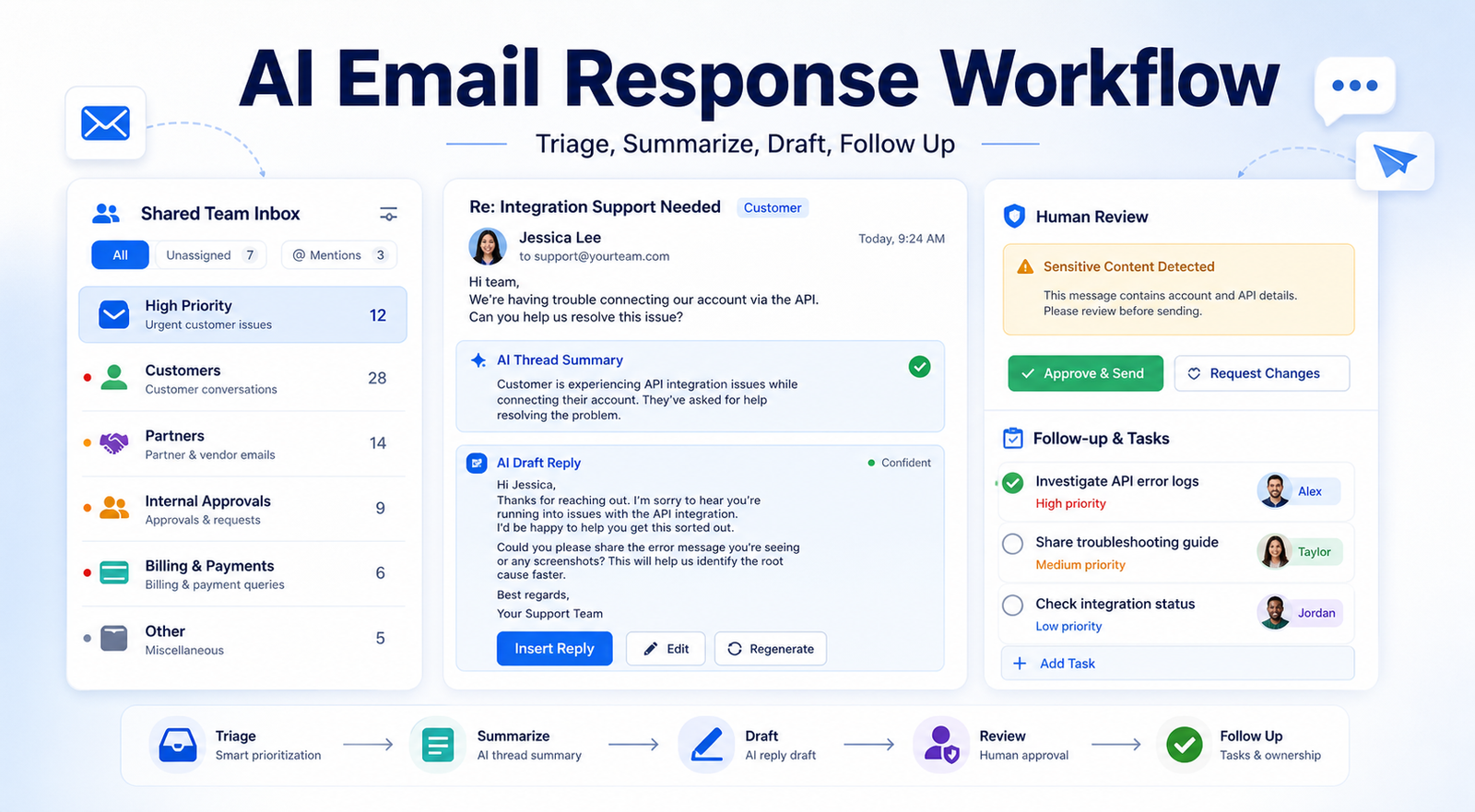
    Email is where decisions go to slow down. A customer asks a question, a partner sends a contract note, a teammate forwards a thread, and nobody is sure who owns the next reply. An AI email response workflow helps by sorting messages, summarizing long threads, drafting replies, and creating follow-up tasks. The point is not to automate every answer. The point is to make busy inboxes easier to understand and faster to act on.

    Teams using Google Workspace can explore Gemini in Gmail for AI-assisted writing and email help. Microsoft users can use Copilot support for tasks such as drafting messages in Outlook and summarizing email threads. The workflow below works for either ecosystem.

    The AI Email Workflow

    Stage AI role Human role
    Triage Group by urgency, sender, and topic Decide what truly matters
    Summary Condense long threads Confirm the summary is accurate
    Draft Create a clear response Personalize and approve
    Follow-up Suggest reminders and next steps Assign ownership
    Audit Find unanswered important messages Improve rules and templates

    Start With Inbox Categories

    A useful workflow begins with categories. Most team email falls into a few buckets: customer requests, sales leads, partner messages, internal approvals, billing questions, operational alerts, and low-priority updates. AI can help classify email, but the team should define the categories first.

    For each category, decide the owner, response standard, and escalation rule. A customer issue may need a same-day reply. A newsletter can be archived. A billing question may need finance review. If AI does not know these rules, it will produce drafts but not better workflow outcomes.

    In shared inboxes, add one more field: status. Use open, waiting, assigned, resolved, and archived. AI can summarize and draft, but status keeps the team accountable.

    Use AI To Summarize Before Replying

    Long threads create mistakes. Someone replies to one part of the conversation and misses the actual decision. AI summaries are useful here because they can compress the thread into participants, open questions, decisions made, and required next steps.

    Still, summaries need review. Before using a summary to answer a customer or partner, check the original thread for dates, commitments, attachments, and tone. AI is helpful at compressing information, but it can miss small details that matter.

    A good summary prompt asks for four sections: what happened, what is being requested, what decision is needed, and who owns the next step. This makes the reply easier to write and reduces the chance of sending a vague answer.

    Draft Replies With Rules

    AI-generated email works best when the team has style rules. Keep replies short, direct, and specific. Ask AI to answer the question first, avoid over-apologizing, avoid fake certainty, and end with one clear next action.

    For customer-facing emails, require the draft to include the customer’s actual issue, the answer or next step, any limitation, and the expected timing if known. For internal email, require the decision, owner, and deadline.

    Do not let AI invent attachments, policy details, discounts, delivery timelines, or technical claims. If the answer depends on another team, the draft should say what is being checked rather than pretending the decision is final.

    Add A Human Review Layer

    Not every email needs the same review. Low-risk internal scheduling replies can be quick. Customer complaints, legal questions, HR issues, refunds, finance matters, and executive communications need careful human review.

    Create a rule: AI may draft, but humans approve sensitive categories. This keeps speed without creating risk. It also makes the workflow easier for teams to trust.

    For related productivity systems, see AI meeting notes workflow and best AI research workflow for teams.

    Turn Replies Into Tasks

    The biggest email productivity gain often comes after the reply. If an email creates a task, it should not stay buried in the inbox. AI can suggest follow-up tasks, owners, and due dates based on the message.

    A simple rule helps: every important email ends as one of three outcomes. It is answered, assigned, or scheduled for follow-up. If it does none of those, it is probably inbox clutter.

    FAQ

    What is an AI email response workflow?

    It is a repeatable process for using AI to triage messages, summarize threads, draft replies, and create follow-up tasks while humans approve important communication.

    Can AI answer all team emails?

    No. AI can help with drafts, but sensitive, contractual, financial, legal, HR, and customer-impacting replies need human review.

    Is Gmail or Outlook better for AI email?

    Use the system your team already runs. Gemini works inside Google Workspace, while Copilot supports Outlook and Microsoft 365 workflows.

    How do I avoid generic AI emails?

    Require every draft to mention the specific request, answer clearly, and end with one practical next step.

    Should AI summarize long email threads?

    Yes, but review the original thread before sending a reply based on the summary.

    What categories should I use?

    Start with customer, sales, partner, internal approval, billing, operations, and low-priority updates.

    How do I handle shared inboxes?

    Use statuses such as open, assigned, waiting, resolved, and archived so AI support does not hide ownership problems.

    Can AI create follow-up tasks?

    Yes. It can suggest tasks and due dates, but the team should confirm owner and priority.

    What metric should I track?

    Track first response time, unresolved important messages, follow-up completion, and repeated questions.

    What is the biggest limitation?

    AI depends on context. Missing attachments, vague threads, and unclear team rules can lead to weak drafts.

    Final Decision

    Use this workflow if your team already has the core business process in place and wants AI to remove drafting, summarizing, sorting, and follow-up friction. Do not use it as a substitute for human review, legal approval, customer-sensitive judgment, or final publishing decisions. The best setup is simple: one source of truth, one review owner, a short list of approved prompts, and a weekly check of what the AI helped create.

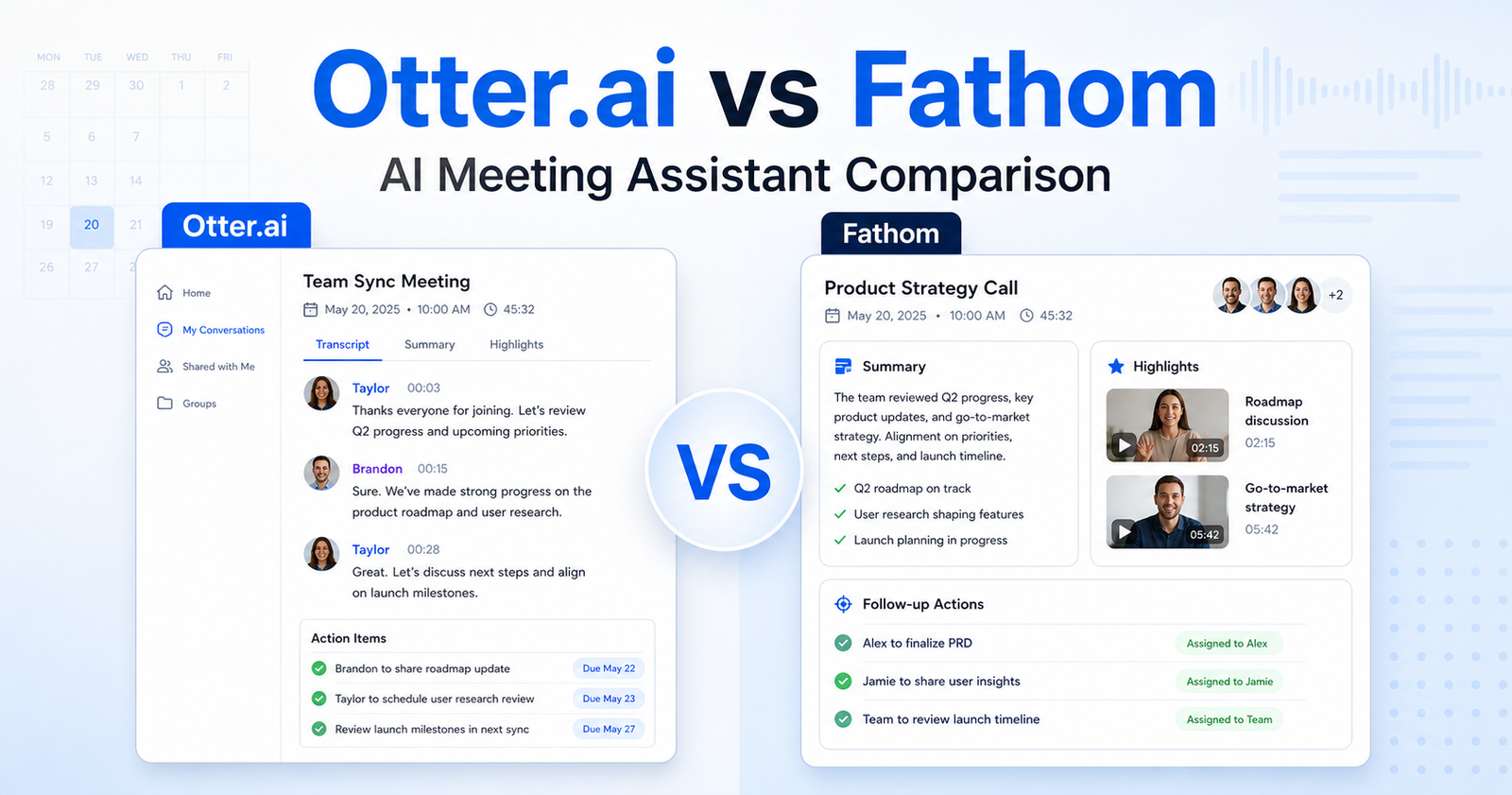
  • Otter.ai vs Fathom: Which AI Meeting Assistant Should You Choose?

    Otter.ai vs Fathom: Which AI Meeting Assistant Should You Choose?

    Quick Verdict

    Choose Otter.ai if your team needs live transcription, searchable meeting records, shared vocabulary, exports, and broader admin controls across Zoom, Google Meet, and Microsoft Teams. Choose Fathom if your main goal is faster meeting capture with unlimited recordings, clean AI summaries, clips, playlists, and simple follow-up workflows.

    For most small teams, Fathom is easier to adopt because its free plan includes unlimited recordings and transcription. Otter.ai is better when transcription depth, import limits, conversation history, vocabulary, and enterprise controls matter more than simplicity.

    If you are comparing meeting assistants more broadly, our Otter.ai vs Fireflies.ai comparison is a useful next read. If your team already has call summaries but needs a repeatable follow-up process, see our AI meeting notes workflow.

    Quick Comparison

    Decision Point Otter.ai Fathom
    Best for Teams that need live notes, exports, admin controls, and searchable transcripts Teams that want fast meeting summaries, clips, and lightweight sharing
    Free plan Basic plan with 300 monthly transcription minutes and recent conversation history limits Free forever plan with unlimited recordings and transcriptions
    Meeting capture Joins Zoom, Google Meet, and Microsoft Teams Records meetings and supports bot-free capture in beta
    Summaries Automated summaries, action items, outlines, and AI chat Instant AI summaries, advanced summaries on paid plans, and action items
    Collaboration Folders, sharing, comments, annotations, team vocabulary, and admin features by plan Shared call search, comments, folders, keyword alerts, playlists, and team features
    Sales workflow fit Stronger at higher tiers because of Salesforce, HubSpot, API, and webhooks Strong for sales teams that use clips, CRM sync, coaching metrics, and deal views
    Ease of adoption More controls, but more plan limits to understand Simpler for individuals and teams that want quick meeting capture
    Not the right choice if You need unlimited free transcription minutes You need deeper transcript governance and enterprise controls from day one
    Final recommendation Best for structured meeting documentation and larger-team controls Best for fast meeting capture and shareable follow-up moments

    Pricing Comparison

    Pricing sources checked: 2026-06-15. Sources: Otter.ai official pricing page and Fathom official pricing page.

    Pricing Point Otter.ai Fathom
    Free plan Basic is free Free plan is $0 and free forever
    Individual paid plan Pro is $16.99 per user/month monthly, or $8.33 per user/month annually Premium is $20 per user/month monthly, or $16 per user/month annually
    Team plan Business is $30 per user/month monthly, or $19.99 per user/month annually Team is $19 per user/month monthly, or $15 per user/month annually, with a 2-user minimum
    Higher team plan Enterprise uses demo/contact sales Business is $34 per user/month monthly, or $25 per user/month annually, with a 2-user minimum
    Free transcription 300 monthly transcription minutes on Basic Unlimited recordings and transcriptions on Free
    File imports Basic includes 3 lifetime audio/video imports; Pro includes 10 monthly imports Free and paid plans focus on unlimited recordings and transcription
    Meeting length limits Basic 30 minutes, Pro 90 minutes, Business 4 hours Pricing page highlights unlimited recording/transcription, with paid summaries and team controls
    Team collaboration Business adds admin features, usage analytics, concurrent meetings, and prioritized support Team adds shared search, playlists, comments, folders, keyword alerts, and SSO
    Sales/CRM Pro mentions Salesforce, HubSpot, and Zapier subject to limits; Enterprise adds custom integrations/API/webhooks Business adds CRM field sync, deal view, coaching metrics, and AI scorecards
    Trial/guarantee Otter provides free plan and paid buy-now paths Fathom paid plans list free trial CTAs and a 90-day guarantee
    Enterprise Custom demo path with SSO, SCIM, domain capture, security controls, HIPAA add-on, API and webhooks Business plan is listed publicly; sales contact is available for larger needs

    What Otter.ai Does Better

    Otter.ai is built around meeting records. The official pricing page lists live transcription, speaker identification, audio playback, multi-language support, AI chat across meetings, meeting templates, exports, and admin controls across paid tiers. That makes it stronger when a team treats meeting notes as a searchable knowledge base, not just a follow-up summary.

    The practical advantage is control. A manager who runs weekly client calls can search transcripts, export notes, tag speakers, and maintain vocabulary for product names or client terminology. A sales team can also value the higher-tier integrations with Salesforce, HubSpot, Zapier, API, and webhooks when those are available on the right plan.

    Otter.ai is not the right choice if your main frustration is simply, "I want every call recorded and summarized without thinking about minutes." Its free plan is useful, but it has transcription and history limits. Teams with high meeting volume should study the plan limits before standardizing on it.

    What Fathom Does Better

    Fathom is stronger for quick capture and follow-through. Its official pricing page highlights unlimited recordings and transcriptions on the free plan, instant AI summaries, clips, playlists, search across calls, advanced summaries, AI-generated action items, a conversational meeting assistant, and team collaboration features on paid plans.

    That makes Fathom a better fit for sales calls, customer interviews, user research calls, internal check-ins, and founder-led meetings where the goal is to turn a conversation into shareable moments and next steps. A small agency running discovery calls could use clips and summaries to send useful recaps without building a heavier documentation system.

    Fathom is not the right choice if your team needs deeper transcript governance, detailed export control, complex enterprise compliance, or a meeting archive that behaves like a formal company knowledge base. It can still work, but Otter.ai usually offers more visible controls for that use case.

    Common Mistakes When Choosing

    The first mistake is choosing based only on summary quality. Both tools can summarize meetings, but teams usually fail because they do not define what happens after the summary. If action items are not routed, reviewed, and assigned, the best summary still becomes another forgotten note.

    The second mistake is ignoring limits. Otter.ai has detailed limits around transcription minutes, meeting length, imports, vocabulary, AI chat queries, exports, and admin features by plan. Fathom has simpler capture positioning, but team features, CRM workflows, and advanced summary controls still sit behind paid plans.

    The third mistake is treating every meeting the same. Recruiting, sales, customer success, and internal standups need different templates. Pick the tool that supports your highest-volume meeting type first.

    Choose Otter.ai If

    • You need live transcription and meeting notes across Zoom, Microsoft Teams, and Google Meet.
    • Your team cares about transcript history, exports, search, vocabulary, and speaker labels.
    • Admin controls, analytics, SSO, SCIM, domain capture, API, webhooks, or compliance add-ons matter.
    • You want a meeting knowledge base that can be searched after the call.

    Choose Fathom If

    • You want a generous free meeting assistant for recording, transcription, and summaries.
    • Your team values clips, playlists, highlight sharing, and fast follow-ups.
    • Sales or customer teams need easy call recaps and CRM-friendly notes.
    • You want less setup friction and fewer limits on basic capture.

    Final Recommendation

    Otter.ai is the better choice for teams that need structured meeting documentation, searchable transcripts, exports, and stronger controls. Fathom is the better choice for individuals and teams that want fast AI meeting capture, summaries, clips, and practical follow-up workflows without heavy setup.

    If you are a small team choosing today, start with Fathom if unlimited free capture is the deciding factor. Choose Otter.ai if transcripts, governance, exports, and admin depth will matter as your meeting archive grows.

    FAQs

    Is Otter.ai better than Fathom?

    Otter.ai is better for structured transcription, searchable meeting history, exports, admin controls, and enterprise-style meeting documentation. Fathom is better for simple meeting capture, unlimited free recordings and transcriptions, AI summaries, clips, and follow-up sharing.

    Is Fathom really free?

    Fathom lists a free forever plan at $0 with unlimited recordings and transcriptions on its official pricing page. Paid plans add Premium, Team, and Business features such as advanced summaries, AI action items, collaboration, CRM field sync, and coaching metrics.

    Does Otter.ai have a free plan?

    Yes. Otter.ai lists a Basic free plan with live transcription, AI chat, meeting workflows, mobile apps, and 300 monthly transcription minutes. Paid plans raise limits and add collaboration, exports, integrations, admin controls, and enterprise options.

    Which tool is better for sales teams?

    Fathom is often easier for sales teams that want clips, summaries, CRM sync, coaching metrics, and call highlights. Otter.ai can be stronger when sales notes need to live inside a broader transcript archive with exports, vocabulary, and admin controls.

    Which tool is better for agencies?

    Small agencies that want quick client call summaries may prefer Fathom. Agencies that need searchable archives, transcript exports, speaker tagging, and formal documentation across many clients may prefer Otter.ai.

    Can either tool replace project management?

    No. These tools help capture meetings and summarize decisions. They do not replace a task system. A good workflow still sends action items into tools like Asana, ClickUp, Trello, Notion, or a CRM.

    What matters more than the AI summary?

    The follow-up workflow matters more. Decide where action items go, who reviews the summary, how transcript corrections are handled, and when the team deletes or archives sensitive recordings.

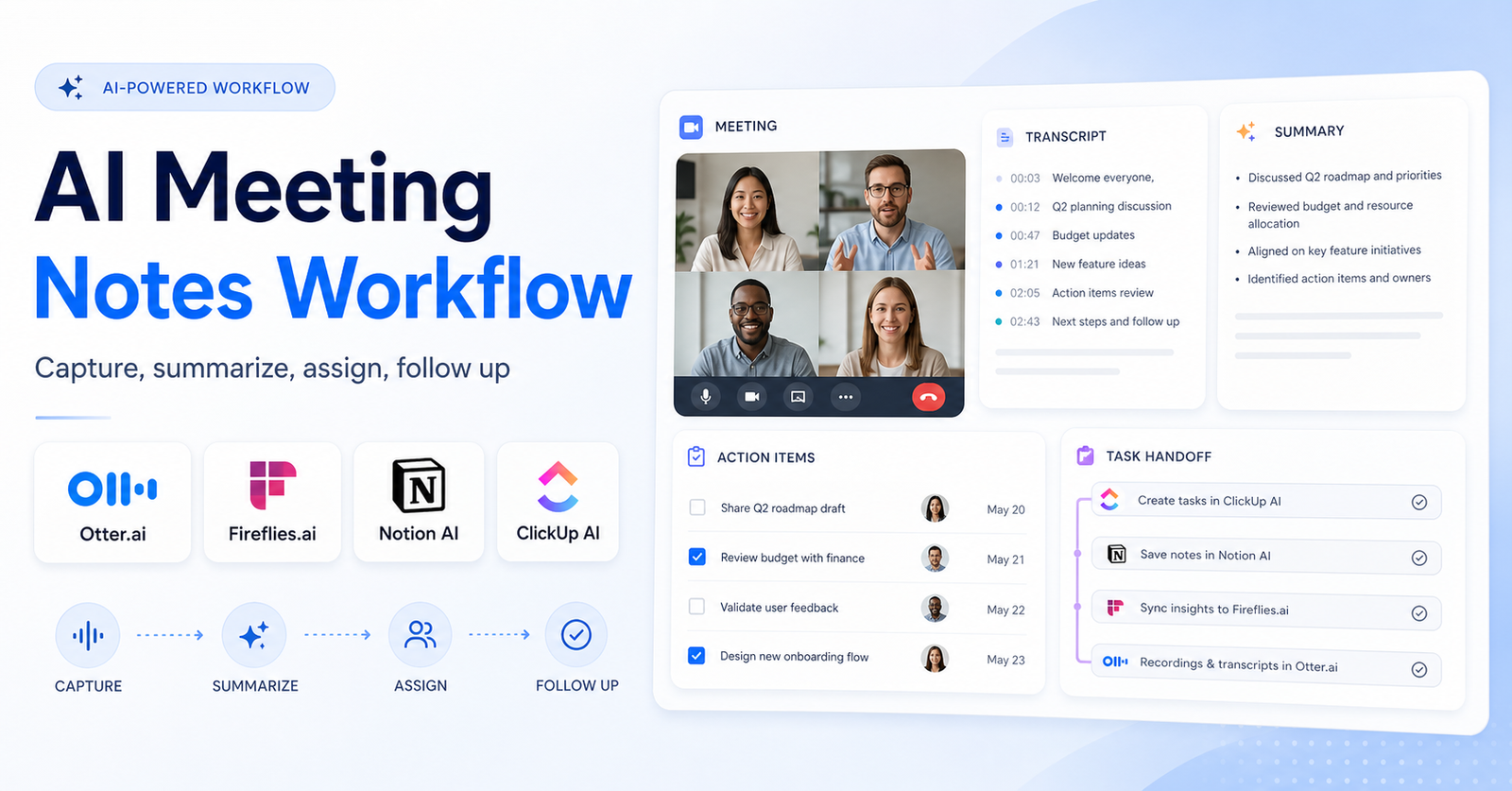
  • How to Build an AI Meeting Notes Workflow: Capture, Summarize, Assign, Follow Up

    How to Build an AI Meeting Notes Workflow: Capture, Summarize, Assign, Follow Up

    An AI meeting notes workflow helps teams turn conversations into useful follow-up work. The goal is not just to record a transcript. The real value comes from capturing the meeting, summarizing decisions, assigning action items, sending follow-ups, and keeping the notes connected to the tools your team already uses.

    This matters because meetings often create hidden work. Someone promises to send a proposal. Someone else agrees to update a roadmap. A customer raises a risk. A manager asks for a decision by Friday. If those details stay buried in a call recording, the meeting still creates friction.

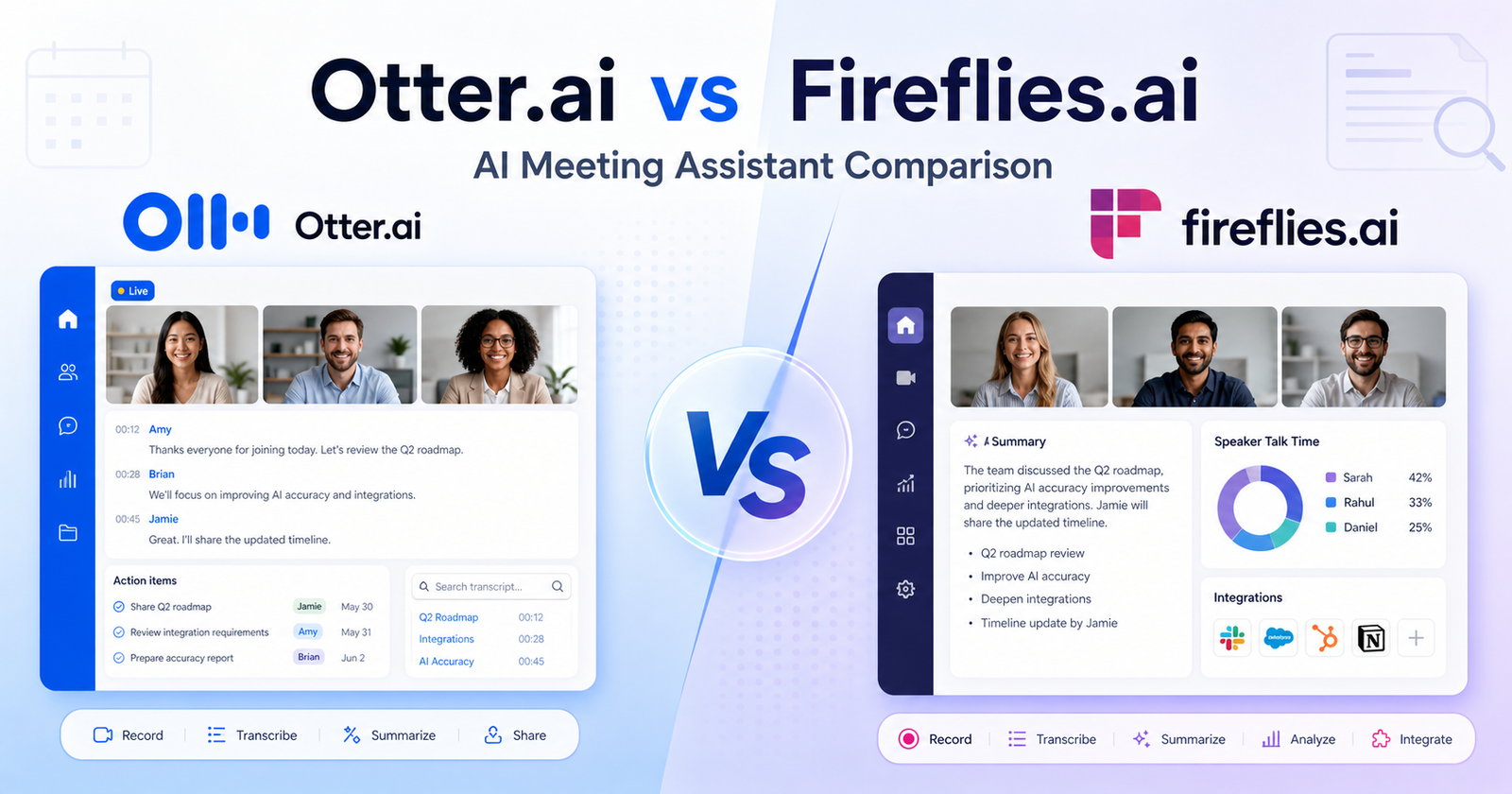
    A good workflow uses AI meeting assistants such as Otter.ai and Fireflies.ai for capture and summaries, then routes important notes into tools such as Notion AI, ClickUp AI, or your project management system. If you are deciding between the two main meeting assistants first, read our Otter.ai vs Fireflies.ai comparison. This guide focuses on the workflow around those tools.

    Quick Workflow Summary

    Step Purpose Output
    1. Define meeting types Decide which calls need AI notes Recording and note policy
    2. Capture the meeting Record transcript and speakers Searchable meeting record
    3. Generate a summary Extract decisions and key points Short team-readable notes
    4. Pull action items Identify owners, due dates, and next steps Task-ready checklist
    5. Store source notes Keep context in a shared workspace Reusable knowledge base
    6. Assign work Move tasks into the execution tool Clear owner and deadline
    7. Review and improve Check accuracy and close the loop Cleaner follow-up system

    1. Decide Which Meetings Need AI Notes

    Not every meeting needs a full AI notes workflow. Start by choosing which meeting types are worth capturing. Sales calls, customer onboarding sessions, hiring interviews, strategy meetings, product reviews, and recurring project check-ins usually benefit the most.

    For low-value calls, AI notes can create more noise than clarity. A short internal sync may only need a manual decision note. A client call with pricing, deadlines, objections, and commitments probably deserves a transcript, summary, and action-item workflow.

    Create a simple policy before connecting tools:

    • Which meetings can be recorded
    • Who should be notified before recording
    • Where transcripts and summaries are stored
    • Which meetings require human review
    • Who owns action-item cleanup
    • How long meeting records should be retained

    This makes the workflow more reliable and avoids treating AI recording as an afterthought.

    2. Capture The Meeting With The Right Tool

    The capture tool should fit the meeting environment. Otter.ai is commonly used for recording, transcription, summaries, and collaboration around meeting notes. Fireflies.ai is also built for meeting transcription, summaries, search, and workflow integrations.

    The right choice depends on where your team meets, how many calls you record, how you search past meetings, and whether your follow-up process depends more on notes, CRM updates, or project tasks.

    Before rolling it out broadly, test the tool on five real meetings. Review transcript quality, speaker labels, summary usefulness, permissions, calendar behavior, integrations, and how easy it is to find a specific decision one week later.

    3. Turn Transcripts Into Short Summaries

    A transcript is useful for auditability, but most team members will not read a full transcript. The workflow should produce a short summary that answers the obvious questions:

    • What was discussed?
    • What decisions were made?
    • What risks or blockers came up?
    • What should happen next?
    • Who owns each next step?

    This is where AI meeting assistants can save real time. Still, summaries should be reviewed before they are sent to clients, executives, or public-facing teams. AI can miss nuance, assign the wrong owner, or make a soft discussion sound like a firm commitment.

    A good summary should be short enough to scan in under one minute. If the meeting needs deep context, link back to the transcript or source notes rather than stuffing everything into the summary.

    4. Extract Action Items Separately

    Action items should not be hidden inside a paragraph summary. They need their own section with owner, task, due date, and context. If the AI cannot confidently identify the owner or deadline, mark it as unassigned instead of guessing.

    A clean action-item format looks like this:

    Owner Action Item Due Date Source Context
    Sarah Send revised onboarding checklist Friday Client asked for implementation steps
    Ahmed Confirm analytics access Before next call Reporting dashboard is blocked
    Team Decide between two workflow options Next planning meeting Product owner asked for tradeoff review

    The source context matters. A task without context becomes another vague to-do. Context helps the owner understand why the task exists.

    5. Store Meeting Knowledge In A Workspace

    Meeting notes become more valuable when they are stored in a searchable workspace. Notion AI Meeting Notes can help teams capture and organize notes inside a Notion workspace. ClickUp also offers an AI Notetaker workflow for turning meetings into summaries, action items, and connected work.

    If your team already uses Notion, the workspace can become the source of truth for meeting notes, decisions, and project context. If your team runs execution in ClickUp, moving action items into ClickUp may reduce handoff friction.

    For a broader workspace decision, our Notion AI vs ClickUp AI comparison can help clarify which system fits your team better.

    6. Assign Tasks Where Work Actually Happens

    A meeting note is not complete until the follow-up task lives where the team works. If your team uses ClickUp, create ClickUp tasks. If your team uses Notion, add tasks or database items. If your team uses a CRM, move customer follow-ups into the CRM.

    Avoid building a workflow where action items live in five places. That creates confusion and makes it hard to know whether the task was completed. The meeting assistant should capture and summarize; the execution tool should track ownership and deadlines.

    For automation-heavy teams, a tool such as Zapier or Make can help route notes into the right destination. Our Zapier vs Make comparison is useful if you want to automate handoffs between meeting notes, task tools, CRMs, and documents.

    7. Create A Review Loop

    AI notes need a review loop, especially for high-stakes meetings. The reviewer does not need to rewrite everything. They should check the summary, decisions, action items, owners, deadlines, sensitive details, and any client-facing language.

    A simple review checklist works well:

    • Is the summary accurate?
    • Are the action items clear?
    • Are owners correct?
    • Are deadlines real or guessed?
    • Does any private information need removal?
    • Are follow-up messages ready to send?
    • Were tasks created in the correct system?

    This is also where the team improves the workflow. If summaries are too long, change the prompt. If action items are vague, update the template. If notes are ignored, move them closer to the team's daily work.

    Recommended Tool Roles

    Otter.ai

    Use Otter.ai when your team needs meeting transcription, summaries, collaboration around notes, and a searchable meeting record. It is useful for recurring meetings, interviews, customer calls, and internal discussions where the transcript may need to be reviewed later.

    Fireflies.ai

    Use Fireflies.ai when meeting notes need strong search, summaries, and integrations with follow-up workflows. It can be useful for sales, customer success, recruiting, and cross-functional teams that want meeting intelligence connected to other systems.

    Notion AI

    Use Notion AI when meeting notes should become part of a broader knowledge base. It is helpful when teams already document projects, decisions, briefs, and research inside Notion.

    ClickUp AI

    Use ClickUp AI when meeting notes need to become tasks, project updates, or work items. It is a strong fit when your team already manages delivery, deadlines, owners, and project status inside ClickUp.

    Common Mistakes To Avoid

    The biggest mistake is stopping at transcription. A transcript alone does not guarantee follow-up. The workflow needs summaries, action items, storage, task assignment, and review.

    Avoid these mistakes:

    • Recording every meeting without a purpose
    • Sending summaries without checking accuracy
    • Letting AI guess owners or deadlines
    • Storing notes where nobody searches
    • Creating tasks in a tool the team does not use
    • Treating meeting notes as a replacement for project management
    • Keeping sensitive or private details longer than needed

    AI should reduce meeting admin, not create a second layer of messy documentation.

    Best AI Meeting Notes Workflow Template

    Use this template for recurring team meetings:

    1. Add the AI meeting assistant only to meetings that need a record. 2. Notify participants that the meeting may be recorded or summarized. 3. Capture transcript, speakers, summary, and action items. 4. Review the summary within 24 hours. 5. Move action items into the team's execution tool. 6. Store the summary in the project workspace. 7. Link the meeting note to the related project, client, or decision. 8. Send a short follow-up message to stakeholders. 9. Review unfinished action items before the next meeting. 10. Improve the template based on repeated misses.

    If your team also uses meeting notes as research input, pair this workflow with our AI research workflow for teams so transcripts become useful source material instead of forgotten recordings.

    Final Verdict

    The best AI meeting notes workflow is simple: capture the meeting, summarize the important points, extract action items, store the source notes, assign tasks in the right tool, and review before follow-up.

    Otter.ai and Fireflies.ai are strong capture tools. Notion AI and ClickUp AI are stronger as workspace and execution layers. The best setup is not the tool with the longest feature list. It is the setup that turns conversations into clear, completed work.

    FAQs

    What is an AI meeting notes workflow?

    An AI meeting notes workflow is a repeatable process for recording meetings, creating summaries, extracting action items, storing notes, assigning tasks, and reviewing follow-up work.

    Which AI tool is best for meeting notes?

    Otter.ai and Fireflies.ai are two common options for AI meeting notes. The better choice depends on your meeting platform, transcript quality needs, search requirements, integrations, and follow-up workflow.

    Should AI meeting notes replace manual notes?

    AI meeting notes can reduce manual note-taking, but they should not remove human review. Important decisions, owners, and deadlines should still be checked by a person.

    Can AI meeting tools create action items?

    Yes, many AI meeting tools can identify action items. Teams should review the owner, due date, and context before treating those action items as final.

    Where should AI meeting notes be stored?

    Store meeting notes where your team already works. That may be Notion, ClickUp, a CRM, a project management tool, or a shared documentation system.

    Are AI meeting notes accurate?

    Accuracy depends on audio quality, speakers, accents, meeting structure, and the tool. Always review summaries and action items before sending them to clients or leadership.

    Should every meeting be recorded?

    No. Record meetings only when there is a clear business reason, and make sure participants understand the recording or note-taking policy.

    How do teams use AI meeting notes after the call?

    Teams can use AI meeting notes to send recap emails, update CRMs, create project tasks, document decisions, and prepare for the next meeting.

    Can AI meeting notes connect to project management tools?

    Yes. Some tools offer direct integrations, and teams can also use automation platforms to move notes and tasks into project management systems.

    What is the biggest risk with AI meeting notes?

    The biggest risk is trusting summaries without review. AI can miss nuance, assign the wrong owner, or turn a discussion into a decision that was never actually made.

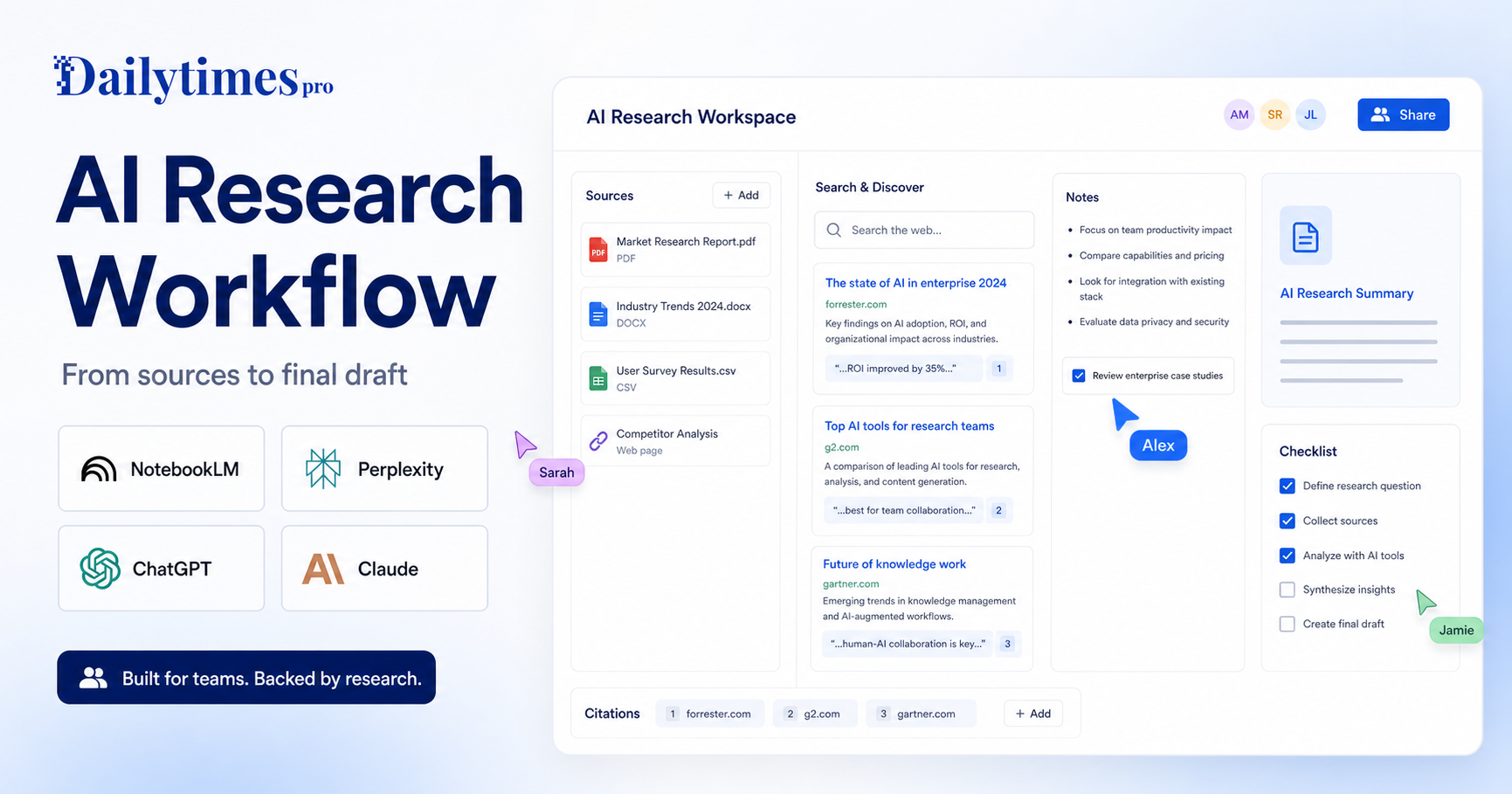
  • Best AI Research Workflow for Teams: 7 Steps From Sources to Final Draft

    Best AI Research Workflow for Teams: 7 Steps From Sources to Final Draft

    A strong AI research workflow is not about asking one chatbot for an answer and copying the result. For teams, the better approach is to separate the work into stages: collect trustworthy sources, explore the topic, summarize evidence, challenge weak points, draft the final asset, and review everything before publication.

    That workflow matters because AI tools are good at different jobs. NotebookLM is useful when your team wants to work from uploaded sources. Perplexity is useful when you need web research with visible citations. ChatGPT is useful for turning messy notes into structured outlines, briefs, and drafts. Claude is useful for long-context review, synthesis, and careful rewriting. Used together, these tools can reduce research time without weakening editorial standards.

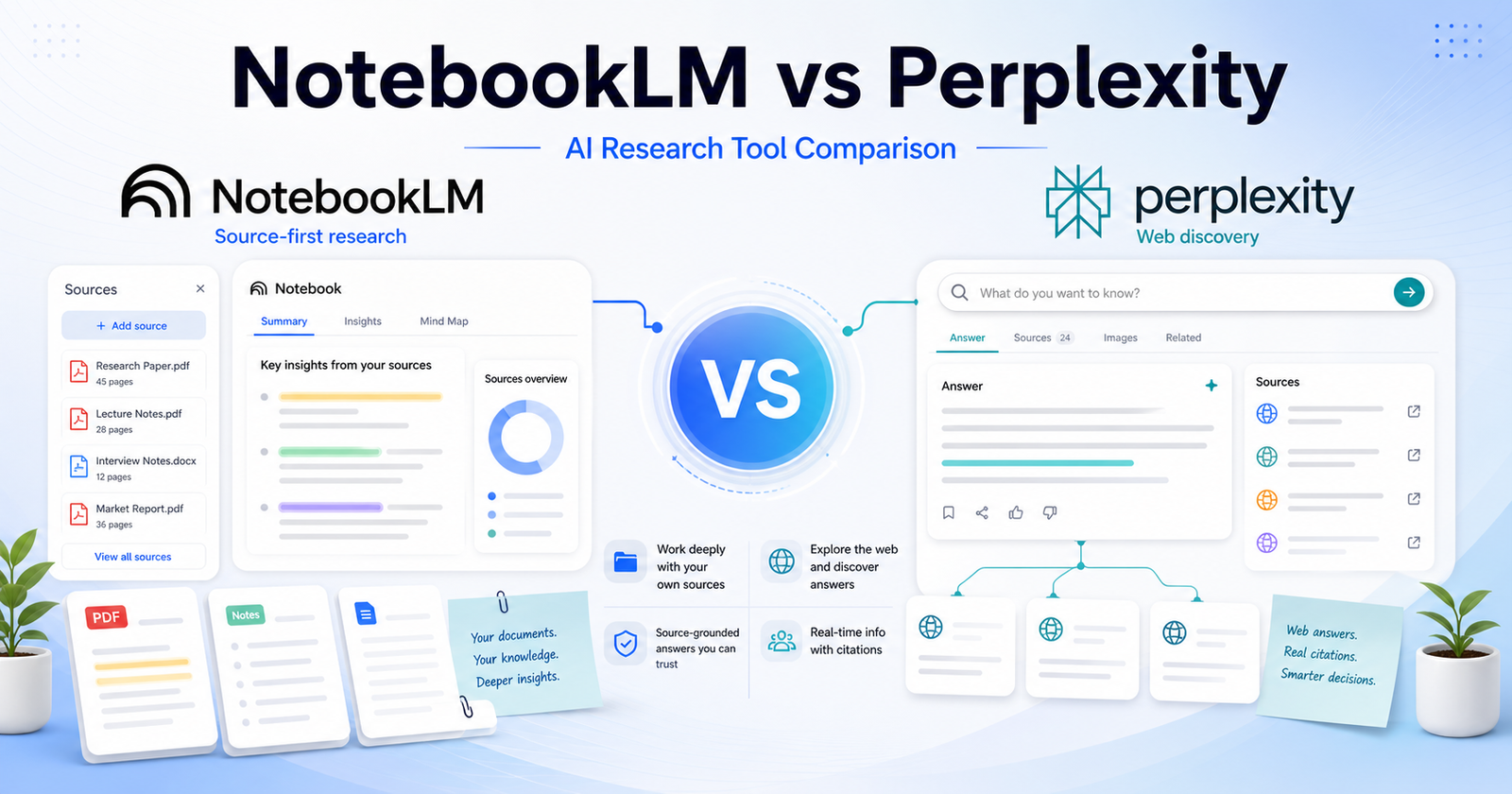
    If you are choosing between research tools, our NotebookLM vs Perplexity comparison is a useful companion. This guide is different: it shows how to build a repeatable process around AI research tools instead of treating every research task as a one-off prompt.

    Quick Workflow Summary

    Step Goal Best-fit AI role
    1. Define the question Prevent vague research Turn the topic into clear research questions
    2. Build the source set Keep evidence organized Collect official pages, documents, and notes
    3. Explore the web Find gaps and current context Use cited search and discovery tools
    4. Summarize sources Reduce reading time Extract themes, claims, and contradictions
    5. Create the outline Shape the final asset Build headings, argument flow, and audience angle
    6. Draft with controls Write without losing accuracy Use source notes and editorial rules
    7. Review and publish Protect quality Verify claims, links, tone, and missing context

    1. Define The Research Question First

    Most weak AI research starts with a vague request. A prompt like “research this topic” gives the model too much freedom and too little direction. Before opening any AI tool, write one primary question and three to five supporting questions.

    For example, instead of asking for “AI tools for sales teams,” define the research question as: “Which AI tools help small sales teams reduce manual follow-up work without adding a complex CRM migration?” That version gives the research a clearer audience, job, constraint, and buying context.

    A good research brief should include:

    • The audience you are writing for
    • The decision they need to make
    • The tools, categories, or workflows included
    • The date sensitivity of the topic
    • The type of final output needed
    • Any sources that must be used or avoided

    This step is where ChatGPT or Claude can help, but the human editor should own the final brief. AI can suggest angles; it should not decide the business objective alone.

    2. Build A Source Set Before Drafting

    The source set is the foundation of the whole workflow. Start with official websites, product pages, docs, pricing pages, help centers, changelogs, and public policy pages. For AI tools, that usually means checking the vendor’s own product information first.

    Useful official starting points include NotebookLM, Perplexity, ChatGPT, and Claude. If the article involves buying decisions, include the official plan pages in the research folder as source material rather than relying on memory.

    NotebookLM is especially useful at this stage because it is designed around source-grounded work. Add PDFs, notes, docs, web pages, or transcripts when the project needs a controlled knowledge base. Then use the tool to ask questions against those sources rather than against the open web.

    3. Use Web Research For Discovery, Not Final Truth

    Web research tools are excellent for discovery. They can uncover terminology, competitor pages, recent announcements, and gaps in your source set. Perplexity is useful here because it presents answers with cited sources, making it easier to inspect where a claim came from.

    The mistake is treating the first AI answer as final truth. Instead, use web research to build a candidate list of sources. Then open the most important sources yourself, especially when the claim affects pricing, product limits, security, compliance, or availability.

    This is also where a general assistant can help compare findings. For broader assistant selection, see our Claude vs ChatGPT comparison and Gemini vs ChatGPT comparison. Those articles help when the research workflow depends on the assistant your team already uses every day.

    4. Summarize Each Source Into Evidence Notes

    Once sources are collected, do not jump straight into drafting. Create evidence notes first. Each note should contain the source name, URL, what the source proves, what it does not prove, and any language that should be quoted or paraphrased carefully.

    A practical evidence note can look like this:

    • Source: official product page
    • Claim supported: the tool supports a specific workflow or feature
    • Claim not supported: exact plan limits or future roadmap
    • Editorial use: explain the feature in plain language
    • Risk: source is promotional, so avoid overclaiming

    This keeps the final article from sounding like a stitched-together AI answer. It also makes QA easier because every important claim has a source trail.

    Claude and ChatGPT are both useful for turning long source notes into clean summaries. Claude is often strong for long-context synthesis, while ChatGPT is flexible for outlines, rewriting, and transforming notes into different formats. The right choice depends on your team’s review habits and the type of source material.

    5. Create A Decision-Focused Outline

    A good research article should not simply list facts. It should help the reader make a decision or complete a task. After summarizing the sources, ask the AI to create an outline that answers the reader’s most likely next questions.

    For a tool article, that may include:

    • What the tool does
    • Who it is best for
    • When it is not a good fit
    • How it compares with alternatives
    • What workflow it supports
    • What limitations buyers should notice
    • Which sources support the article’s claims

    For a guide or tutorial, the outline should focus more on sequence and outcomes. For a comparison, it should focus on decision criteria. For a listicle, it should focus on use cases and tool fit. This is how you avoid producing the same generic AI article again and again.

    6. Draft With Source Boundaries

    When drafting, tell the AI exactly what it can and cannot use. Give it the brief, the outline, the evidence notes, internal links, and editorial rules. Ask it to write from those materials rather than inventing missing details.

    A good drafting instruction might say: “Use only the source notes below. Do not invent pricing, limits, benchmarks, test results, user numbers, or roadmap claims. If a point is not supported, omit it. Write for small business teams that need a practical decision-making workflow.”

    This matters for trust. Readers can tell when an article is padded with vague claims. Strong AI-assisted writing still needs constraints, judgment, and a clear editorial standard.

    If the research task involves meeting notes or team knowledge capture, our Otter.ai vs Fireflies.ai comparison is another useful internal reference because meetings often become part of the source library for later research.

    7. Review Claims, Links, And Reader Value

    The final review should be separate from drafting. Use AI to help inspect the article, but do not let AI be the only reviewer. Check whether every major claim is supported, whether external links point to official or authoritative sources, and whether internal links genuinely help the reader.

    A strong QA pass should ask:

    • Does the article answer the search intent?
    • Are official sources linked where they matter?
    • Are any prices, limits, or feature claims unsupported?
    • Are internal links relevant and naturally placed?
    • Does the article include enough practical detail?
    • Does the introduction say something specific?
    • Are FAQs useful rather than repetitive?
    • Is the final recommendation clear?

    This is where many AI articles fail. They look complete, but they do not help the reader act. The goal is not to publish more words. The goal is to publish a better decision path.

    Recommended Tool Roles

    NotebookLM

    Use NotebookLM when the research depends on a defined source set. It is a strong fit for policy docs, course material, transcripts, PDFs, and internal notes. It helps teams ask questions against known material instead of mixing controlled sources with broad web assumptions.

    Perplexity

    Use Perplexity for discovery, web context, and source finding. It works well when the team needs to understand what is available online and then inspect cited pages. It is strongest when the reviewer follows the citations and validates key claims.

    ChatGPT

    Use ChatGPT for briefs, outlines, draft structure, rewriting, and formatting. It can turn evidence notes into article sections, social posts, checklists, and summaries. It is useful when the team needs flexible content transformation after research is complete.

    Claude

    Use Claude for long-context synthesis, careful rewriting, and review of dense material. It can be helpful when the team needs a second-pass editor that can hold a large amount of context and identify weak reasoning or unclear structure.

    Common Mistakes To Avoid

    The biggest mistake is asking one AI tool to do the whole job from a single prompt. That usually creates generic content with weak sourcing. Another mistake is adding source links after writing, which can lead to links that do not actually support the claims.

    Avoid these habits:

    • Starting with a broad prompt instead of a research brief
    • Mixing official sources with random blog summaries without labeling them
    • Asking AI to invent feature comparisons from memory
    • Publishing pricing or plan details without a source trail
    • Using citations as decoration instead of evidence
    • Adding internal links only because SEO tools recommend them
    • Skipping human review because the draft sounds fluent

    Fluency is not the same as accuracy. A polished paragraph can still be unsupported.

    Best AI Research Workflow Template

    Use this repeatable template for team research projects:

    1. Write the research question and audience. 2. Create a source folder with official pages, docs, notes, and transcripts. 3. Use Perplexity or another cited research tool to find additional source candidates. 4. Add the strongest sources to NotebookLM or a shared research document. 5. Summarize each source into evidence notes. 6. Use ChatGPT or Claude to create an outline from the notes. 7. Draft the article with strict source boundaries. 8. Add natural internal links only where they help the reader. 9. Review every important claim before publishing. 10. Save the final source list for future article updates.

    Final Verdict

    The best AI research workflow for teams is a layered process, not a single tool choice. Use NotebookLM for controlled source work, Perplexity for cited discovery, ChatGPT for structure and drafting, and Claude for synthesis and review. The combination works because each tool has a clear job.

    If your team publishes research-based content, build the workflow before choosing the tool. A clear process will produce better articles than a powerful AI assistant used without source discipline.

    FAQs

    What is an AI research workflow?

    An AI research workflow is a repeatable process for using AI tools to collect sources, summarize evidence, build outlines, draft content, and review claims before publication.

    Which AI tool is best for source-based research?

    NotebookLM is strong for source-based research because it is built around uploaded or selected materials. It works best when the team already has documents, notes, transcripts, or web sources to analyze.

    Which AI tool is best for web research?

    Perplexity is useful for web research because it surfaces answers with citations. The citations still need human review, especially for important product, pricing, legal, or technical claims.

    Should teams use ChatGPT for research?

    Yes, ChatGPT can help with research briefs, outlines, draft structure, rewriting, and content transformation. It should be used with source notes and clear boundaries for important research work.

    Is Claude good for research articles?

    Claude can be useful for long-context synthesis, careful rewriting, and reviewing dense source material. It is especially helpful when the research includes long notes or complex arguments.

    Can AI replace human research review?

    No. AI can speed up research and drafting, but a human editor should review claims, sources, links, tone, and final recommendations before publication.

    How do you avoid fake AI research claims?

    Use official sources, keep evidence notes, avoid unsupported details, and ask the AI to omit anything that is not backed by the supplied material.

    Should every AI article include pricing?

    Only include pricing when it is relevant to the article and confidently verified from official sources. Workflow articles may not need a pricing table if the reader is trying to improve a process rather than choose a paid plan.

    How many internal links should a research article include?

    Use internal links only where they help the reader continue the same decision path. Two to five relevant links are usually enough for a normal article.

    What is the safest way to publish AI-assisted research?

    Use AI for speed, but keep human control over source selection, claim verification, editorial judgment, and the final recommendation.

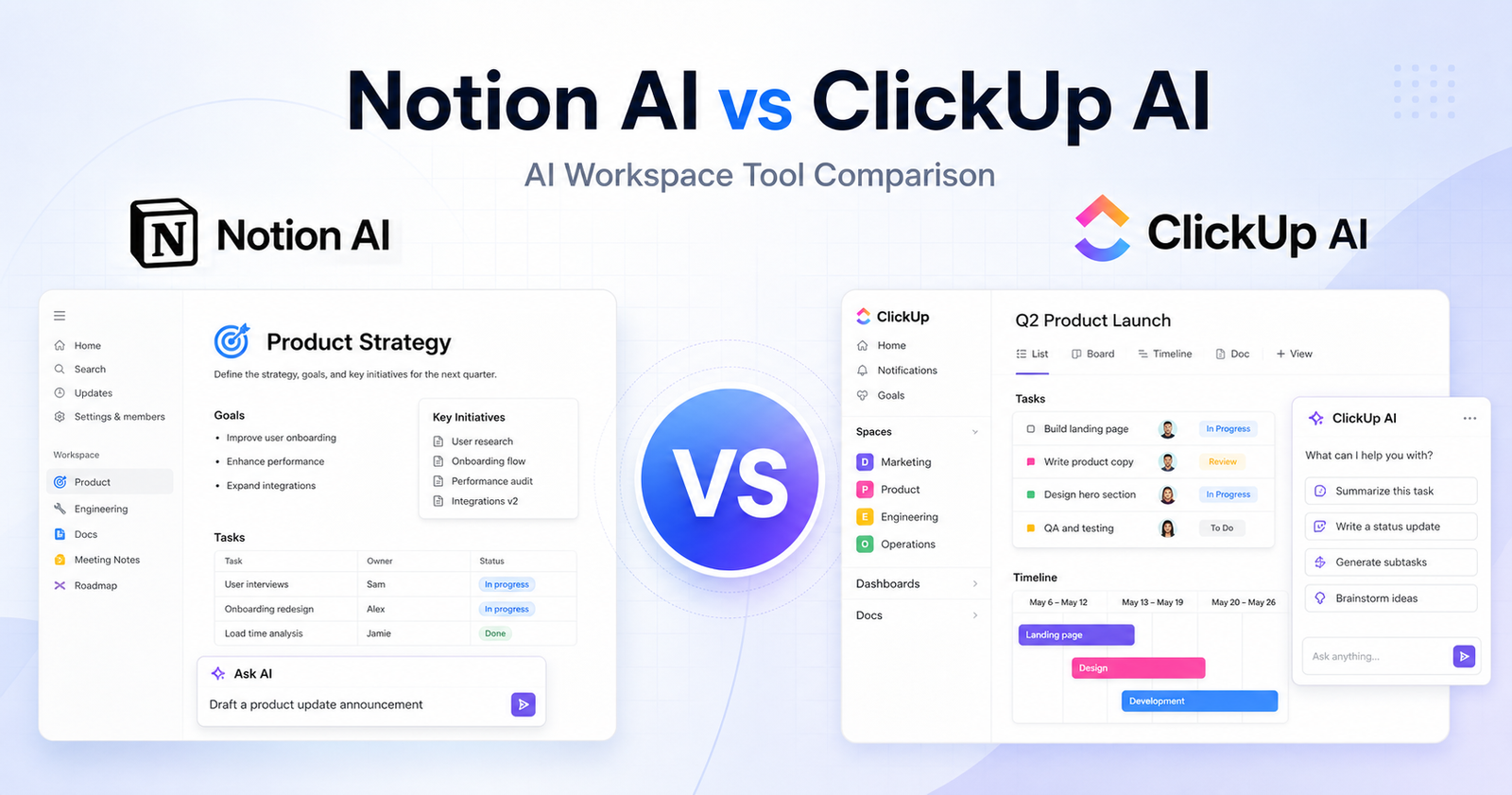
  • Notion AI vs ClickUp AI: Which AI Workspace Tool Should You Choose?

    Notion AI vs ClickUp AI: Which AI Workspace Tool Should You Choose?

    If you are comparing Notion AI vs ClickUp AI, the real question is not simply which assistant writes better text. Notion AI is strongest when your work lives in docs, wikis, notes, databases, and knowledge hubs. ClickUp AI, now branded around ClickUp Brain, is stronger when your work is already organized around tasks, projects, goals, docs, dashboards, and team execution.

    Both tools can summarize, draft, answer questions, and help teams move faster. The better choice depends on where your team keeps its source of truth and whether you need an AI workspace for knowledge management or an AI layer for project delivery.

    Quick Verdict

    Choose Notion AI if you want an AI assistant inside a flexible workspace for notes, documentation, databases, meeting notes, lightweight projects, and company knowledge. It is especially good for teams that already use Notion as a wiki or operating system.

    Choose ClickUp AI if you want AI connected to tasks, projects, docs, comments, meetings, dashboards, and execution workflows. It is usually the better fit for teams that need project management, accountability, and cross-functional delivery in one place.

    Quick Comparison

    Category Notion AI ClickUp AI
    Best for Docs, wikis, notes, databases, knowledge management Tasks, projects, docs, dashboards, team execution
    Core workspace style Flexible blocks and databases Structured project management with tasks and views
    AI brand Notion AI, Notion Agent, AI Meeting Notes, Enterprise Search, Custom Agents ClickUp Brain and Everything AI
    Writing help Strong for drafting, rewriting, summaries, notes, and documentation Strong for task updates, docs, comments, summaries, and project communication
    Knowledge answers Works well when your content is organized in Notion pages and databases Useful when work context lives across tasks, docs, comments, and connected project spaces
    Project management Lightweight to moderate, depending on database setup Native project management with tasks, lists, boards, timelines, goals, and dashboards
    Meeting support AI Meeting Notes available on Business and Enterprise plans AI meeting and task context features are part of the broader Brain workflow
    Automation fit Good for database workflows and knowledge organization Better for operational workflows, task updates, and team execution
    Free access Free plan available, with AI trials noted on the pricing page Free Forever plan available, with AI available as paid add-ons
    Best team type Founders, content teams, research teams, documentation-heavy teams Agencies, operations teams, product teams, marketing teams, and project-heavy companies

    Pricing Comparison

    Both products use workspace pricing plus AI-related plan or add-on options. Here is the verified plan data available from official pricing pages used for this comparison.

    Pricing Point Notion AI ClickUp AI
    Free plan Free plan at $0 Free Forever plan at $0
    Entry workspace plan Plus at $10 per seat/month in the USD pricing data Unlimited at $7 per user/month billed yearly, with monthly pricing also shown as $10 per user/month
    Business workspace plan Business at $20 per seat/month in the USD pricing data Business at $12 per user/month billed yearly
    Enterprise plan Enterprise custom plan Enterprise custom plan
    AI add-on / AI product pricing Notion pricing includes AI trials and separate AI products including Notion Agent, AI Meeting Notes, Enterprise Search, and Custom Agents credit-based usage ClickUp Brain at $9 per user/month; Everything AI at $28 per user/month
    Meeting notes AI Meeting Notes included on Business and Enterprise in the pricing data Meeting and workspace intelligence are positioned inside ClickUp Brain / Everything AI
    Custom AI usage Custom Agents pricing is credit-based, with $10 per 1,000 credits shown in the pricing data Enterprise and higher AI needs may use ClickUp’s custom workspace and AI options
    Main pricing advantage Lower listed Business workspace plan in the captured USD data Clear AI add-on pricing for Brain and Everything AI
    Main pricing tradeoff Advanced AI and custom agents can add complexity beyond the base workspace plan ClickUp can become more expensive when every user needs paid AI plus project management seats

    Notion AI Overview

    Notion is a flexible workspace built around pages, blocks, databases, templates, and collaborative documentation. Notion AI adds an assistant layer that can help draft content, summarize pages, answer questions from workspace knowledge, improve writing, and support meeting or research workflows.

    The biggest strength of Notion AI is that it sits close to your knowledge base. If your team stores SOPs, meeting notes, strategy docs, product specs, content calendars, or client notes in Notion, the assistant can make that information easier to reuse.

    Notion also works well for teams that like to design their own systems. A content team can build an editorial database. A startup can build an investor CRM. A research team can maintain a source library. Notion AI then supports the written and knowledge-heavy parts of those workflows.

    ClickUp AI Overview

    ClickUp is a work management platform built around tasks, lists, projects, docs, goals, dashboards, calendars, whiteboards, and automations. ClickUp AI is now centered on ClickUp Brain, which connects AI assistance to the work already happening inside ClickUp.

    The main advantage is execution context. ClickUp does not only hold documents; it also holds owners, deadlines, priorities, comments, statuses, dependencies, and project history. That makes its AI more useful for teams that want summaries, action items, project updates, task generation, and operational clarity.

    ClickUp is less open-ended than Notion, but that structure is often the point. If your team needs visibility across projects, ClickUp gives you more native controls than a Notion database setup.

    AI Writing and Documentation

    Notion AI feels natural for long-form writing, internal documentation, meeting notes, brainstorming, and knowledge cleanup. It is helpful when you want to turn rough notes into a polished doc, rewrite a paragraph, summarize a strategy page, or create a first draft inside a workspace.

    ClickUp AI is also capable at writing, but its writing feels more connected to execution. It is useful for drafting task descriptions, summarizing comment threads, creating project updates, turning notes into action items, and improving team communication.

    For pure documentation and knowledge reuse, Notion AI is easier to recommend. For writing tied to projects and task movement, ClickUp AI usually has the stronger practical context.

    Project Management and Team Execution

    This is where the two tools separate clearly.

    Notion can manage projects through databases, board views, calendar views, templates, and custom properties. It is flexible and lightweight, but it requires more setup discipline. If your team wants a custom project hub that also stores research and docs, Notion is excellent.

    ClickUp is built for project management from the start. Tasks, assignees, due dates, priorities, statuses, dependencies, time tracking, dashboards, and workload views are native parts of the platform. ClickUp AI benefits from that structure because it can help summarize and move work that already has operational metadata.

    If your team misses deadlines because work is scattered, ClickUp AI is the stronger option. If your team mainly needs better knowledge organization and writing support, Notion AI may feel cleaner.

    Knowledge Management

    Notion AI is one of the stronger choices for teams that think in pages, knowledge bases, and reusable systems. It is comfortable for wikis, product docs, research notes, training libraries, content briefs, and company handbooks.

    ClickUp can also store docs and knowledge, but its knowledge management is usually attached to tasks and projects. That is useful for execution-heavy teams but may feel heavier if your main goal is a clean internal wiki.

    A simple rule: if the knowledge itself is the product, choose Notion. If the knowledge exists to move projects forward, choose ClickUp.

    Pros and Cons

    Notion AI Pros

    • Excellent fit for documentation-heavy teams
    • Flexible workspace for notes, databases, wikis, and content systems
    • Strong writing, summarizing, and knowledge-assistant use cases
    • Clean interface with less project-management overhead
    • Good for founders, creators, researchers, and internal knowledge teams

    Notion AI Cons

    • Project management requires more custom setup
    • Less native structure for complex task operations
    • Advanced AI products and custom agents can add pricing complexity
    • Teams may need strong workspace governance to avoid messy databases

    ClickUp AI Pros

    • Strong fit for project-heavy teams
    • AI is connected to tasks, docs, comments, deadlines, and work status
    • Better native project management than Notion
    • Useful for agencies, marketing teams, product teams, and operations teams
    • Clear AI add-on pricing for Brain and Everything AI

    ClickUp AI Cons

    • More complex interface than Notion for simple documentation workflows
    • AI costs can rise when many users need paid AI access
    • Less elegant as a pure notes or wiki tool
    • Teams that only need writing help may not need ClickUp’s full work management stack

    Which Tool Should You Choose?

    Choose Notion AI if your priority is building a flexible knowledge workspace. It is the better pick for documentation, research notes, content planning, internal wikis, meeting notes, and custom databases. It is especially strong when your team wants a calm place to think, write, organize, and reuse information.

    Choose ClickUp AI if your priority is managing work from idea to completion. It is better for task-heavy teams, agencies, product teams, marketing teams, and operations groups that need AI connected to deadlines, statuses, owners, comments, and project reporting.

    For many small teams, the choice comes down to your main pain point. If information is hard to find, Notion AI is likely the cleaner answer. If work is hard to track, ClickUp AI is likely the stronger answer.

    FAQs

    Is Notion AI better than ClickUp AI?

    Notion AI is better for documentation, knowledge management, research notes, and flexible databases. ClickUp AI is better for structured project work, task management, and team execution.

    Is ClickUp AI good for project management?

    Yes. ClickUp AI is strongest when it can work with tasks, comments, docs, deadlines, assignees, and project updates inside ClickUp.

    Does Notion have a free plan?

    Yes. Notion lists a Free plan at $0, plus paid workspace plans including Plus, Business, and Enterprise.

    How much does ClickUp Brain cost?

    ClickUp’s pricing page lists ClickUp Brain at $9 per user/month and Everything AI at $28 per user/month.

    Which tool is better for a company wiki?

    Notion AI is usually better for a company wiki because Notion’s page and database model is designed around flexible documentation and knowledge hubs.

    Which tool is better for agencies?

    ClickUp AI is usually better for agencies that need tasks, owners, deadlines, statuses, dashboards, and client delivery workflows. Notion AI can still work well for agency documentation and knowledge bases.

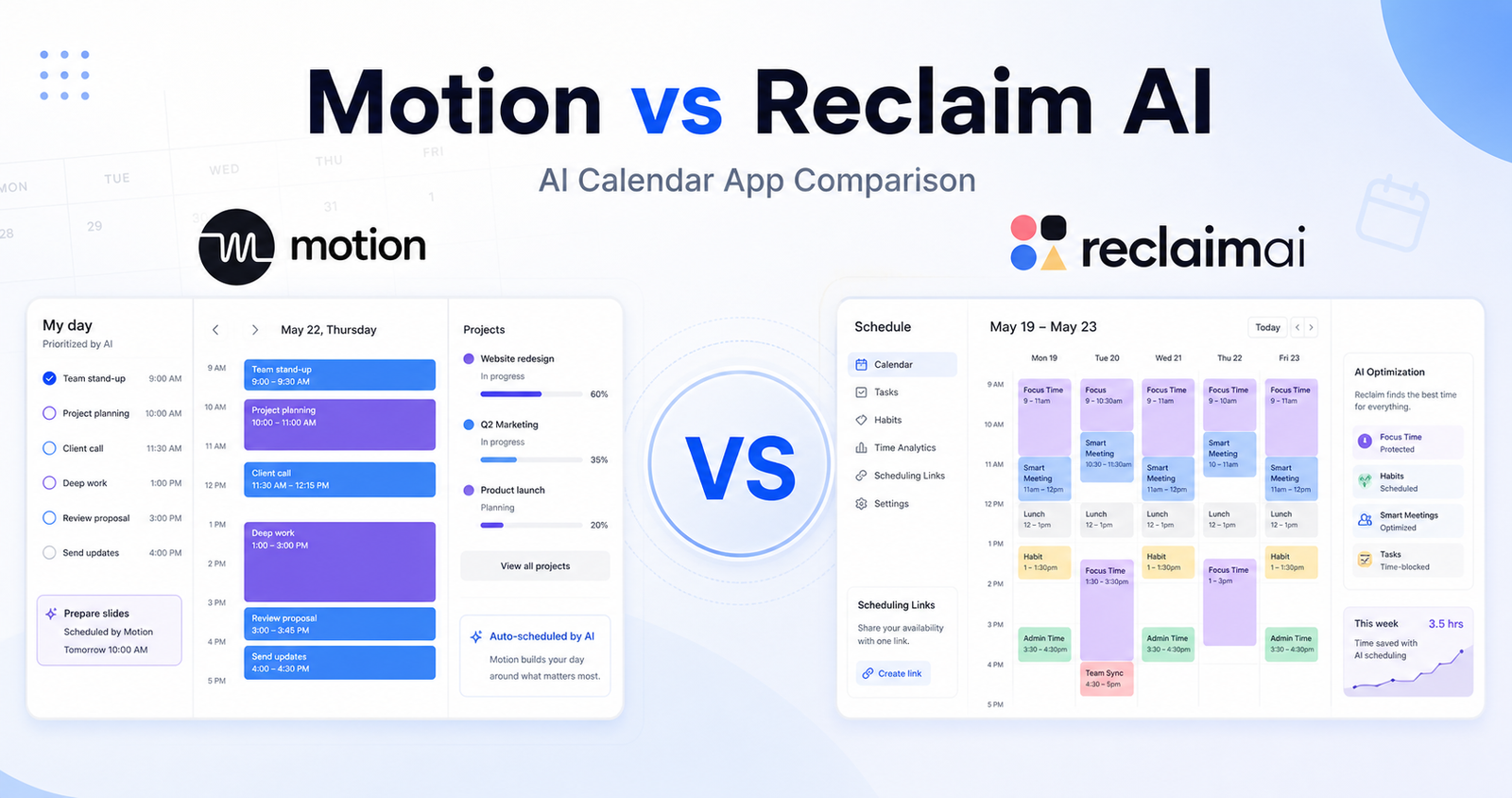
    If your productivity stack also includes scheduling or meeting notes, our Motion vs Reclaim AI comparison and Otter.ai vs Fireflies.ai comparison guides are natural follow-up comparisons.

    Final Verdict

    Notion AI and ClickUp AI are both useful, but they solve different workspace problems. Notion AI is the better AI knowledge workspace. ClickUp AI is the better AI project execution workspace.

    If your team lives in docs and databases, choose Notion AI. If your team lives in tasks, timelines, dashboards, and delivery workflows, choose ClickUp AI.

  • Motion vs Reclaim AI: Which AI Calendar App Should You Choose?

    Motion vs Reclaim AI: Which AI Calendar App Should You Choose?

    If you are comparing Motion vs Reclaim AI, you are probably trying to solve the same problem: your calendar is too crowded, your task list keeps slipping, and manual planning is eating time that should be spent doing the work.

    Motion and Reclaim AI both use automation to protect time on your calendar, but they are built for different scheduling styles. Motion is closer to an AI work planner that combines tasks, projects, calendars, meetings, and scheduling into one system. Reclaim AI is more focused on intelligent calendar defense: focus time, habits, smart meetings, scheduling links, and calendar sync.

    The better choice depends on whether you want a full AI task-and-project planner or a lighter calendar automation layer that fits around your current tools.

    Quick Verdict

    Choose Motion if you want AI to build and adjust your daily schedule around tasks, meetings, projects, priorities, and deadlines. It is the stronger choice for people who want one planning system to decide what work happens next.

    Choose Reclaim AI if you want smarter calendar protection without replacing your project management tool. It is better for teams that already use tools like Asana, ClickUp, Jira, Linear, Todoist, or Google Calendar and mainly need automatic focus time, habits, meeting scheduling, and calendar sync.

    Quick Comparison

    Category Motion Reclaim AI
    Best for AI task planning, project scheduling, daily prioritization Calendar defense, focus time, habits, meeting scheduling
    Core product style AI work planner with calendar, tasks, projects, docs, and meetings AI calendar assistant that works around existing workflows
    Ideal user Busy professionals, founders, consultants, operators, and teams that want one planning system Teams and individuals who already have task tools but need a smarter calendar
    Task planning Strong native task planning with priority and deadline scheduling Integrates tasks from other tools and blocks time for them
    Project management Built-in AI Projects and Tasks Not a full project management replacement
    Focus time Scheduled through AI planning and availability Strong focus time protection and smart rescheduling
    Habits Can schedule recurring work through tasks/calendar Dedicated Habits feature for recurring routines
    Meeting scheduling AI Calendar and Meetings included Smart Meetings and Scheduling Links are central features
    Team capacity Business AI adds team capacity planning Team features depend on Starter, Business, and Enterprise tiers
    Best fit Replace manual planning with one AI planner Add AI scheduling to an existing calendar/tool stack

    Pricing Comparison

    Motion and Reclaim AI use different pricing models. Motion separates Pro AI and Business AI plans and changes pricing by individual vs team billing. Reclaim AI has a free Lite plan plus paid Starter, Business, and Enterprise tiers.

    Pricing Point Motion Reclaim AI
    Free plan Trial CTA shown on Motion pricing page Lite plan is free
    Entry paid plan Pro AI for teams: $29/seat/month monthly or $19/seat/month annually Starter: $10/seat/month monthly or $8/seat/month annually
    Higher paid plan Business AI for teams: $49/seat/month monthly or $29/seat/month annually Business: $15/seat/month monthly or $12/seat/month annually
    Individual annual pricing Pro AI individual: $29/month annually; Business AI individual: $39/month annually Starter and Business pricing is seat-based
    Individual monthly pricing Pro AI individual: $49/month; Business AI individual: $69/month Starter $10/seat/month; Business $15/seat/month
    Enterprise tier Business AI includes business controls and priority support; larger needs use Motion sales/onboarding flow Enterprise: $22/seat/month monthly or $18/seat/month annually
    Usage limits Pro AI includes 7,500 credits/seat/month Lite, Starter, Business, and Enterprise tiers vary by feature access
    Higher usage Business AI includes 15,000 credits/seat/month Enterprise provides the highest listed Reclaim tier
    Best pricing fit Users who want AI planning plus built-in task/project scheduling Users who need calendar automation at lower per-seat prices

    Motion Overview

    Motion is designed to be an AI work planner. It combines calendar scheduling, task prioritization, project work, meetings, docs, wiki-style content, and integrations into one planning environment.

    The main promise is simple: give Motion your tasks, deadlines, priorities, and meetings, and it builds a schedule for you. When plans change, Motion can reshuffle work based on remaining time and priority. That makes it useful for professionals who struggle with manual planning or teams that need more structure around deadlines.

    Motion’s Pro AI plan includes AI Chat, AI Projects and Tasks, AI Calendar and Meetings, AI Docs and Wiki, unlimited storage, apps, integrations, and 7,500 credits per seat per month. Business AI adds team capacity planning, roles and access control, central billing, priority support, and 15,000 credits per seat per month.

    Reclaim AI Overview

    Reclaim AI is an AI calendar app built to defend your time. It focuses on automatically scheduling focus time, habits, tasks, meetings, and scheduling links around your availability.

    Reclaim is especially useful if your team already has a project management system. Instead of asking everyone to move into a new planner, Reclaim can work around existing tools and calendars. It helps block time for tasks, protect deep work, schedule recurring habits, and coordinate meetings without creating as much planning overhead.

    Reclaim’s Lite plan is free. Starter, Business, and Enterprise add more powerful scheduling and team features at paid per-seat pricing.

    AI Scheduling and Task Planning

    Motion is stronger when you want AI to decide the order of your work. It works best when you enter tasks, priorities, and deadlines directly into Motion. The product then becomes the planning brain for your day.

    Reclaim AI is stronger when you want time blocks created around your existing work. It can help you protect calendar space, defend focus time, and fit habits or tasks into open slots. It is less about replacing your work system and more about making your calendar respect it.

    For people who want one planner, Motion has the advantage. For teams that already have task systems, Reclaim is easier to adopt.

    Meetings and Focus Time

    Both tools help with meetings, but they approach them differently.

    Motion includes AI Calendar and Meetings as part of its broader planning system. Meetings are one part of the schedule that Motion balances against tasks and priorities.

    Reclaim AI puts meeting coordination and focus protection closer to the center of the product. Its Smart Meetings, Scheduling Links, Focus Time, and Habits features are built for teams that constantly negotiate calendar space.

    If meetings are the main calendar problem, Reclaim AI is a strong fit. If meetings are only one piece of a bigger planning problem, Motion may be more useful.

    Project Management Fit

    Motion includes AI Projects and Tasks, so it can act as a lightweight project and task management system. This is helpful for consultants, founders, operators, and small teams that want fewer tools.

    Reclaim AI is not trying to be your main project management system. That is a strength if your team already uses another tool. It lets you keep your existing project workflow while making calendar time more realistic.

    Choose Motion if you want to consolidate planning. Choose Reclaim if you want to improve scheduling without disrupting the systems your team already uses.

    Pros and Cons

    Motion Pros

    • Strong AI planning for tasks, projects, meetings, and deadlines
    • Better fit for users who want one system to organize the day
    • Pro AI includes 7,500 credits per seat per month
    • Business AI includes 15,000 credits per seat per month and team capacity planning
    • Useful for consultants, founders, busy operators, and teams with shifting priorities

    Motion Cons

    • Higher entry pricing than Reclaim AI
    • Requires more commitment because it works best when tasks and projects live inside Motion
    • May be too much if you only need focus time and meeting scheduling
    • Individual monthly pricing is much higher than annual team pricing

    Reclaim AI Pros

    • Free Lite plan available
    • Lower paid entry price than Motion
    • Excellent fit for focus time, habits, smart meetings, and scheduling links
    • Works well alongside existing task and project management tools
    • Easier to adopt for teams that do not want to replace their work management stack

    Reclaim AI Cons

    • Not a full project management replacement
    • Less suited for users who want AI to run their entire task planning system
    • Advanced team features require higher tiers
    • The value depends on calendar discipline and connected workflow setup

    Which Tool Should You Choose?

    Choose Motion if your real problem is planning. If you want AI to decide when tasks happen, adjust your schedule automatically, and manage projects and priorities in one place, Motion is the better fit.

    Choose Reclaim AI if your real problem is calendar protection. If you already know what work needs to happen but need your calendar to defend focus time, habits, task blocks, and smarter meetings, Reclaim AI is the cleaner choice.

    A simple way to decide: Motion is for people who want an AI planner. Reclaim AI is for people who want an AI calendar assistant.

    FAQs

    Is Motion better than Reclaim AI?

    Motion is better for AI task planning, project scheduling, and all-in-one daily planning. Reclaim AI is better for focus time, habits, calendar defense, and scheduling around existing tools.

    Does Reclaim AI have a free plan?

    Yes. Reclaim AI lists a free Lite plan.

    How much does Motion cost?

    Motion Pro AI for teams is listed at $29 per seat/month monthly or $19 per seat/month annually. Business AI for teams is listed at $49 per seat/month monthly or $29 per seat/month annually.

    How much does Reclaim AI cost?

    Reclaim AI Starter is listed at $10 per seat/month monthly or $8 per seat/month annually. Business is listed at $15 per seat/month monthly or $12 per seat/month annually. Enterprise is listed at $22 per seat/month monthly or $18 per seat/month annually.

    Which tool is better for teams?

    Motion is better for teams that want one AI planning system with projects, tasks, calendars, and capacity planning. Reclaim AI is better for teams that already use a project tool and want smarter scheduling on top of the calendar.

    Which tool is better for focus time?

    Reclaim AI is usually better for dedicated focus time workflows because focus protection, habits, and calendar optimization are core parts of the product.

    For broader productivity planning, pair this with our Notion AI vs ClickUp AI comparison comparison; automation-heavy teams may also want to compare Zapier vs Make comparison.

    Final Verdict

    Motion and Reclaim AI are both useful AI scheduling tools, but they are not interchangeable. Motion is the stronger all-in-one AI planner. Reclaim AI is the stronger calendar automation layer.

    If you want AI to plan your workday from tasks and priorities, choose Motion. If you want AI to defend calendar time around your existing tools, choose Reclaim AI.

  • Otter.ai vs Fireflies.ai: Which AI Meeting Assistant Should You Choose?

    Otter.ai vs Fireflies.ai: Which AI Meeting Assistant Should You Choose?

    Quick Verdict

    Otter.ai is the better choice if you want live meeting transcription, simple meeting notes, calendar-based auto-join, and a cleaner experience for teams that need notes during the call. Fireflies.ai is the better choice if you want broader meeting intelligence, unlimited transcription on paid plans, stronger search across past meetings, more workflow integrations, and conversation analytics for teams.

    For most solo users who need basic live notes, Otter.ai feels easier to start with. For sales, recruiting, customer success, agencies, and teams that want transcripts to become a searchable knowledge base, Fireflies.ai usually offers more depth.

    Both tools are useful, but they solve slightly different problems. Otter.ai is strongest as a real-time AI notetaker. Fireflies.ai is strongest as a meeting intelligence system that records, transcribes, summarizes, searches, and connects meetings with the rest of your workflow.

    Quick Comparison

    Comparison Point Otter.ai Fireflies.ai
    Best for Live meeting notes, real-time transcription, and simple team sharing Meeting intelligence, searchable transcripts, analytics, and integrations
    Main workflow Connect calendar, let Otter Notetaker join meetings, follow live notes and summaries Invite Fireflies or let it autojoin, then search, summarize, analyze, and share meetings
    Meeting platforms Zoom, Microsoft Teams, and Google Meet Zoom, Google Meet, Microsoft Teams, and more meeting sources
    Live transcription Strong focus on real-time transcription and live meeting visibility Supports real-time notes and live transcriptions, with more post-meeting intelligence depth
    AI summaries Automated summaries, key takeaways, action items, and AI Chat Unlimited AI summaries on listed plans, AskFred assistant, AI apps, and action item workflows
    Search Search notes by keyword, speaker, and date Meeting search plus AskFred for querying meetings
    File uploads Basic has 3 lifetime imports; Pro has 10 monthly audio/video imports; Business lists unlimited imports Upload audio/video files, with storage limits by plan
    Storage Pro includes unlimited storage; Business focuses on unlimited meetings and recordings Free includes 400 minutes storage/team; Pro includes 8,000 minutes storage/seat; Business and Enterprise list unlimited storage
    Team features Team vocabulary, taggable speakers, admin features, usage analytics on higher plans Team analytics, user groups, conversation intelligence, channels, and collaboration workflows on higher plans
    Integrations Zoom, Teams, Google Meet, Slack, Google Drive, Salesforce, HubSpot, Zapier, and others Zoom, Google Meet, Teams, CRM and workflow integrations, API access, Chrome extension, desktop and mobile apps
    Analytics Usage analytics and admin controls on Business Talk-time analytics on Pro, team analytics and conversation intelligence on Business
    Mobile and desktop apps iOS and Android apps, plus Mac and Windows downloads Desktop app, mobile apps, and Chrome extension
    Admin/security fit Better as teams move into Business and Enterprise Stronger enterprise/admin direction with SSO + SCIM and rules engine on Enterprise
    Easiest starting point Otter Basic is straightforward for trying live meeting notes Fireflies Free is attractive if you want broad meeting capture and summaries with storage limits
    Overall recommendation Choose Otter.ai for live note-taking simplicity Choose Fireflies.ai for deeper searchable meeting intelligence

    Pricing Comparison

    Both tools publish plan-level pricing. Otter.ai prices around transcription minutes, meeting duration, imports, and team controls. Fireflies.ai prices around seats, storage, AI summaries, AI credits, analytics, and enterprise controls.

    Pricing Point Otter.ai Fireflies.ai
    Free plan Basic is Free Free is $0 forever
    Free plan limits 300 monthly transcription minutes and 3 lifetime audio/video file imports 400 minutes of storage/team, unlimited transcription, and unlimited AI summaries listed on the pricing page
    Lowest paid monthly plan Pro at $16.99/user/month Pro at $18/seat/month
    Lowest paid annual plan Pro at $8.33/user/month billed annually Pro at $10/seat/month billed annually
    Mid-tier monthly plan Business at $30/user/month Business at $29/seat/month
    Mid-tier annual plan Business at $19.99/user/month billed annually Business at $19/seat/month billed annually
    Enterprise plan Enterprise is available for large teams and companies Enterprise is $39/seat/month, annual only
    Paid transcription allowance Pro includes 1,200 in-app recording minutes; Business lists unlimited meetings and in-app recordings Paid plans list unlimited transcription and unlimited AI summaries
    Meeting length limits Pro supports up to 90 minutes/meeting; Business supports up to 4 hours/meeting Business adds video recording, multi-language mode, and conversation intelligence; the pricing page focuses more on storage and features than meeting-length caps
    File imports Basic includes 3 lifetime imports; Pro includes 10 monthly imports; Business lists unlimited imports Upload audio/video files is included; storage is 400 minutes/team on Free, 8,000 minutes/seat on Pro, and unlimited on Business/Enterprise
    AI assistant features AI Chat within and across meetings; AI meeting workflows AskFred AI assistant, AI Skills, AI summaries, action items, and task manager
    Team/admin features Business includes activity logs, usage analytics, prioritized support, and 3 concurrent meetings Business includes team analytics, user groups, conversation intelligence, and 30 AI credits
    Enterprise controls Enterprise is aimed at large teams and companies Enterprise includes rules engine and SSO + SCIM
    Best value path Otter Pro annual is the cheapest paid Otter path for individuals Fireflies Pro annual is the cheapest paid Fireflies path for individuals and small teams
    Tool Plan Monthly Price Annual Price Best For Key Limits Or Differences
    Otter.ai Basic Free Free Trying live meeting notes 300 monthly transcription minutes, 3 lifetime audio/video file imports
    Otter.ai Pro $16.99/user/month $8.33/user/month billed annually Individuals and small teams 1,200 in-app recording minutes, 10 monthly imports, up to 90 minutes/meeting
    Otter.ai Business $30/user/month $19.99/user/month billed annually Medium-sized teams Unlimited meetings and in-app recordings, unlimited imports, up to 4 hours/meeting, 3 concurrent meetings
    Otter.ai Enterprise Custom sales plan Custom sales plan Large teams and companies Enterprise deployment and advanced organization needs
    Fireflies.ai Free $0 $0 Individuals starting out 400 minutes storage/team, meeting search, AskFred, desktop/mobile/Chrome options
    Fireflies.ai Pro $18/seat/month $10/seat/month billed annually Professional individuals and small teams 8,000 minutes storage/seat, downloads, 20 AI credits, unlimited integrations
    Fireflies.ai Business $29/seat/month $19/seat/month billed annually Growing businesses Unlimited storage, video recording, conversation intelligence, team analytics, 30 AI credits
    Fireflies.ai Enterprise Annual only $39/seat/month billed annually Large-scale enterprises Rules engine, SSO + SCIM, enterprise controls

    Pricing sources checked: 2026-06-13. Sources: Otter.ai official pricing page and Fireflies.ai official pricing page.

    What Is Otter.ai?

    Otter.ai is an AI meeting assistant built around real-time transcription, meeting summaries, action items, and searchable meeting notes. Its official product pages emphasize live meeting support across Zoom, Microsoft Teams, and Google Meet, plus calendar connection so Otter Notetaker can join scheduled meetings automatically.

    The strongest part of Otter.ai is how direct the workflow feels. You connect your calendar, let Otter join the meeting, and get a live transcript while the conversation is happening. That makes it useful for people who want to follow the meeting in real time, review what was said, and share notes quickly afterward.

    Otter.ai also supports speaker identification, audio playback, team vocabulary, taggable speakers, advanced search, exports, and admin controls on higher plans. For teams that need a practical note-taking layer without building a complicated meeting intelligence workflow, Otter.ai is easy to understand.

    What Is Fireflies.ai?

    Fireflies.ai is an AI assistant for meetings, email, chat, and CRM workflows. It can join meetings, record conversations, transcribe them, generate summaries, and make meetings searchable. Its official site highlights the ability to invite Fireflies to meetings or let it autojoin calendar meetings.

    Fireflies.ai is broader than a simple notetaker. It includes AskFred, meeting search, transcript downloads on paid plans, talk-time analytics, AI Skills, action items, task management, integrations, team analytics, and conversation intelligence on higher plans.

    That makes Fireflies.ai a strong fit for teams that do not just want notes. They want to turn calls into follow-ups, CRM context, coaching insights, searchable team memory, and reusable meeting knowledge.

    Feature Comparison

    Otter.ai and Fireflies.ai overlap in the obvious areas: both can record meetings, transcribe conversations, summarize calls, and help teams review what happened. The difference is in emphasis.

    Otter.ai puts more weight on live meeting support. Its official help center describes Otter Notetaker as a meeting participant that can automatically join Zoom, Google Meet, and Microsoft Teams meetings and transcribe in real time. Otter is especially useful when participants want to follow notes during the call instead of waiting until after the meeting.

    Fireflies.ai puts more weight on post-meeting intelligence. It gives users meeting search, AskFred, downloads, analytics, AI credits, team controls, and a broader set of meeting capture surfaces. Its free and paid pricing pages also emphasize unlimited transcription and summaries, although storage and advanced features differ by plan.

    If your workflow is mostly personal notes, interviews, lectures, or internal calls, Otter.ai can feel more focused. If your workflow involves sales calls, customer calls, recruiting interviews, training sessions, or agency/client meetings, Fireflies.ai gives more structure for using the transcript later.

    Transcription And Meeting Notes

    Otter.ai is strong for live transcription. It supports real-time notes, speaker identification, audio recording playback, AI meeting workflows, and AI Chat within and across meetings. The live angle matters when you need immediate context, especially if people join late, miss a point, or want to follow the transcript while listening.

    Fireflies.ai also supports transcription and live notes, but its value increases after the meeting. Users can search meetings, ask questions with AskFred, download transcripts and summaries on paid plans, and use AI Skills to structure meeting outputs. This is helpful when the transcript becomes part of a team knowledge system.

    For a manager who wants a quick transcript of weekly team calls, Otter.ai is enough. For a sales team that needs call notes, CRM follow-up, talk-time insights, and reusable summaries, Fireflies.ai has the broader toolset.

    Integrations And Workflow Fit

    Otter.ai lists integrations with meeting and productivity tools such as Zoom, Google Meet, Microsoft Teams, Slack, Google Drive, Google Calendar, Google Docs, HubSpot, Salesforce, Jira, Notion, Asana, and Zapier. Its workflow is built around capturing the meeting and moving notes into the tools where work continues.

    Fireflies.ai also supports popular meeting platforms and workflow tools. Its pricing page mentions Zoom, Google Meet, Teams, Chrome extension support, desktop and mobile apps, API access, and unlimited integrations on Pro. Business adds stronger team and conversation intelligence features.

    If your team already relies on a simple calendar-to-notes workflow, Otter.ai may be easier to manage. If your team wants transcripts to feed sales, recruiting, operations, or internal knowledge workflows, Fireflies.ai is more flexible.

    Ease Of Use

    Otter.ai has the easier starting experience for many users. The product is familiar: record a meeting, see the transcript, get a summary, search later, and share notes. The pricing structure also makes it clear where individual users start and where team admin controls appear.

    Fireflies.ai has more moving parts. The extra features are useful, but teams may need to understand storage, AI credits, integrations, channels, analytics, and enterprise controls. That is not a weakness if you need the depth. It just means Fireflies.ai is less of a simple notepad and more of a meeting operations platform.

    For non-technical users, Otter.ai is often easier to explain. For operations-heavy teams, Fireflies.ai gives more control.

    Pros And Cons Of Otter.ai

    Otter.ai Pros

    • Strong real-time transcription focus for live meetings.
    • Works with Zoom, Microsoft Teams, and Google Meet.
    • Basic plan lets users try the core meeting-notes workflow for free.
    • Pro annual pricing is affordable for individual users.
    • Business plan adds admin features, usage analytics, prioritized support, and longer meetings.
    • Search, export, playback, speaker identification, and team vocabulary help teams clean up and reuse notes.

    Otter.ai Cons

    • Basic plan has a 300-minute monthly transcription limit.
    • Pro has a 90-minute per-meeting limit and 10 monthly file imports.
    • Fireflies.ai offers broader analytics and meeting intelligence features for some team workflows.
    • Heavy team use may push users toward Business or Enterprise.
    • It is strongest for meeting notes, not every advanced sales or conversation intelligence workflow.

    Pros And Cons Of Fireflies.ai

    Fireflies.ai Pros

    • Paid plans list unlimited transcription and unlimited AI summaries.
    • Strong search and AskFred assistant for querying meeting history.
    • Pro adds downloads, talk-time analytics, AI Skills, action items, and unlimited integrations.
    • Business adds video recording, conversation intelligence, team analytics, user groups, and unlimited storage.
    • Enterprise has a clear annual price and adds SSO + SCIM and rules engine.
    • Good fit for sales, recruiting, agencies, customer success, and operations teams.

    Fireflies.ai Cons

    • The product has more settings and concepts than a simple notetaker.
    • AI credits matter for advanced AI-powered actions, so teams should understand plan limits before rollout.
    • Free storage is limited to 400 minutes/team.
    • Users who mainly need simple live notes may find Fireflies.ai more than they need.
    • Enterprise is annual only on the official pricing page.

    Who Should Choose Otter.ai?

    Choose Otter.ai if your priority is live meeting transcription, simple meeting notes, and an easy workflow for Zoom, Google Meet, and Microsoft Teams. It is a good fit for consultants, managers, educators, interviewers, founders, and small teams that want fewer manual notes without building a complex meeting intelligence system.

    Otter.ai also makes sense if you care about live visibility. Being able to follow a transcript during a meeting is helpful for accessibility, late joiners, noisy calls, and fast discussions.

    The best Otter.ai buyer is someone who wants meetings captured clearly and shared quickly, with enough team controls available when the organization grows.

    Who Should Choose Fireflies.ai?

    Choose Fireflies.ai if meetings are a major source of business knowledge. It is especially useful for teams that need to search previous conversations, analyze calls, download transcripts, create action items, connect meeting data to workflows, and use AI to extract more value after the call ends.

    Fireflies.ai is a strong fit for sales teams, recruiting teams, customer success teams, agencies, consultants, and operations teams. These groups often need more than a transcript. They need summaries, follow-ups, coaching signals, CRM context, searchable archives, and team-level visibility.

    The best Fireflies.ai buyer is a team that sees meetings as data, not just notes.

    If meeting notes are part of a wider productivity workflow, our Notion AI vs ClickUp AI comparison comparison is a useful companion; teams automating follow-up work should also read Zapier vs Make comparison.

    Final Recommendation

    Otter.ai is the safer choice for users who want a clean AI meeting notetaker with strong live transcription and an easy learning curve. It is direct, practical, and well suited to individuals and teams that mostly need reliable meeting notes.

    Fireflies.ai is the stronger choice for teams that want meeting intelligence. Its paid plans are compelling for users who need unlimited transcription, searchable meeting history, analytics, AI assistant features, integrations, and team workflows.

    If you want live notes first, choose Otter.ai. If you want meeting knowledge and workflow depth after the call, choose Fireflies.ai.

    FAQs

    Is Otter.ai better than Fireflies.ai?

    Otter.ai is better if you want simple live transcription and meeting notes during calls. Fireflies.ai is better if you want searchable meeting intelligence, analytics, integrations, and stronger post-meeting workflows. The better choice depends on whether your priority is live note-taking or deeper meeting analysis.

    Is Fireflies.ai better than Otter.ai for sales teams?

    Fireflies.ai is often better for sales teams because it includes conversation intelligence, talk-time analytics, action items, team analytics, CRM-oriented workflows, and broad integrations on paid plans. Otter.ai can still work for sales notes, but Fireflies.ai is more built around turning calls into follow-up and team insight.

    Does Otter.ai have a free plan?

    Yes. Otter.ai Basic is free. The official pricing page lists 300 monthly transcription minutes and 3 lifetime audio/video file imports on Basic, along with meeting transcription, speaker identification, audio playback, multi-language support, and mobile apps.

    Does Fireflies.ai have a free plan?

    Yes. Fireflies.ai Free is listed at $0 forever. The official pricing page lists unlimited transcription, unlimited AI summaries, and 400 minutes of storage/team, plus features such as meeting search, AskFred, audio/video upload, desktop app, mobile apps, Chrome extension, and API access.

    Which tool is cheaper?

    For annual individual paid plans, Otter.ai Pro is listed at $8.33/user/month billed annually, while Fireflies.ai Pro is listed at $10/seat/month billed annually. For monthly billing, Otter.ai Pro is $16.99/user/month and Fireflies.ai Pro is $18/seat/month. Fireflies.ai Business annual pricing is slightly lower than Otter.ai Business annual pricing.

    Which tool is better for live transcription?

    Otter.ai is stronger for live transcription as a core product experience. Its official help center describes Otter Notetaker automatically joining Zoom, Google Meet, and Microsoft Teams meetings and transcribing in real time. Fireflies.ai also supports live notes, but it leans more heavily into post-meeting intelligence.

    Which tool has better analytics?

    Fireflies.ai has the stronger analytics story for most teams. Pro includes talk-time analytics, and Business adds team analytics and conversation intelligence. Otter.ai Business includes usage analytics and admin features, but Fireflies.ai is more focused on analyzing meetings and team conversations.

    Can both tools join Zoom, Google Meet, and Microsoft Teams?

    Yes. Otter.ai supports Zoom, Microsoft Teams, and Google Meet. Fireflies.ai also supports Zoom, Google Meet, Microsoft Teams, and more meeting sources. Both tools can reduce manual note-taking across common meeting platforms.

    Which tool is better for small teams?

    Otter.ai is better for small teams that want simple live notes and a low-friction meeting assistant. Fireflies.ai is better for small teams that want meeting search, action items, integrations, analytics, and more structured post-meeting workflows.

    Which tool is better for enterprise teams?

    Fireflies.ai provides clearer public Enterprise pricing at $39/seat/month billed annually and lists enterprise controls such as rules engine and SSO + SCIM. Otter.ai also offers Enterprise for large teams and companies, but public pricing is not listed as a fixed self-serve price.

    Does Fireflies.ai include unlimited transcription?

    The official Fireflies.ai pricing page lists unlimited transcription and unlimited AI summaries across Free, Pro, Business, and Enterprise. Storage, AI credits, downloads, analytics, and admin controls vary by plan.

    Does Otter.ai include unlimited meetings?

    Otter.ai Business lists unlimited meetings and in-app recordings. Otter.ai Pro includes 1,200 in-app recording minutes and up to 90 minutes per meeting. Basic includes 300 monthly transcription minutes.

  • NotebookLM vs Perplexity: Which AI Research Tool Should You Use?

    NotebookLM vs Perplexity: Which AI Research Tool Should You Use?

    NotebookLM vs Perplexity: Which AI Research Tool Should You Use? is a practical comparison for people choosing an AI tool for source-grounded research, web answers, document analysis, citations, and knowledge workflows. The short version is simple: Choose NotebookLM when your main source material is already collected. Choose Perplexity when you need web research, answer discovery, and cited exploration across the open web.

    This article uses verified official product and pricing pages as the safest source of truth. You can review NotebookLM official website and Perplexity official website. Pricing changes often, so check NotebookLM pricing page and Perplexity pricing page before buying.

    Quick Verdict

    Choose NotebookLM when your main source material is already collected. Choose Perplexity when you need web research, answer discovery, and cited exploration across the open web.

    Do not choose only by the biggest feature list. Choose by the work you repeat every week, the amount of cleanup each output needs, and whether the tool fits your existing workflow.

    NotebookLM vs Perplexity: Quick Comparison

    Comparison Point NotebookLM Perplexity
    Main purpose NotebookLM is best suited for students, researchers, writers, and teams working from uploaded documents, notes, pdfs, and curated sources. Perplexity is best suited for people who need fast web-backed answers, source discovery, current-topic research, and exploratory search.
    Best audience students, researchers, writers, and teams working from uploaded documents, notes, PDFs, and curated sources. people who need fast web-backed answers, source discovery, current-topic research, and exploratory search.
    Core workflow Start inside NotebookLM and shape the output around its native workflow. Use Perplexity where its assistant, search, design, coding, or automation flow already fits your work.
    Ease of use Strong when the user understands the intended workflow and keeps the first task focused. Strong when the user has a clear task and knows how to review AI output.
    Control Good for its primary workflow, but advanced control depends on the product category. Good for users who want more flexibility or a broader assistant/workspace model.
    Team fit Useful when the team shares a clear use case and review process. Useful when team members already work in the connected ecosystem.
    Research fit Better when its source or workspace model matches the job. Better when the user needs wider exploration or repeated follow-up questions.
    Content creation Can help produce drafts or structured outputs when prompts are specific. Can help create, revise, analyze, or automate content depending on the workflow.
    Learning curve Lower for users who match the primary use case. Lower for users already familiar with the broader platform or ecosystem.
    Main limitation Not always the best choice outside its strongest workflow. May require more setup, review, or prompt discipline for complex work.
    Best decision rule Choose NotebookLM when its workflow removes the biggest bottleneck. Choose Perplexity when its strengths match the job you repeat most often.

    Pricing Comparison

    NotebookLM and Perplexity both support research workflows, but their pricing reflects different products. NotebookLM upgrades through Google AI plans, while Perplexity has individual, team, and enterprise research plans.

    Pricing Point NotebookLM Perplexity
    Free plan NotebookLM has a free experience with standard Google account access. Perplexity has a free plan.
    Primary paid plan Google AI Pro at $19.99/month includes NotebookLM access and higher limits. Perplexity Pro is $20/month or $200/year.
    Higher tier NotebookLM can be upgraded through Google AI Pro, Ultra, Google Cloud, or qualifying Workspace plans. Enterprise Pro is $40/seat/month or $400/year; Enterprise Max is $325/seat/month or $3,250/year.
    Annual pricing Google AI Pro monthly pricing is listed; education/Workspace options may use separate commitments. Pro annual billing is $200/year; Enterprise annual billing saves 16%.
    Annual discount No specific Google AI Pro annual discount was confirmed from the official plan page. Perplexity Pro is $200/year instead of $20/month, and Enterprise annual billing saves 16%.
    Notebook/source limits NotebookLM Pro shows higher limits, including up to 300 sources per notebook in the captured official plan text. Perplexity plans are based around research access, enterprise controls, and seat pricing.
    Team plan Google Workspace and education plans can provide expanded access. Enterprise Pro is $40/seat/month.
    Seat-based pricing Business access runs through Workspace, Cloud, or qualifying institutional plans rather than a simple public per-seat NotebookLM price. Enterprise Pro and Enterprise Max are published as per-seat plans.
    Enterprise plan Google Cloud or qualifying Workspace plans can provide upgraded access. Enterprise Max is $325/seat/month.
    Security/admin features Workspace and Cloud options handle business administration separately. Enterprise includes admin and security controls; some dashboard and SCIM features require 50+ members or Enterprise Max.
    Official pricing page Google AI plans Perplexity pricing

    For individual researchers, the main paid comparison is Google AI Pro at $19.99/month versus Perplexity Pro at $20/month or $200/year. For teams, Perplexity publishes clearer seat-based enterprise pricing, while NotebookLM business access depends on Google Workspace, Cloud, or qualifying plan routes.

    Pricing last checked: June 12, 2026. For the latest details, visit the Google AI plans page and Perplexity official pricing page.

    What Is NotebookLM?

    NotebookLM official website is one side of this comparison because it gives users a focused way to handle source-grounded research, web answers, document analysis, citations, and knowledge workflows. It is strongest when the user has a clear task, understands the expected output, and reviews the result before using it in business-critical work.

    The practical advantage of NotebookLM is not that it can do everything. The advantage is workflow fit. If your day-to-day work looks like students, researchers, writers, and teams working from uploaded documents, notes, pdfs, and curated sources., NotebookLM deserves a serious test.

    What Is Perplexity?

    Perplexity official website is the other side of this comparison because it approaches the same buying decision from a different workflow. It is strongest when users need people who need fast web-backed answers, source discovery, current-topic research, and exploratory search.

    The best way to evaluate Perplexity is to use the same task you would give to NotebookLM. Compare the usable output, not just the first impression. A strong AI tool should reduce the work needed after generation.

    Feature And Workflow Comparison

    Output Quality

    Both tools can produce useful output, but quality depends on the task and the review process. NotebookLM is a better fit when the task sits inside its main workflow. Perplexity is a better fit when you need the type of control, ecosystem, or assistant behavior it provides.

    Speed

    Speed matters only when the result is usable. If one tool creates a first draft faster but requires more cleanup, it may not actually save time. Test both tools with one realistic project and measure the time from prompt to publishable, shareable, or deployable output.

    Control

    Control is where many buyers make the wrong decision. Some users need a simple guided workflow. Others need deeper editing, collaboration, technical control, or source review. Choose the tool that gives you enough control without making the workflow feel heavy.

    Collaboration

    For teams, the best tool is the one people will actually use consistently. Check whether your team can review outputs, share work, manage access, and keep the final result aligned with brand, quality, or technical standards.

    Best Use Cases For NotebookLM

    • students, researchers, writers, and teams working from uploaded documents, notes, PDFs, and curated sources.
    • Users who want the tool’s default workflow instead of a heavily customized setup.
    • Teams that can define a clear prompt, review output, and repeat the process.
    • Buyers who want a focused product rather than a broad collection of unrelated features.
    • People who value a faster first draft when the final output still gets human review.

    Best Use Cases For Perplexity

    • people who need fast web-backed answers, source discovery, current-topic research, and exploratory search.
    • Users who want a workflow that connects better with their existing tools.
    • Teams that need repeated output, structured review, and predictable handoff.
    • Buyers who care about flexibility and control after the first AI response.
    • People willing to compare plan limits, output quality, and cleanup time carefully.

    Pros And Cons

    NotebookLM Pros

    • Strong fit for students, researchers, writers, and teams working from uploaded documents, notes, pdfs, and curated sources.
    • Useful when the task is clear and repeatable.
    • Easier to evaluate with a small real-world project.
    • Can reduce setup time when its workflow matches the job.
    • Good candidate for teams that want a focused use case.

    NotebookLM Cons

    • May not be the best choice outside its core workflow.
    • Output still needs human review.
    • Pricing and limits should be checked before buying.
    • Some teams may need more control than the default workflow provides.

    Perplexity Pros

    • Strong fit for people who need fast web-backed answers, source discovery, current-topic research, and exploratory search.
    • Useful when users need its specific ecosystem or workflow.
    • Can be a better long-term fit for repeated work.
    • Gives buyers a different way to solve the same core problem.
    • Worth testing when the first tool feels too narrow.

    Perplexity Cons

    • May require more setup or learning for some users.
    • Output quality depends heavily on prompts and review.
    • Pricing, limits, and team features should be checked carefully.
    • It may be more tool than casual users need.

    Which One Should You Choose?

    Choose NotebookLM if your work mainly involves students, researchers, writers, and teams working from uploaded documents, notes, pdfs, and curated sources. Choose Perplexity if your work mainly involves people who need fast web-backed answers, source discovery, current-topic research, and exploratory search.

    If you are unsure, use the same project brief in both tools. Compare quality, speed, cleanup time, export or handoff options, and current official pricing. The best AI tool is the one that gives you reliable output with the least repeated friction.

    If your research workflow also involves general AI assistants, our ChatGPT vs Perplexity comparison and Gemini vs ChatGPT comparison comparisons provide useful context.

    Final Verdict

    Choose NotebookLM when your main source material is already collected. Choose Perplexity when you need web research, answer discovery, and cited exploration across the open web. Both tools can be useful, but they are not interchangeable. The safer decision is to start with the tool that matches your weekly workflow, then upgrade only when the output quality and time savings are clear.

    FAQs

    Is NotebookLM better than Perplexity?

    NotebookLM is better when your work matches its strongest use case: students, researchers, writers, and teams working from uploaded documents, notes, pdfs, and curated sources. Perplexity is better when your work matches its strongest use case: people who need fast web-backed answers, source discovery, current-topic research, and exploratory search.

    Is Perplexity better than NotebookLM?

    Perplexity can be better if you need its workflow more often. The right choice depends on the type of work you repeat, the review process on your team, and how much control you need after the first AI-generated result.

    Which tool is easier for beginners?

    NotebookLM may feel easier for users who fit its default workflow. Perplexity may feel easier for users already familiar with its ecosystem. Beginners should test the same small task in both tools before paying.

    Which tool is better for teams?

    Teams should choose the platform that fits their shared workflow, admin needs, review habits, and budget. A tool that works for one solo user may not be the best team system.

    Can I use both tools together?

    Yes. Many teams use more than one AI tool when each tool solves a different part of the workflow. The risk is paying for overlapping subscriptions without enough usage.

    Do these tools have free plans?

    Free access and trial details can change. Check the official pricing pages before making a buying decision.

    Which tool has better AI output?

    Output quality depends on the task, prompt clarity, source material, model access, and the human review process. Run one realistic project in both tools and compare cleanup time.

    Which tool is better for business use?

    For business use, compare security requirements, team controls, data handling, export options, support, and predictable pricing. Do not judge only by demo quality.

    Should I choose based on price?

    Price matters, but workflow fit matters more. The cheaper tool can become expensive if every output needs heavy cleanup or if your team does not actually use it.

    What is the fastest way to choose?

    Prepare one realistic task, run it through both tools, compare the result, check the official pricing pages, and choose the one that saves more usable time.